AlohaMini 2 Pro: Your first session#
Goal: teleoperate your robot and save a 10-second demonstration.
You need an assembled robot, two AM leader arms, a Linux PC and a Raspberry Pi 5. Follow the six steps below; skip a step if you have already completed it.
01 · Connect and prepare
Check power connections before switching on. Disconnect power while wiring. These connections apply to the matching delivered kit; follow its labels and supplied instructions.
Power the robot’s follower arms, base and lift from the matching 12 V supply.
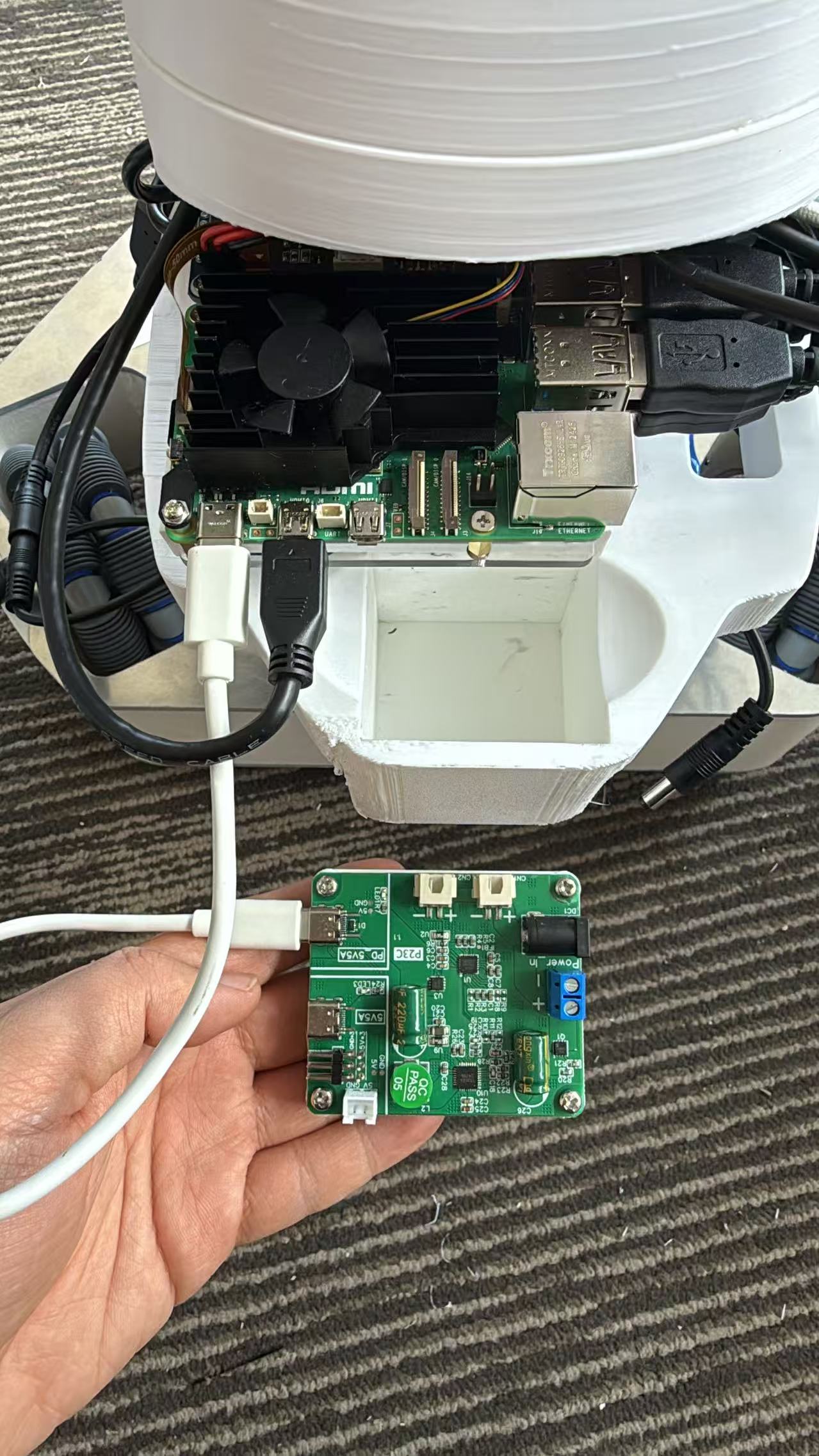
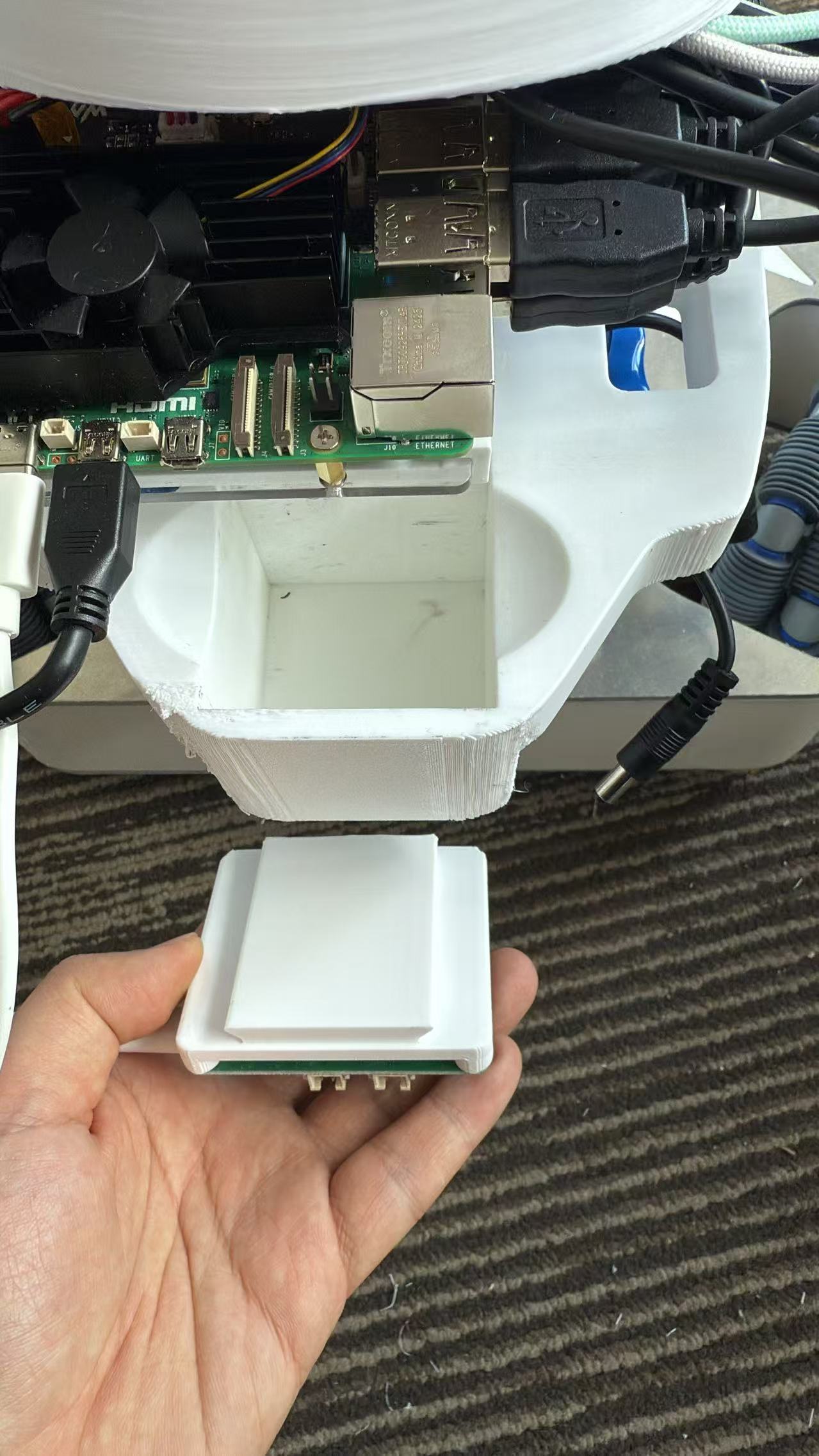
Power the Raspberry Pi through the power board’s PD 5 V / 5 A output. Never connect 12 V directly to the Pi’s 5 V input.
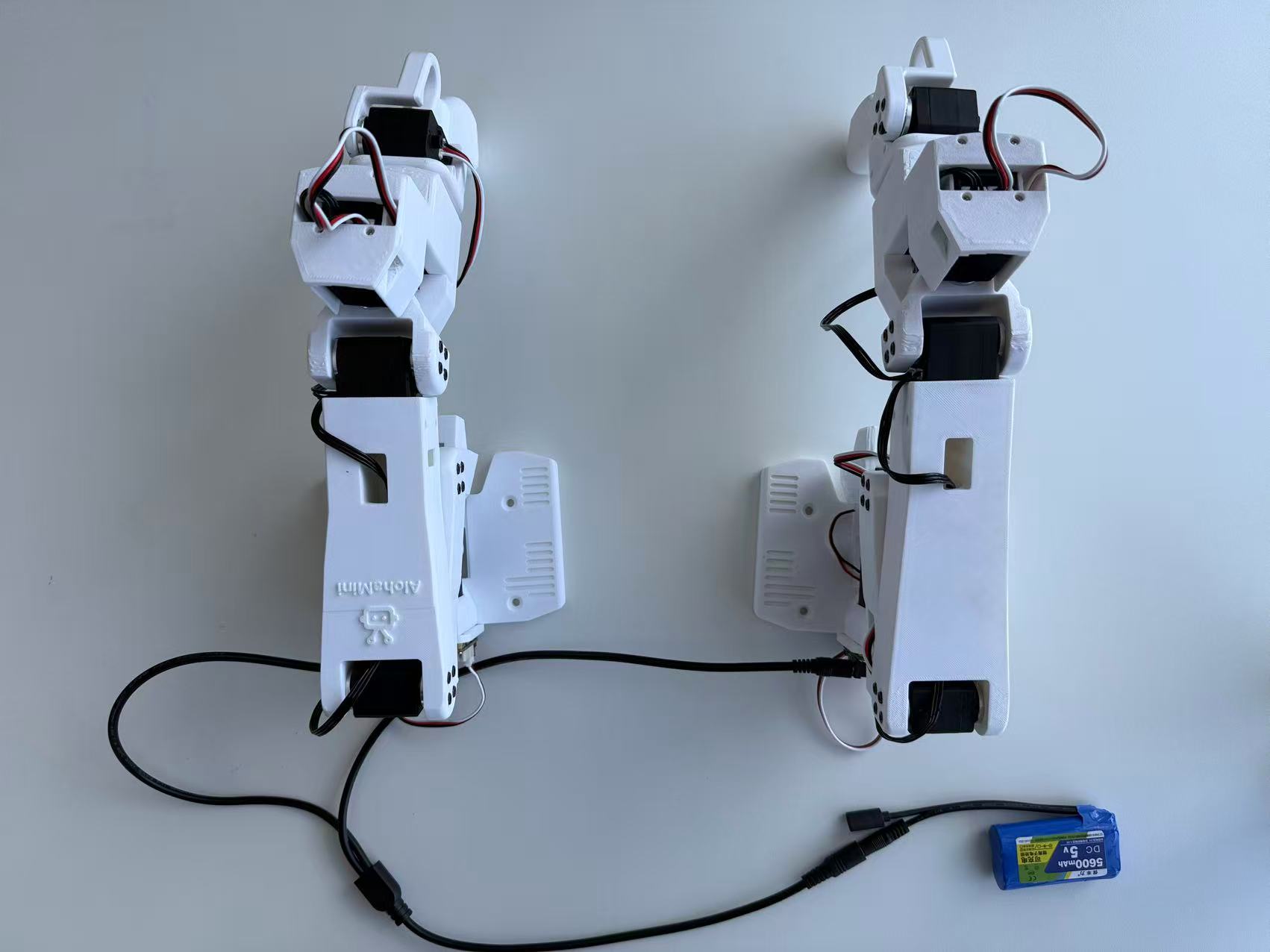
Connect the two leader arms on your desk to their matching 5 V supply, then connect each USB-C data cable to the PC.
Once powered on, connect the PC and Pi to a network where they can reach each other. Record the Pi’s current IP address and use it wherever you see
<Pi_IP>below.
Know which machine to use: the Pi controls the follower arms, base, lift and cameras. The PC connects to the leader arms you move by hand. Each command below names its target machine.
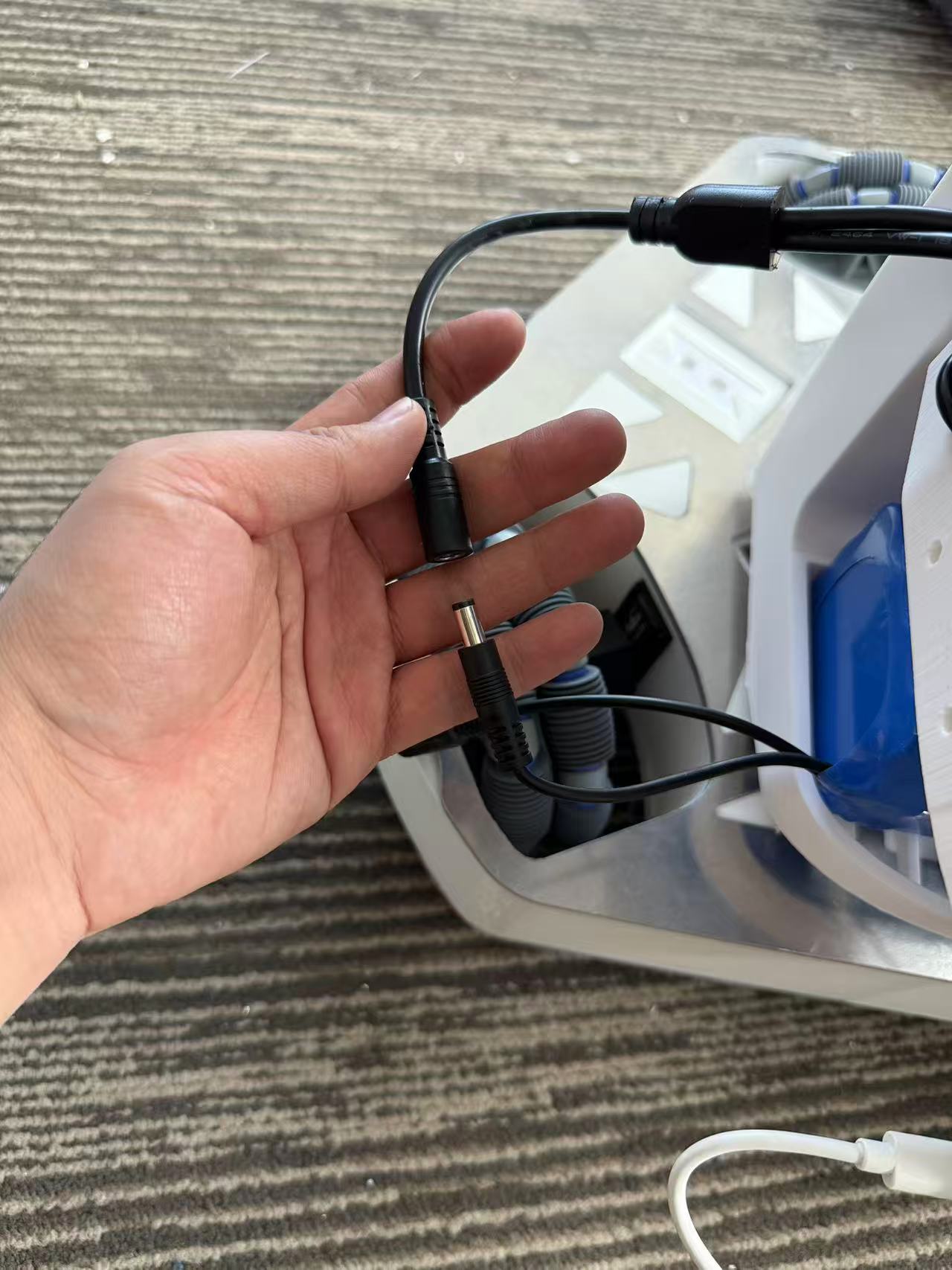
Need the wiring photos?
Use these photos to identify the connectors. Batteries and wiring can vary between kit batches.
Robot power connection
Power board and Pi connection
Leader-arm power
Leave space around the arms, base and lift, and keep cables clear of moving parts. If the screen stays dark, check the batteries, power-board connections and cables before starting any motion program.
Ready to continue: the Pi is on, both leader arms are connected to the PC, and you have recorded the Pi’s IP.
Next: install the software →02 · Install the software
Install on both the PC and Pi. This guide uses Linux, Python 3.12 and Conda. If the environment is already set up, run the checks at the end of this step.
Conda not installed yet?
On the Linux x86_64 PC:
mkdir -p ~/miniconda3
wget https://repo.anaconda.com/miniconda/Miniconda3-latest-Linux-x86_64.sh -O ~/miniconda3/miniconda.sh
bash ~/miniconda3/miniconda.sh -b -u -p ~/miniconda3
~/miniconda3/bin/conda init bash
source ~/.bashrc
On the Pi running 64-bit ARM Linux:
mkdir -p ~/miniforge3
wget https://github.com/conda-forge/miniforge/releases/latest/download/Miniforge3-Linux-aarch64.sh -O ~/miniforge3/miniforge.sh
bash ~/miniforge3/miniforge.sh -b -u -p ~/miniforge3
~/miniforge3/bin/conda init bash
source ~/.bashrc
These initialization commands use Bash. Use the matching initialization for another shell, and do not install the PC package on the Pi.
Get the code and install the environment on each machine:
git clone https://github.com/liyiteng/lerobot_alohamini.git
cd lerobot_alohamini
conda create -y -n lerobot_alohamini python=3.12
conda activate lerobot_alohamini
pip install -e ".[all]"
pip install pyzmq feetech-servo-sdk
conda install -y ffmpeg=7.1.1 -c conda-forge
Use compatible matching code versions on both machines. Resolve installation errors before controlling the robot; do not skip failed dependencies.
Allow access to the control boards on both machines:
sudo usermod -a -G dialout $USER
Log out and back in for the permission change to take effect. In each new terminal, enter the lerobot_alohamini repository and run conda activate lerobot_alohamini. Run the remaining commands from that directory and environment.
Check the environment on both machines:
python --version
python -c "import av, cv2, torch; print('av', av.__version__); print('cv2', cv2.__version__); print('torch', torch.__version__)"
ffmpeg -version
lerobot-find-cameras --help
Ready to continue: imports succeed, and FFmpeg and camera discovery are available. CUDA is not required on the Pi.
Next: configure devices →03 · Configure devices
Map the left/right ports, then check the cameras. All later commands already specify your selected model.
robot_model=alohamini2pro · Leader am-leader-6dof · Follower am-follower-6dof-hd
1. Identify each control board on its machine
lerobot-find-port
ls /dev/ttyACM*
ls /dev/serial/by-id/
Follow the tool prompts, unplugging one USB board at a time and reconnecting it after identification. Record both leader boards on the PC and both follower boards on the Pi. ttyACM0 is an example; numbering can change after reconnection.
2. Read each board’s serial number
udevadm info --attribute-walk --name=/dev/ttyACM0 | awk -F'"' '/ATTRS{serial}/{print $2; exit}'
Replace the example port with the one you identified. If boards do not have distinct serial numbers, these rules cannot identify them uniquely. Resolve the mapping before continuing; do not insert duplicate serial numbers.
3. Edit /etc/udev/rules.d/90-mydevice.rules on each machine
On the Pi, enter the actual follower-board serial numbers:
SUBSYSTEM=="tty", ATTRS{serial}=="<follower_left_serial>", SYMLINK+="am_arm_follower_left"
SUBSYSTEM=="tty", ATTRS{serial}=="<follower_right_serial>", SYMLINK+="am_arm_follower_right"
On the PC, enter the actual leader-board serial numbers:
SUBSYSTEM=="tty", ATTRS{serial}=="<leader_left_serial>", SYMLINK+="am_arm_leader_left"
SUBSYSTEM=="tty", ATTRS{serial}=="<leader_right_serial>", SYMLINK+="am_arm_leader_right"
Reload the rules on each machine and verify that the aliases point to the correct boards:
sudo udevadm control --reload-rules
sudo udevadm trigger
ls -l /dev/am_arm_*
The Pi should have /dev/am_arm_follower_left and /dev/am_arm_follower_right; the PC should have /dev/am_arm_leader_left and /dev/am_arm_leader_right. Reconnect the devices and check again.
4. Identify cameras on the Pi
lerobot-find-cameras
v4l2-ctl --list-devices
v4l2-ctl -d /dev/video0 --list-formats-ext
v4l2-ctl is provided by v4l-utils; install that system package if needed. Check the actual image and supported formats for each camera.
Set the actual paths in alohamini_cameras_config() in src/lerobot/robots/alohamini/config_alohamini.py. The default enables forward and wrist_right at 640×480, 30 FPS. One entry looks like this:
"forward": OpenCVCameraConfig(
    index_or_path="/dev/video0",
    fps=30,
    width=640,
    height=480,
    rotation=Cv2Rotation.NO_ROTATION,
),
/dev/video0 is only an example: set every enabled entry to its actual camera path. Arm alias rules do not create camera aliases. If your existing configuration uses names such as head_top, keep those names and synchronize the configuration on both machines; datasets and training must use the same names.
5. Check connectivity from the PC
ping <Pi_IP>
Ready to continue: left/right ports are stable, enabled camera paths and views are verified, and the PC can reach the Pi.
Next: calibrate →04 · Calibrate the arms
Stop any Host, teleoperation or debugging program that may be using the ports. Leave room for the joints and move them slowly when prompted; never force them past mechanical stops.
Calibrate the follower arms on the Pi:
python -m lerobot.robots.alohamini.alohamini_calibrate --robot_model alohamini2pro
Calibrate both leader arms on the PC:
python examples/alohamini/calibrate_bi.py \
  --teleop.id am_leader_bi \
  --teleop.arm_profile am-leader-6dof
Follow the terminal prompts to record the midpoint and joint ranges. During range measurement, move every requested joint and verify that its minimum and maximum readings change before saving. Keep using am_leader_bi as teleop.id in later steps.
Already have calibration files?
You can reuse calibration when the physical arms, device IDs, profiles and structure match. Recheck and recalibrate after joint assembly changes, replacement parts, profile changes or abnormal motion. Factory calibration is only valid for its matching setup.
Power-cycle the leader and follower arms after calibration, then proceed to small-motion checks.
Ready to continue: calibration is saved on both machines, with the same device IDs and profiles.
Next: teleoperate →05 · Teleoperate your robot
Pi: start the Host and leave this terminal running.
python -m lerobot.robots.alohamini.alohamini_host --robot_model alohamini2pro
Resolve any port, calibration or camera error in the logs before starting the client.
PC: replace <Pi_IP>, then start the control program.
python examples/alohamini/teleoperate_bi.py \
  --robot.remote_ip <Pi_IP> \
  --robot.robot_model alohamini2pro \
  --teleop.id am_leader_bi \
  --teleop.arm_profile am-leader-6dof \
  --fps 50 \
  --camera-fps 30
Slowly move one leader arm and check its follower, then test the other arm and grippers. Once sides and directions match, briefly test the base and lift.
Keys |
Action |
|---|---|
W / S |
Forward / backward |
Z / X |
Move left / right |
A / D |
Turn left / right |
U / J |
Raise / lower the lift |
T / G |
Increase / decrease the speed level |
Ctrl+C |
Exit teleoperation from its terminal |
If sides are reversed, directions are wrong or motion jumps, exit and recheck port mapping and calibration in steps 3 and 4. Do not record while motion is abnormal.
Ready to continue: both arms, grippers, base and lift respond correctly, and you can exit with Ctrl+C.
Next: record a demonstration →06 · Save your first demonstration
Exit PC teleoperation and keep the Pi Host running. Run only one control client at a time. Record a single 10-second demonstration to check the full recording pipeline.
On the PC, replace HF_USER with your Hugging Face username, update the task description to match the action, and run:
export HF_USER="your-hf-username"
python examples/alohamini/record_bi.py \
  --dataset.repo_id $HF_USER/am2pro_first_episode \
  --dataset.num_episodes 1 \
  --dataset.fps 10 \
  --dataset.episode_time_s 10 \
  --dataset.reset_time_s 3 \
  --dataset.single_task "Pick up the object and place it in the tray" \
  --dataset.push_to_hub=false \
  --robot.remote_ip <Pi_IP> \
  --robot.robot_model alohamini2pro \
  --teleop.id am_leader_bi \
  --teleop.arm_profile am-leader-6dof
Automatic uploading is disabled in this example. Perform the action during recording, then inspect the locally saved episode:
lerobot-dataset-viz \
  --repo-id $HF_USER/am2pro_first_episode \
  --episode-index 0 \
  --display-compressed-images
Check that every camera view is correct, the action is complete and video does not freeze for long periods. This short episode checks the pipeline; it is not enough to evaluate training quality.
Once the checks pass, continue with Data collection to record consistent demonstrations for training. Your first session is complete.
Done: your first demonstration is saved and has been reviewed.