Unboxing and first power-on#
Applies to: AlohaMini 2 / 2 Pro delivered assembled. Self-assembly standard 2 Please complete Hardware assembly first.
Check before you start#
Equipment |
Deliver configuration |
Check the key points |
|---|---|---|
Arm, chassis and lift |
A 12 V battery |
Verify DC connector, polarity with actual kit label |
Raspberry Pi |
Another 12 V battery → Power strip → PD 5 V / 5 A interface |
Powered by the power strip, 12 V cannot be directly connected to the Raspberry Pi 5 V input |
Two teleoperation leader arms |
5 V power supply |
First distinguish the leader arm and the follower arm, and then connect the corresponding power supply. |
PC and Raspberry Pi |
The same interoperable LAN |
Record the current IP of Raspberry Pi, giving priority to 5 GHz Wi-Fi with stable signal |
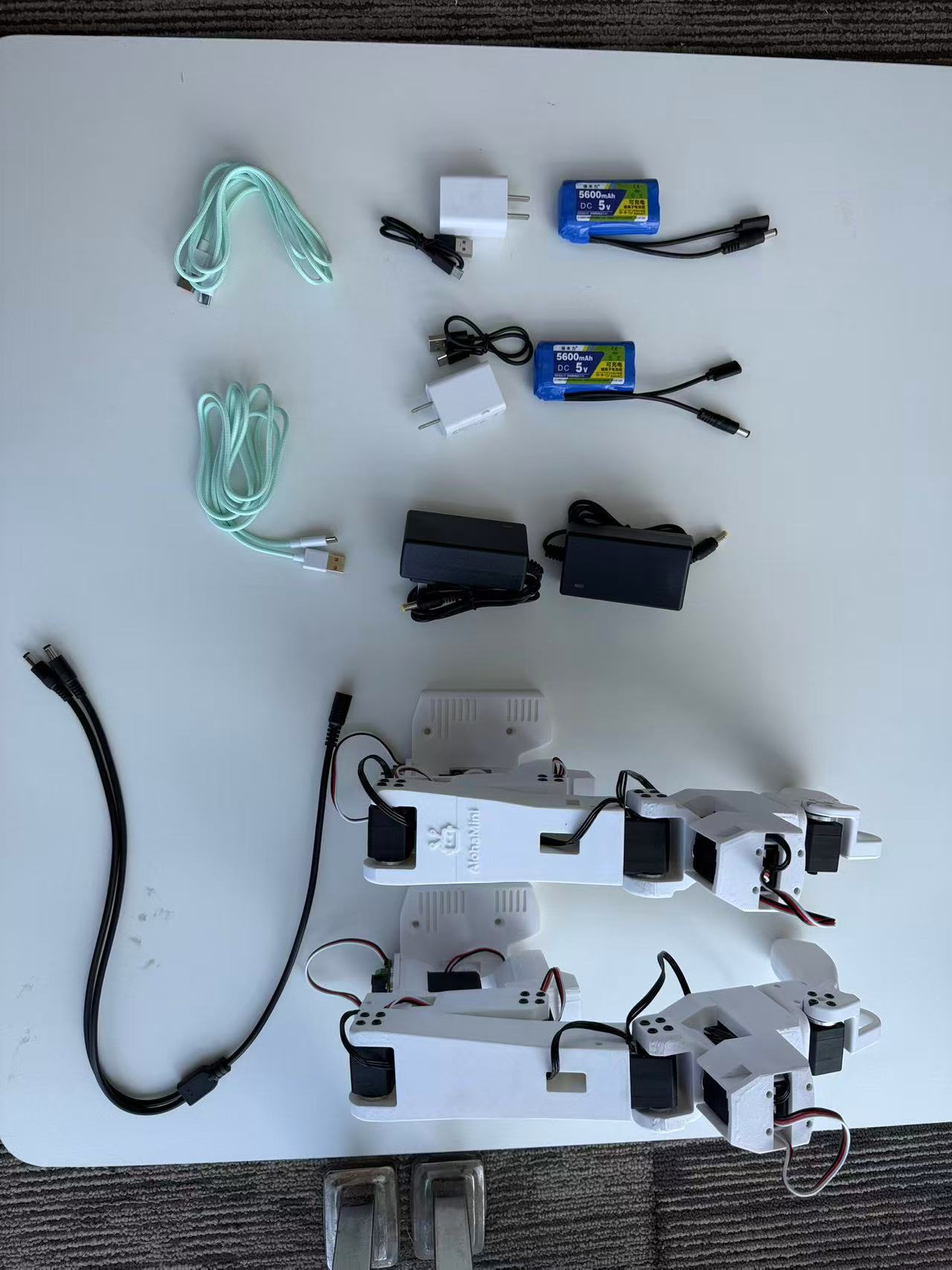
Photos correspond to specific delivery batches. If there are changes in the number of batteries, wiring harnesses and power boards, please refer to the box instructions and equipment identification. Turn off the power first and check the wiring, then turn on the power and check.
Thanks for ordering the AlohaMini.
AlohaMini is a set of two-arm elevating robots used for algorithm teaching and reproduction. When packaging and shipping, try not to remove the wires. In terms of hardware, you only need to connect the battery and turn it on.
Hardware installation#
Robot side#
Find the charger and battery in the box, two 12V lithium batteries and their charger, two 5V lithium batteries and their charger. When the 12V lithium battery is being charged, the charger’s red light will always be on, and when it is fully charged, the green light will be on. After 5V is fully charged, 4 white lights will light up on the battery.
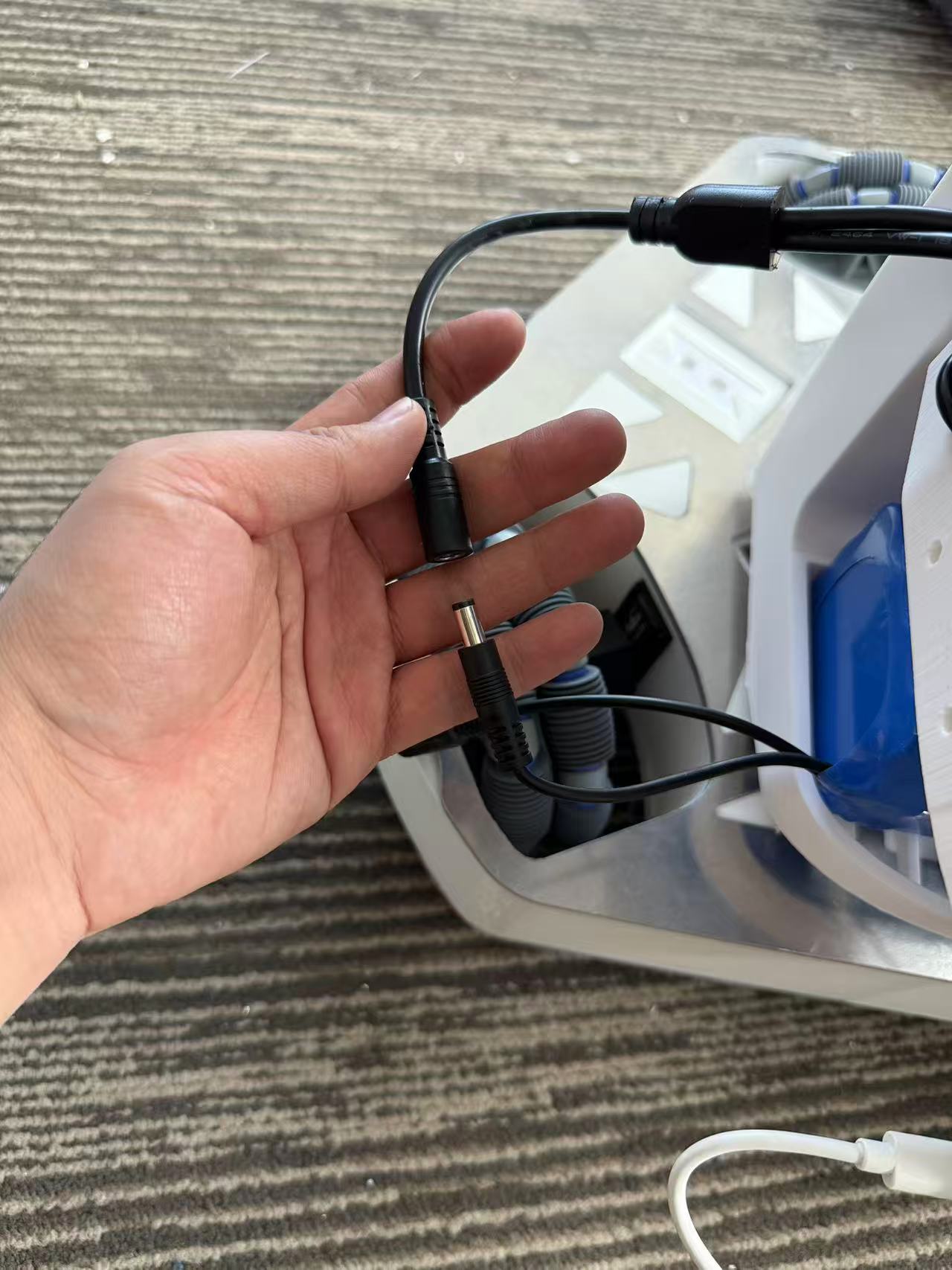
Put a 12V battery into the bottom compartment of the robot, connect it to the DC line interface in the picture, and power the Follower Arms and lifting chassis.
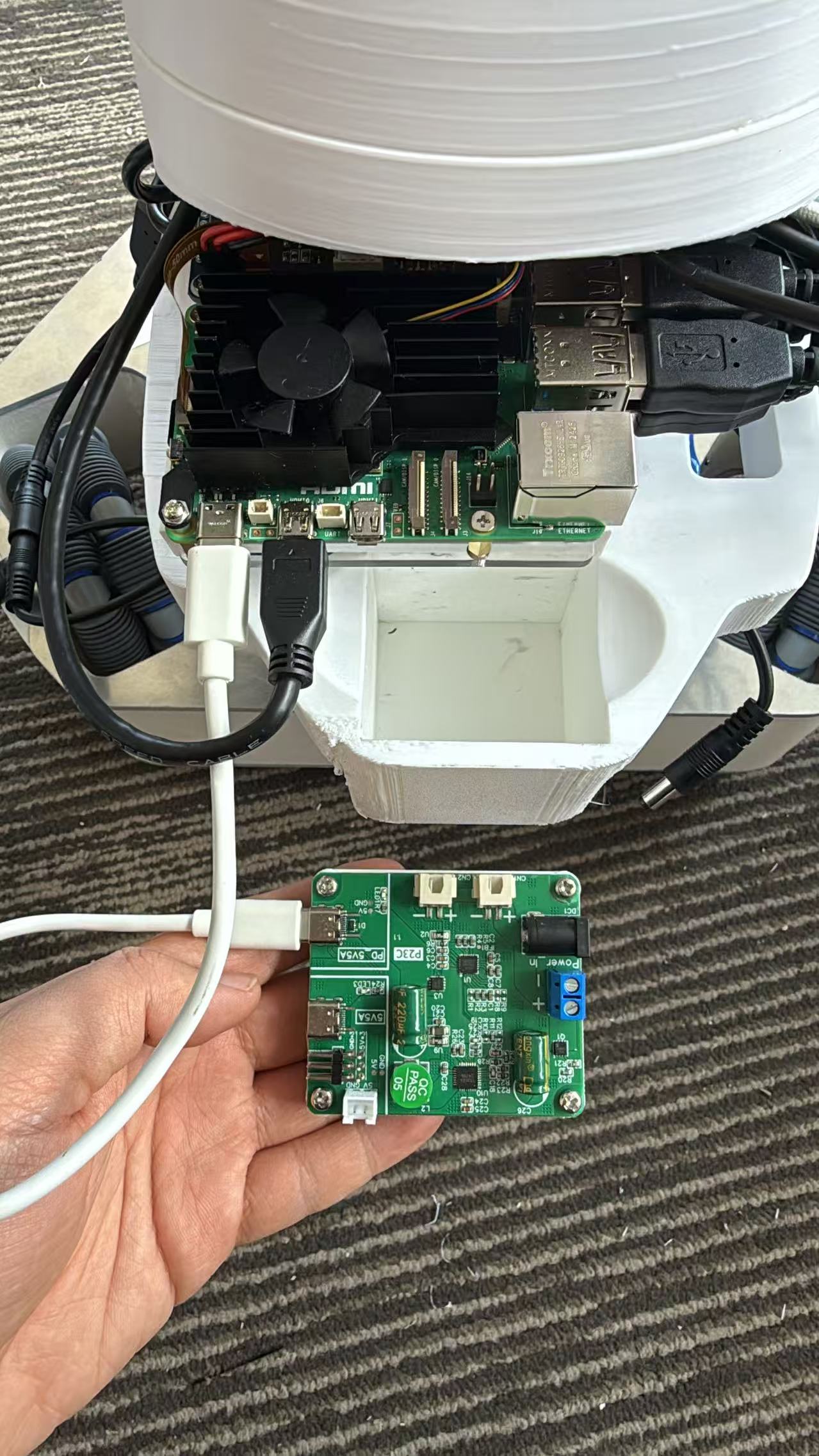
Insert the power board into the card slot and connect it to the Raspberry Pi using the PD 5V5A socket.
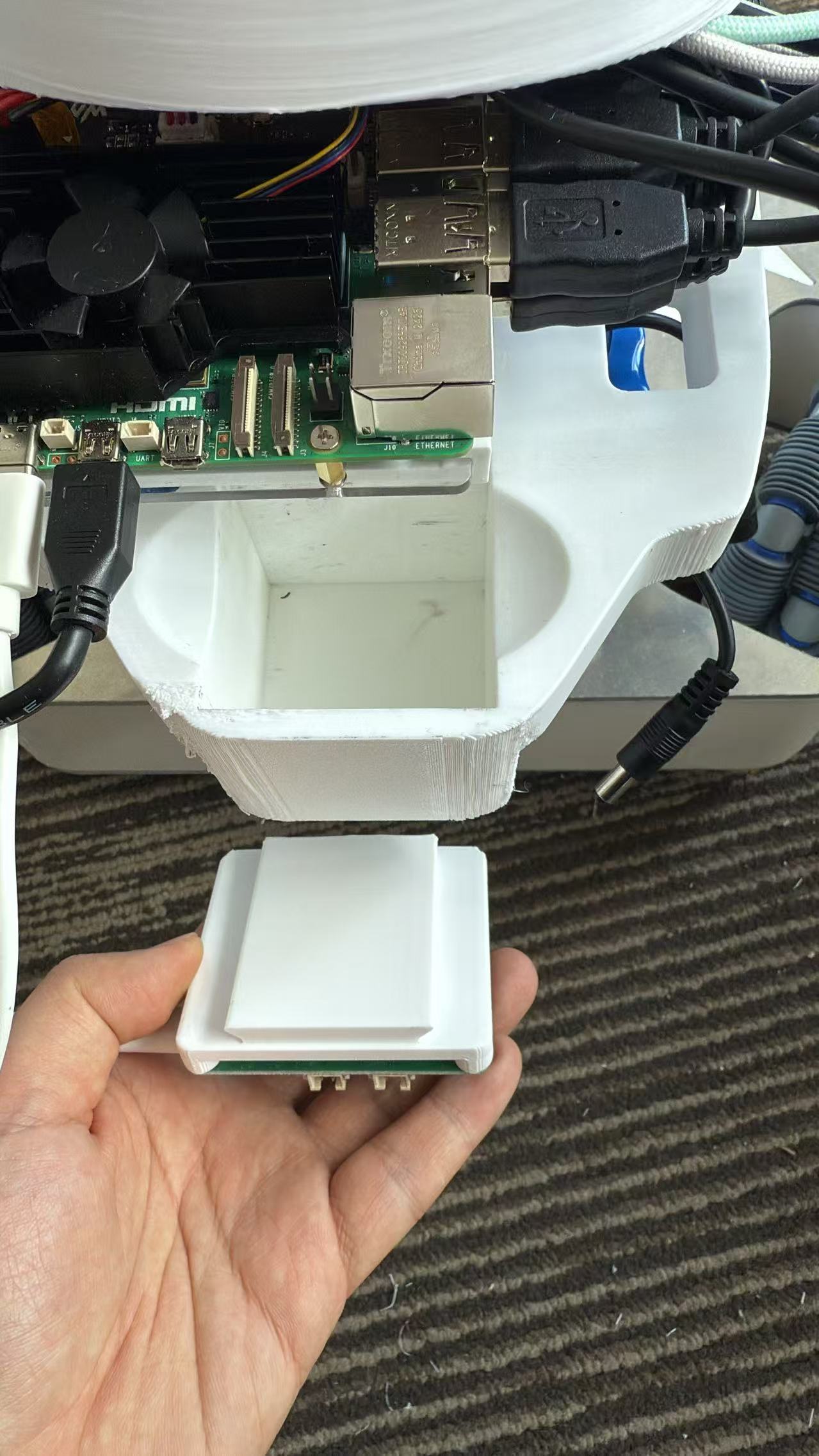
Place another 12V battery into the bottom compartment to power the power strip.
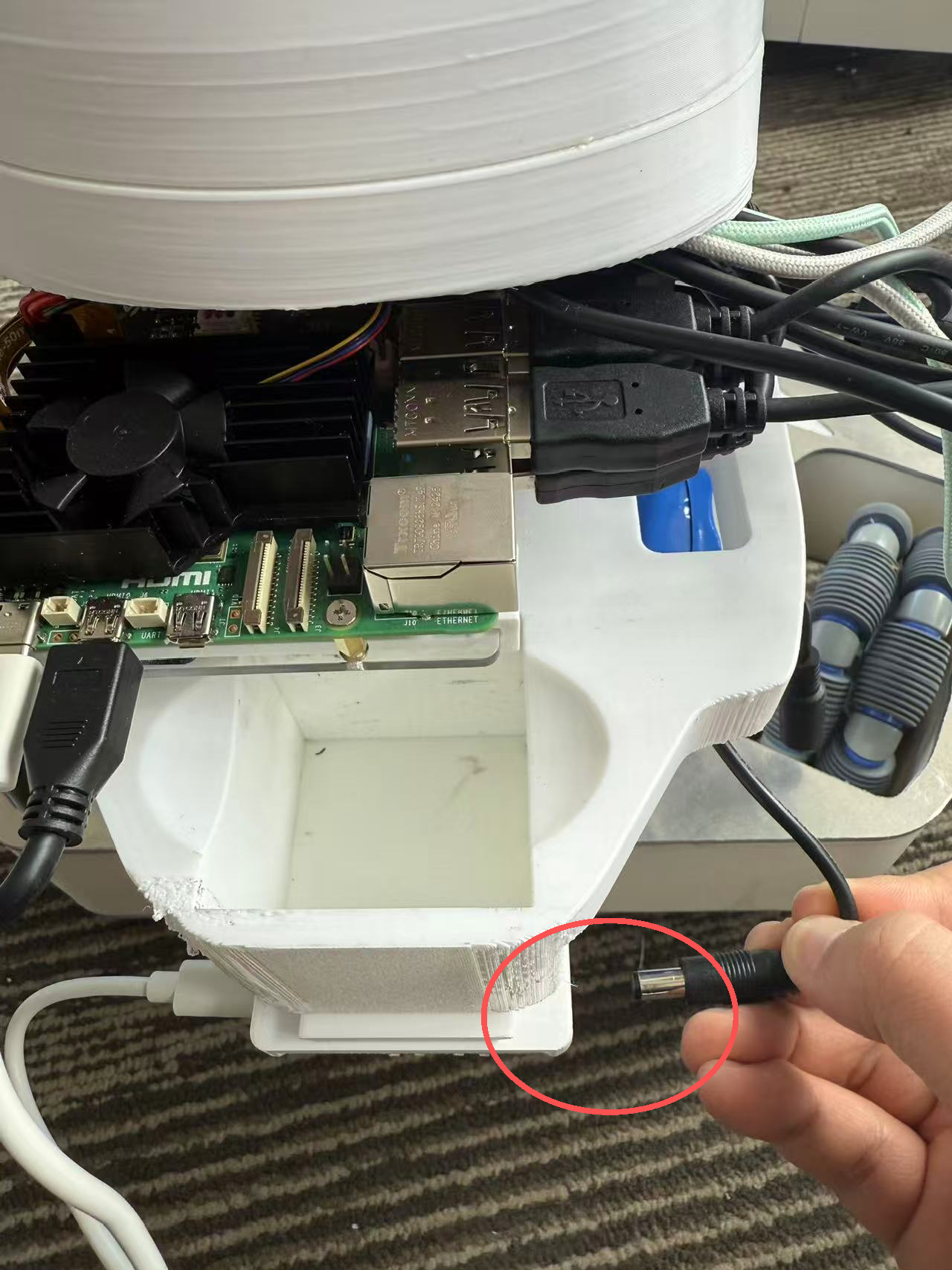
After success, the Raspberry Pi screen will light up. The screen is touch screen. You can connect to a 5 GHz band wifi and record the current Raspberry Pi IP address, such as: 192.168.50.88
(If it is inconvenient to operate, you can also connect the keyboard and mouse via Bluetooth.)
teleoperation end#
Connect the 5V power supply to the DC line to power the two robotic arms. Both of the following methods will work:
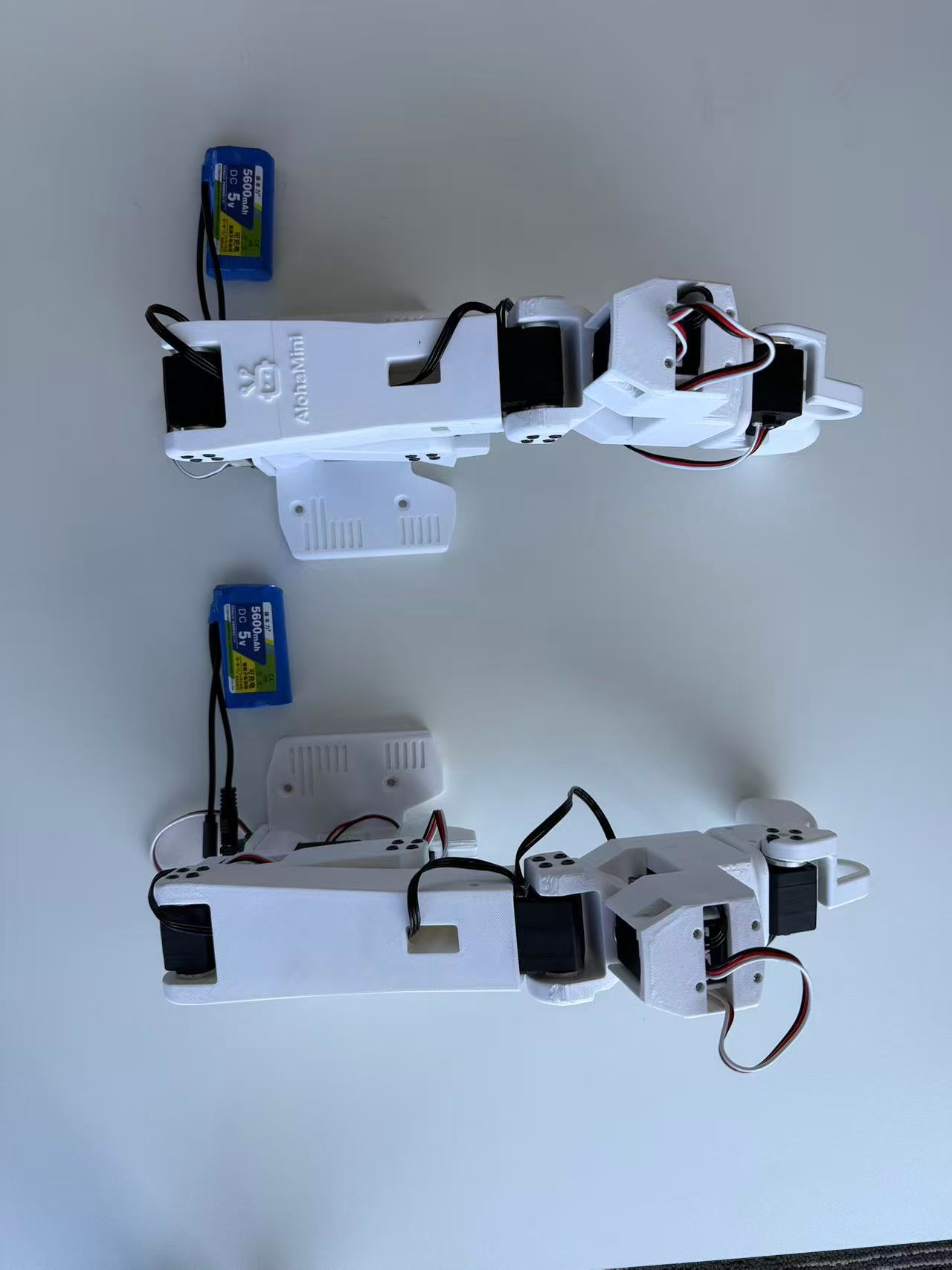
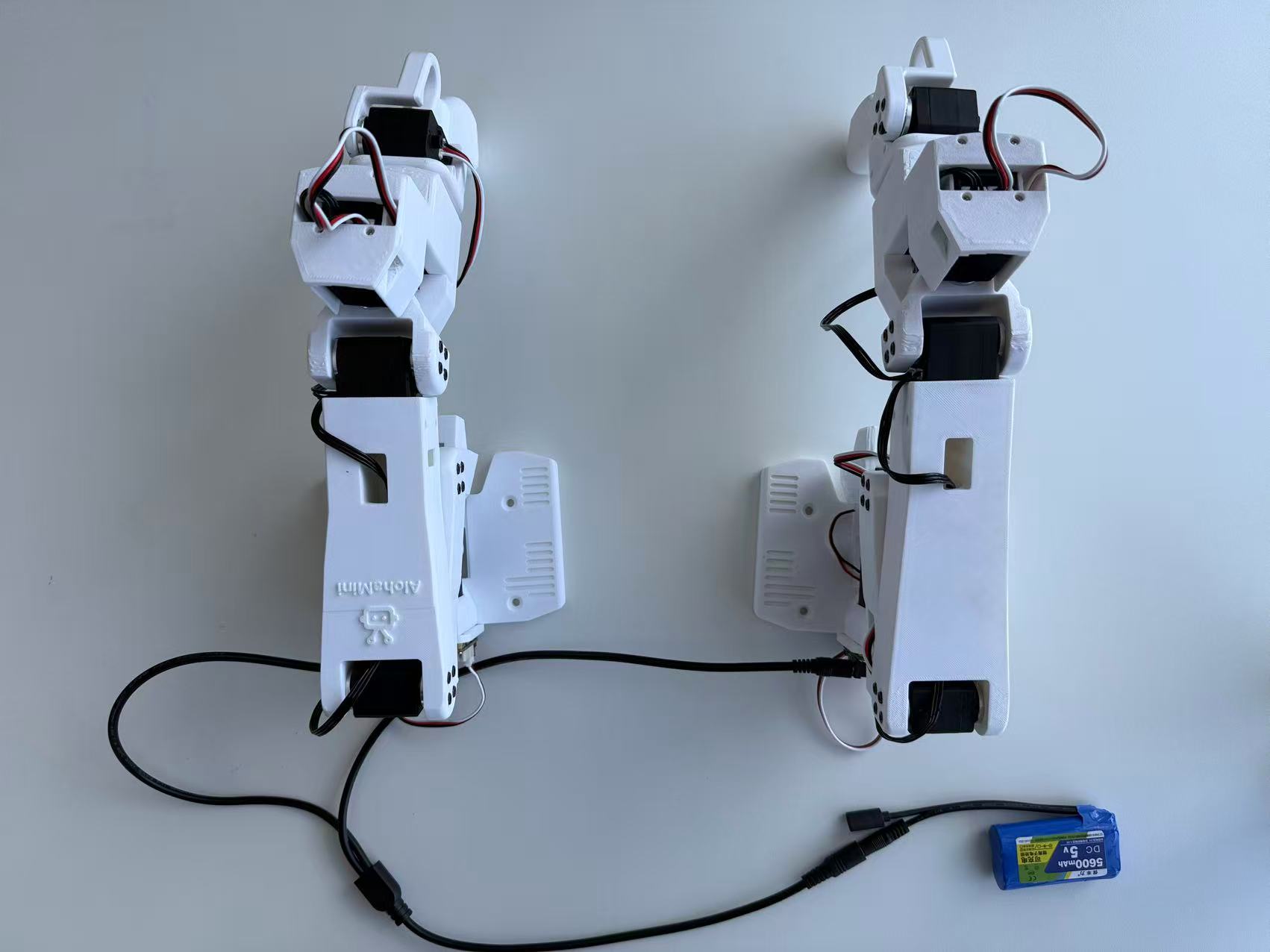
Then connect the USB-C ports of the two robotic arms to the PC
What should you see after powering on?#
The Raspberry Pi screen lights up normally and can enter the desktop and connect to the network.
What is recorded is the current LAN address of the robot, not the example address in the tutorial screenshot.
The USB-C of the two leader arms has been connected to the PC; the USB data cable and the servo power supply have been connected.
Leave space around the robotic arm, lift, and chassis so that wiring harnesses do not become entangled in moving parts.
When the screen does not light up or the camera fails to start, first check Power supply and equipment troubleshooting. Do not use the startup motion program to determine whether the wiring is correct.
Next step#
Continue with your model’s guide. Wiring is now complete, so open step 2 to install the software:
The same guide includes configuration, calibration, teleoperation and your first recording.