Simulation and visualization#
There are also video2sim scene reconstruction and Simulation data generation/conversion in the software repository. For the configuration of the first-generation robot, see the First generation simulation tutorial.
The existing model resources in the hardware warehouse are located at AlohaMini1/simulation, which corresponds to the first generation of robots. This page is mainly based on the ROS 2 / ament_cmake / colcon construction method actually used by the current package.
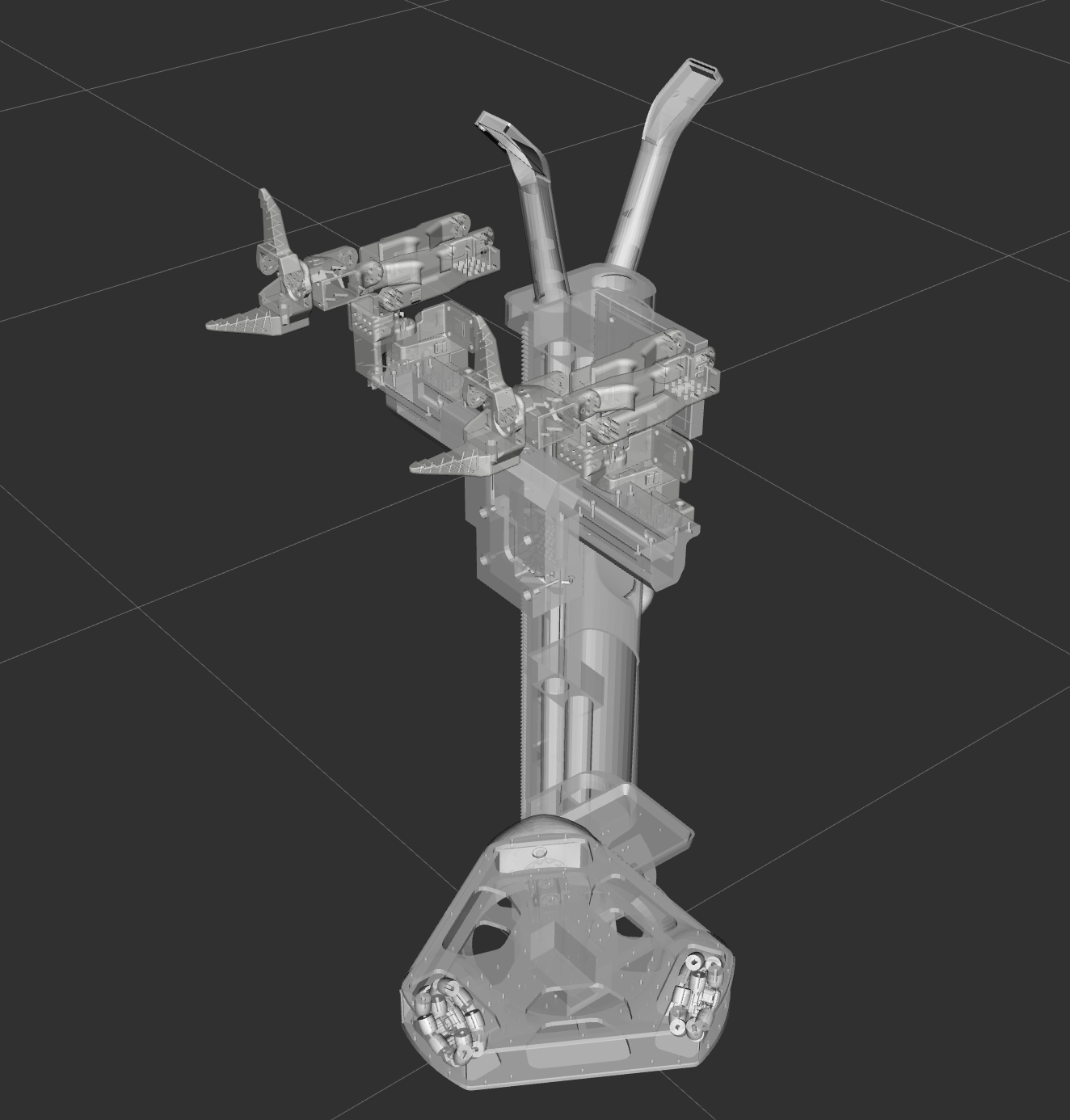
What does the resource contain?#
Path (relative to simulation workspace) |
content |
|---|---|
|
First-generation robot model and joint structure |
|
Grid of robot parts |
|
RViz visual configuration |
|
ROS 2 model display entrance |
|
Reserved ROS 1 display files |
|
Preserved Gazebo startup files |
The currently displayed entry starts robot_state_publisher, joint_state_publisher and rviz2. Model display is not equivalent to real machine control, nor does it mean that the second-generation dynamics and controller have been adapted.
1. Prepare ROS 2 environment#
First install the ROS 2 version suitable for your system on Linux and load the environment. The following <distro> needs to be replaced with the actual release name:
source /opt/ros/<distro>/setup.bash
The original tutorial uses Ubuntu-based dependency tools:
sudo apt update
sudo apt install -y python3-colcon-common-extensions python3-rosdep
Systems that have already initialized rosdep should not be initialized again. When it is not initialized, follow the rosdep installation process to complete the initialization and index update.
2. Enter the correct workspace#
The following directories are located in the AlohaMini hardware warehouse, which is two warehouses from the lerobot_alohamini controlled by the whole machine:
cd /path/to/AlohaMini/AlohaMini1/simulation
rosdep install --from-paths src --ignore-src -r -y
colcon build
source install/setup.bash
The current package name remains in uppercase Aloha, and the startup command needs to be consistent with it.
3. Start model visualization#
ros2 launch Aloha display.launch.py
It is expected to open RViz2 and load the first generation robot model. If you only see an empty scene, check whether the model loading log, TF, fixed coordinate system, and robot_state_publisher are successfully started.
Each new terminal needs to load the ROS 2 environment and install/setup.bash of the workspace first.
4. FAQ#
phenomenon |
check direction |
|---|---|
Package not found |
Whether the build is successful, whether the source workspace is used, and the case of the package name |
meshes not found |
Whether the resource path is complete and whether the installation product contains the meshes directory |
ROS dependency not found |
Recheck rosdep output with system release in workspace |
Model not displayed |
Publish node, TF, RViz fixed coordinate system, URDF loading log |
Different from the real machine form |
The current URDF corresponds to the first generation and cannot be directly used as a second generation model. |
Scope of ROS 1 and Gazebo resources#
The original README introduces both ROS 1 and ROS 2, but currently CMakeLists.txt and package.xml actually use ROS 2’s ament_cmake. Keeping ROS 1 launch files not equal to the current directory can be built directly with catkin_make.
If you need ROS 1/Gazebo, you should first check the package build configuration, Gazebo version, plug-in and controller adaptation; this tutorial does not list unverified ROS 1 commands as directly runnable mainline.
Second generation adaptation needs to be checked#
The second generation has replaced the robotic arm and lifting structure. During adaptation, at least the following needs to be checked: geometric dimensions, joint chains, joint limits, mass and inertia, collision geometry, camera position, and the corresponding relationship with the real machine control fields. Until this is done, the first-generation model should not be used to extrapolate the collision range or motion capabilities of the second-generation.