AlohaMini 2 Hardware Assembly#
applicable model: Standard AlohaMini 2. Pro users please read the 2 Pro hardware first; the material quantity, printouts and assembly photos on this page correspond to the standard version.
This guide provides a complete introduction to the body assembly of the AlohaMini 2 / Mobile Base 2. The leader arm and follower arm need to be completed independently according to AM-ARM200 Assembly Guide, and then installed on the console and fuselage. The metal chassis of the 2 Pro is not included in the assembly scope of this page.
Before starting#
Prepare the parts in Bill of materials and Print list. Dry install first, confirm the direction and fit, and then glue; the glue shall be fully cured according to the product instructions before loading. The following photos are from the second-generation assembly data of the project.
stage |
When finished you should see |
|---|---|
Servo number and chassis |
The three wheel servos are in the correct position and the bus connection sequence is clear. |
Omnidirectional wheels and columns |
The wheel set is fixed and the column flange completely fits the chassis. |
Shoulders and lifts |
Eight rail bearings are in place so the shoulders slide smoothly |
Arms and camera |
The left and right arms are fixed, and the camera direction and purpose are recorded. |
Cabling and power supply |
There is margin for the entire lifting stroke, and the power path is clear |
Module debugging |
The chassis, lifting and robotic arms are inspected separately before linking them. |
1. Set servo ID#
Before installation, only connect one servo to be configured at a time. records the current ID first and then writes the target ID to avoid duplicate numbers on the bus.
location |
Target ID |
|---|---|
left rear wheel |
10 |
front wheel |
9 |
right rear wheel |
8 |
shoulder lift |
11 |
First press the Software installation and configure lerobot_alohamini. Run the following example in the root directory of the software repository to change the servo with the current ID of 1 to 8:
python examples/debug/motors.py configure_motor_id \
  --id 1 \
  --set_id 8 \
  --port /dev/ttyACM0
--id is the current number, --set_id is the target number, and the serial port needs to be replaced with the actual control board path. Repeat for the remaining servos. You can also use Feite FD Debug Tool to scan and write at the baud rate of 1000000 through the Waveshare control panel; after completing one, disconnect it and then connect the next one.
2. Assemble the chassis#
Clean the three chassis supports, especially the wheel wells, wire ducts, and pin holes.
Apply epoxy glue after the joint interview is complete.
Place
OB_Chassis_Locking_Wedge.stlinto the locking slot. The wedge has a taper, pay attention to the direction, and will be used to lock the column base later.Apply glue to the
OB_Chassis_Frame_Joiner.stlconnector, press the chassis block tightly, and confirm that the joint is in place.
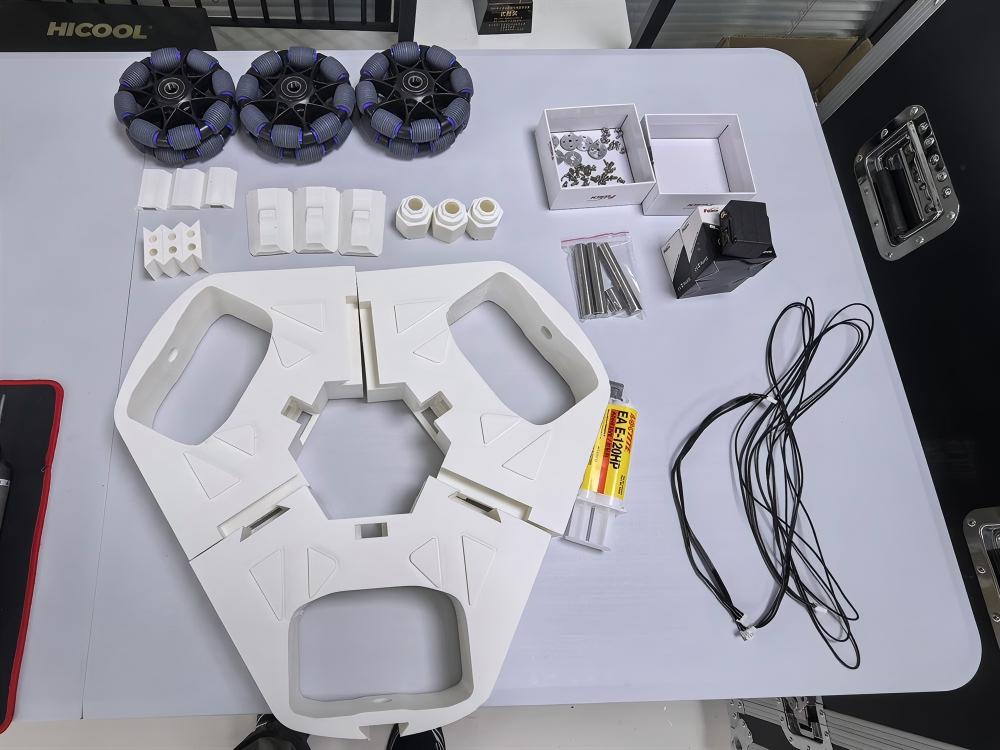
Chassis prints and fasteners#
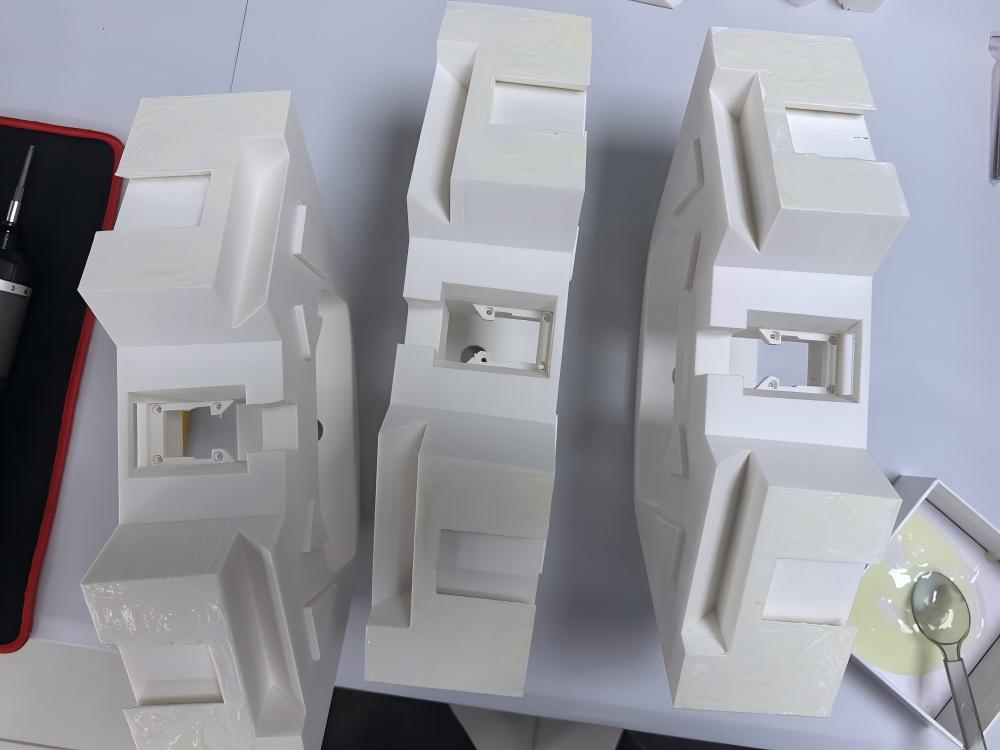
The glue application position of the chassis joint surface#
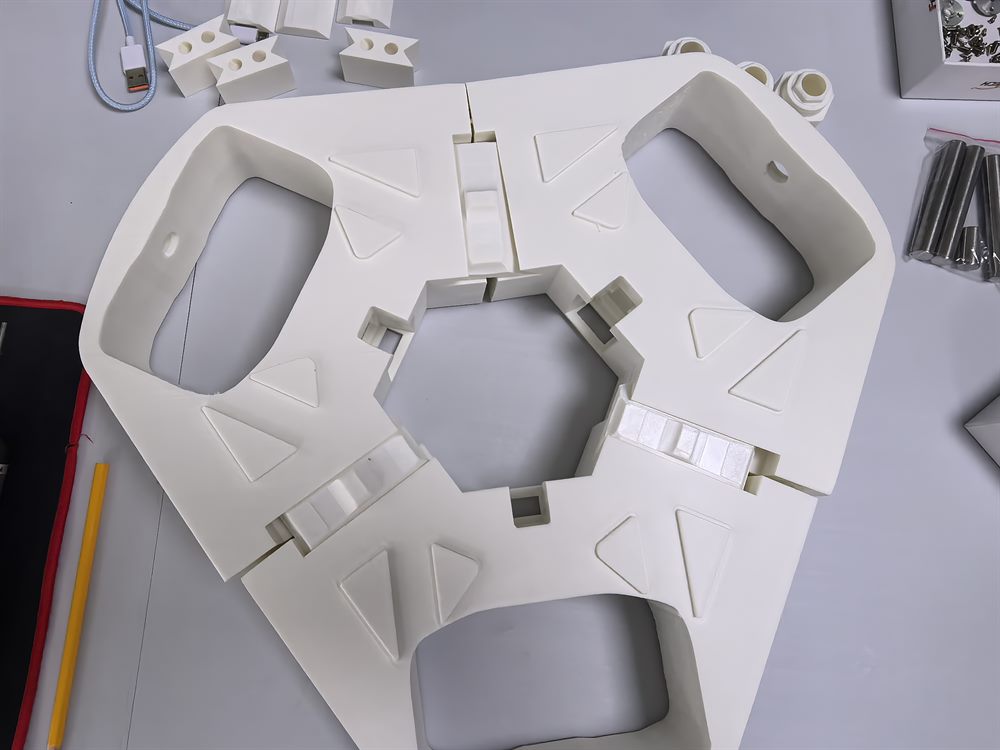
Locking wedge installation position#
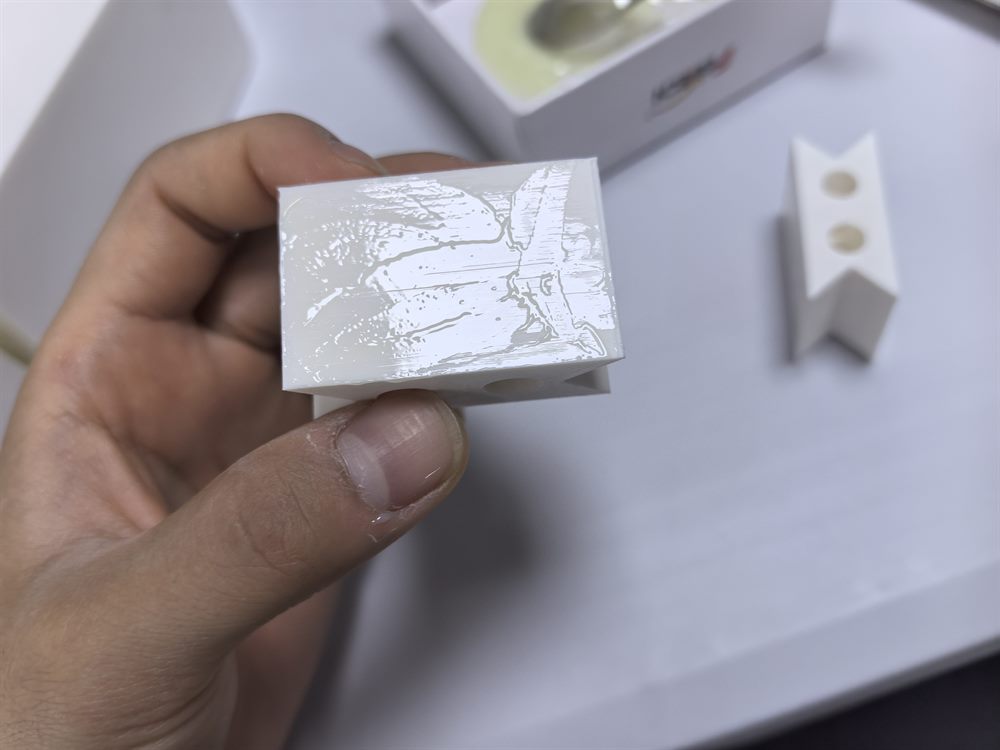
Chassis connector#
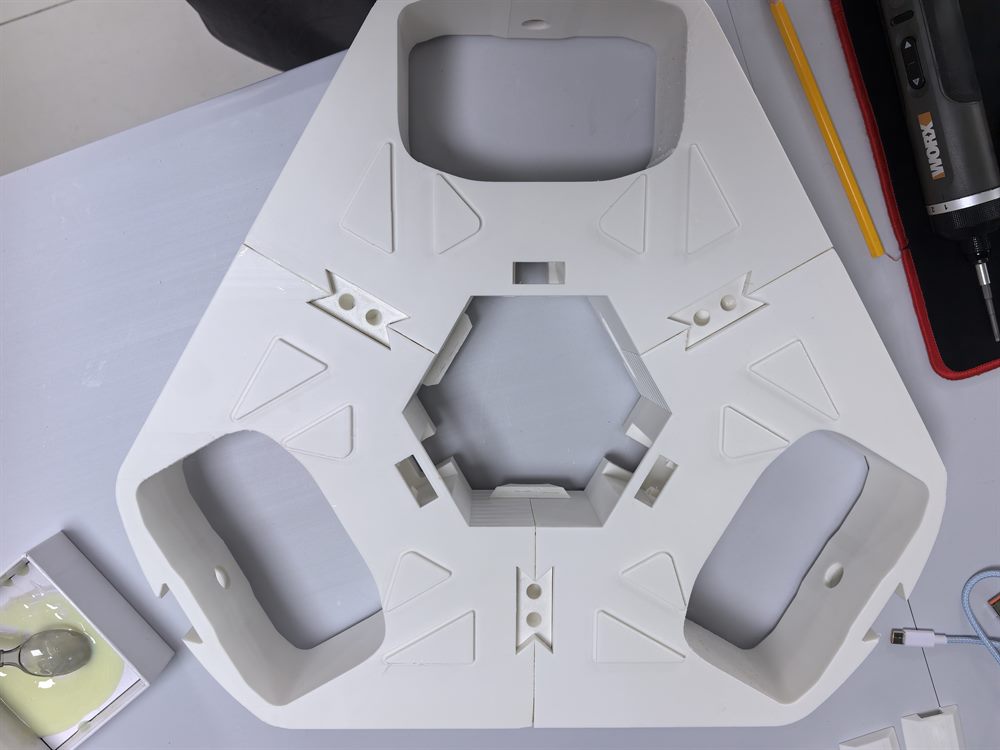
The structure of three chassis spliced together#
Install wheel servo and bus#
Install the three-wheel servo with the ID set in the direction of the photo, and fix it with the screws provided with the servo. The connection sequence is:
右后轮 8 → 前轮 9 → 左后轮 10 → 升降舵机 11
ID 10 to ID 11 are further away, and the three-needle line is at least 90 cm, and the original guide recommends 140 cm. Before fixing, confirm that it can pass through the column and leave margin for lifting.
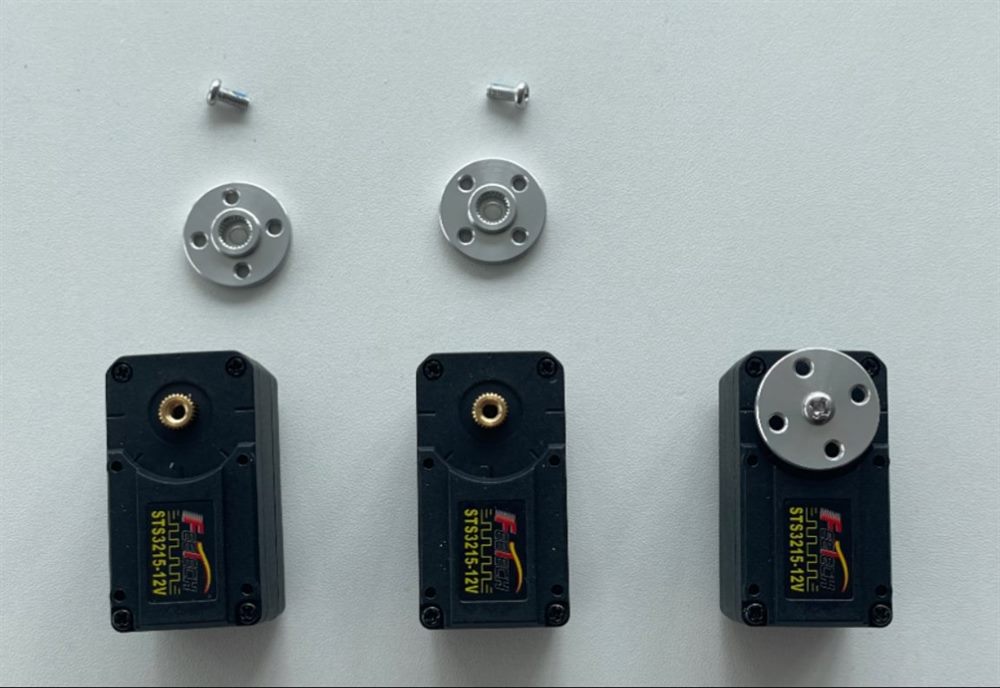
Three wheel servo#
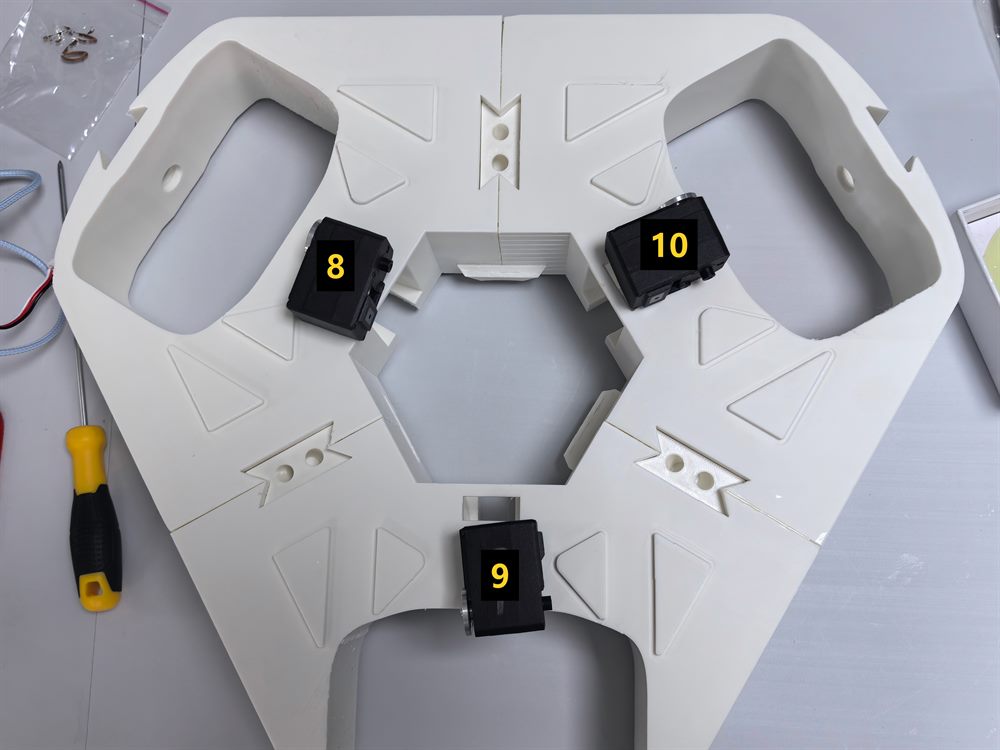
Chassis servo position and ID assignment#
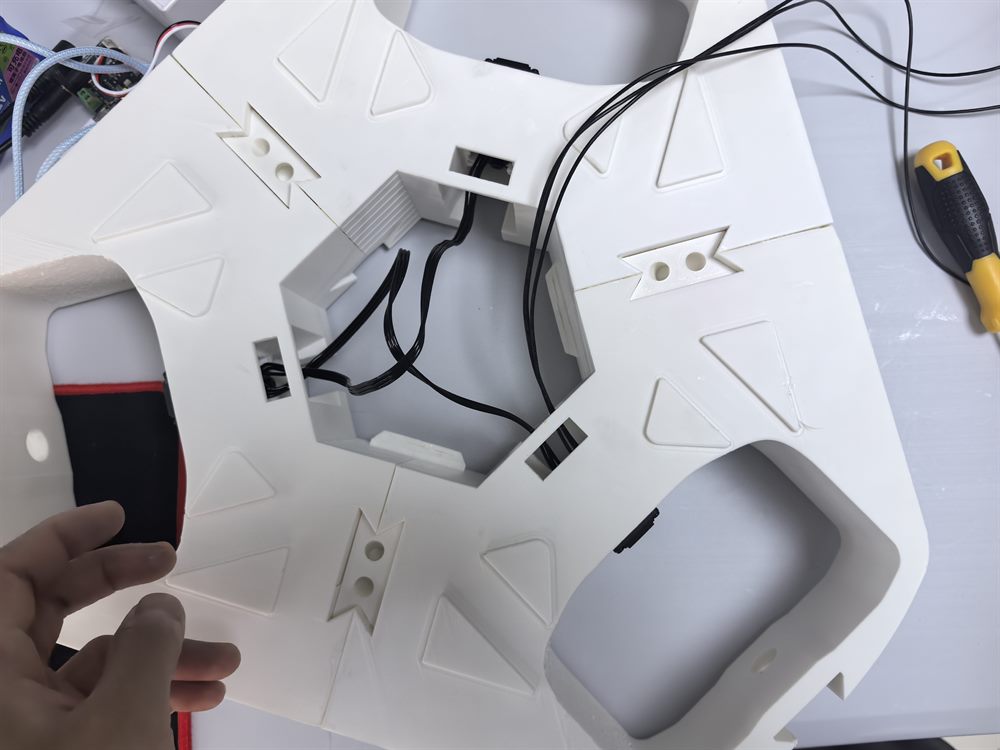
Bus wiring between wheels and servos#
3. Install omnidirectional wheels#
Each axle connection piece comes pre-installed with four M3×10 screws.
Press the connector onto the servo output plate and confirm that the four mounting holes are aligned.
Tighten the screws through the reserved operating holes.
Install the omni wheel, axle, 12×18×4 mm bearing, gasket and bearing cap.
Check the fixation and rotation of the wheel set to prevent cables from entering the wheel movement range.
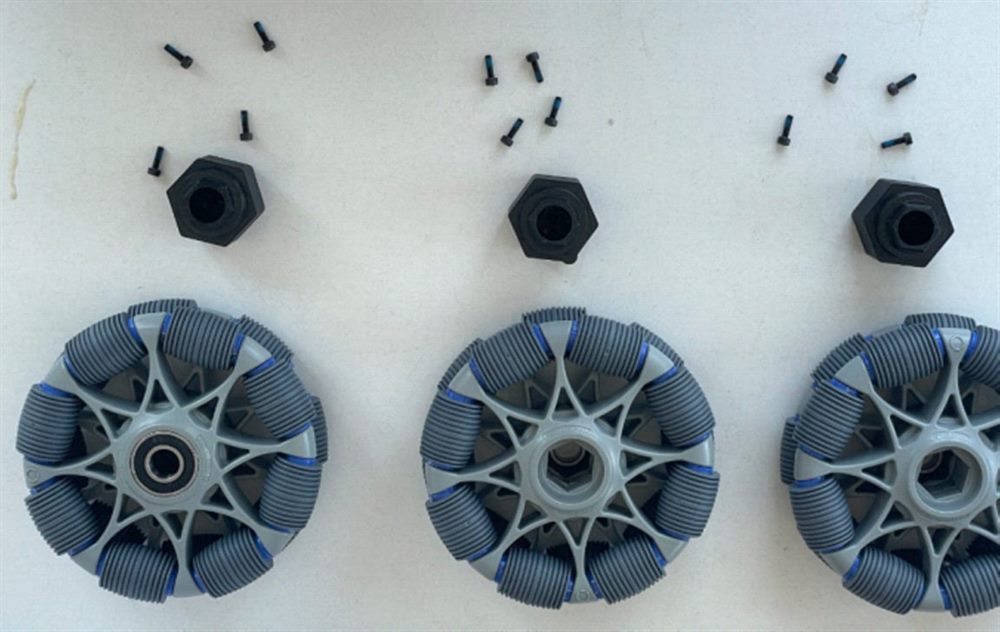
Axle connector and M3×10 screws#
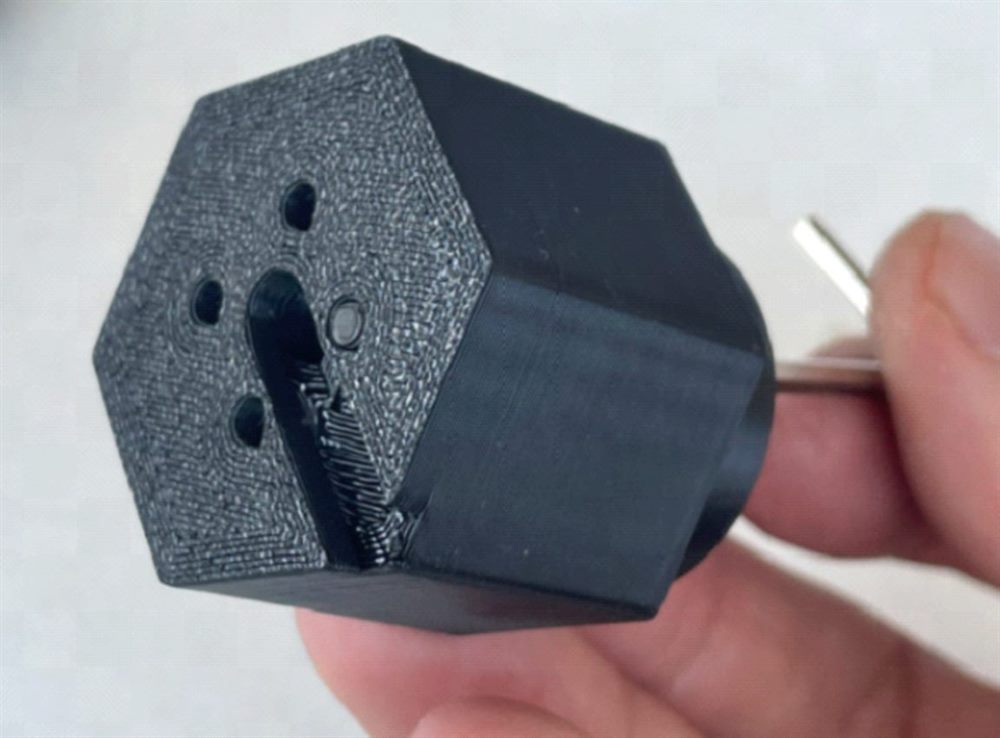
Align the connector with the servo output disk#
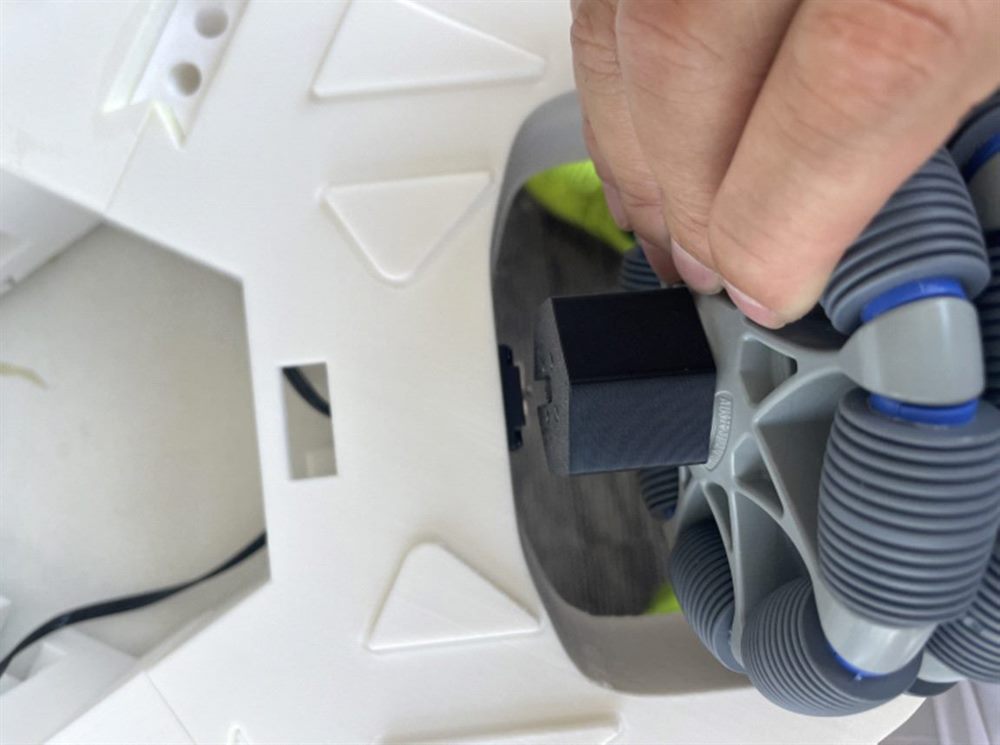
Tighten the connection piece from the operating hole#
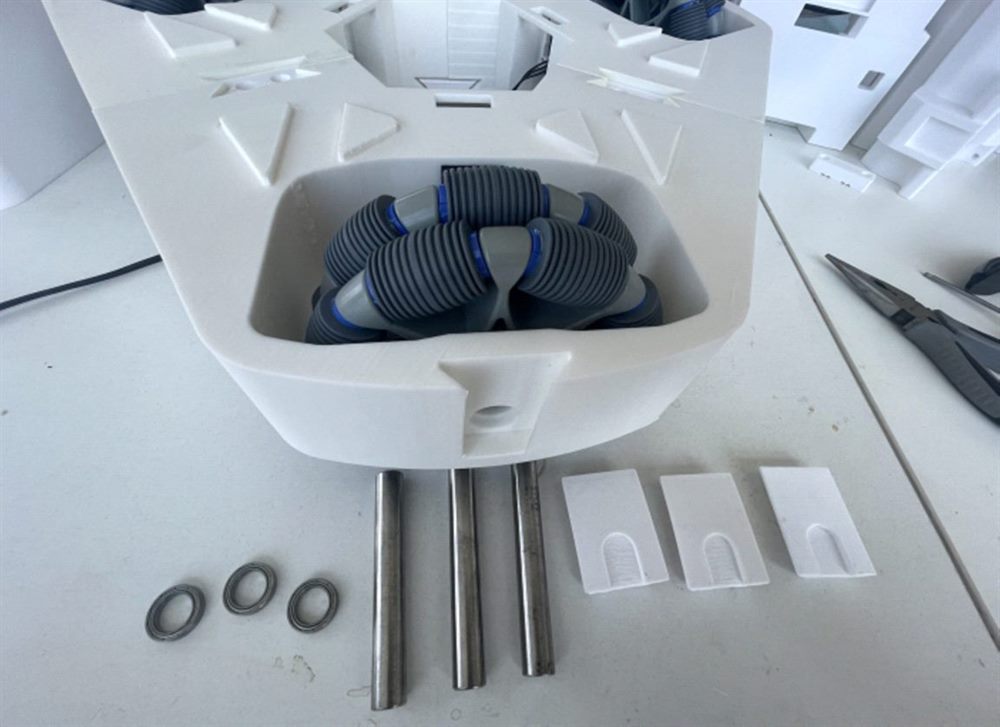
Shafts, bearings and fasteners for omnidirectional wheels#
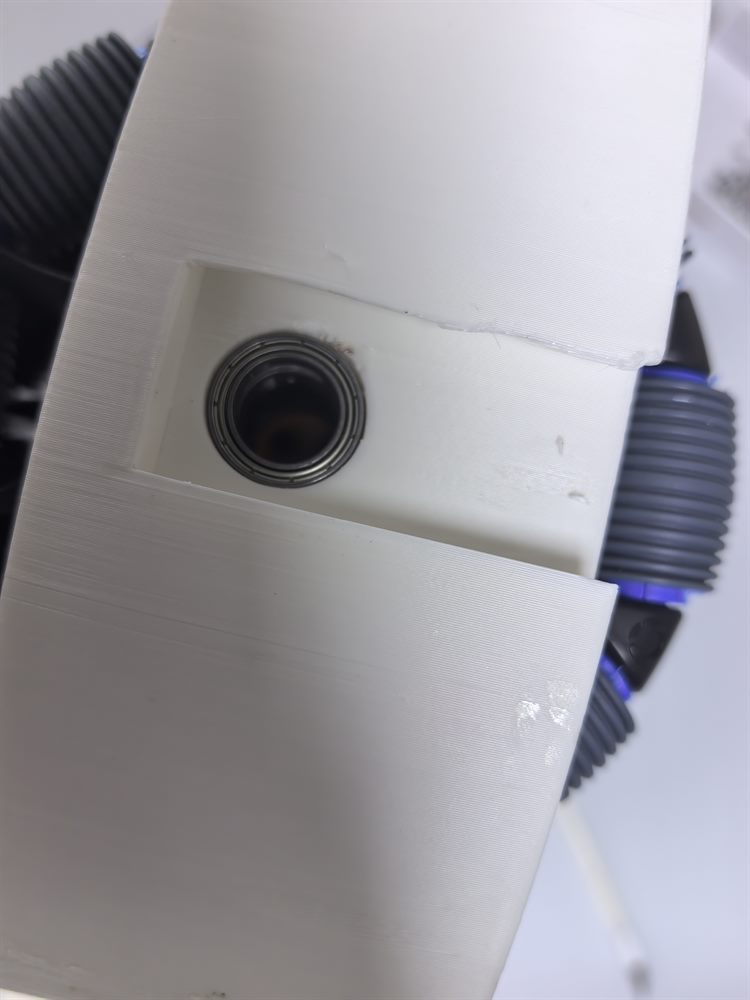
Install omnidirectional axle#
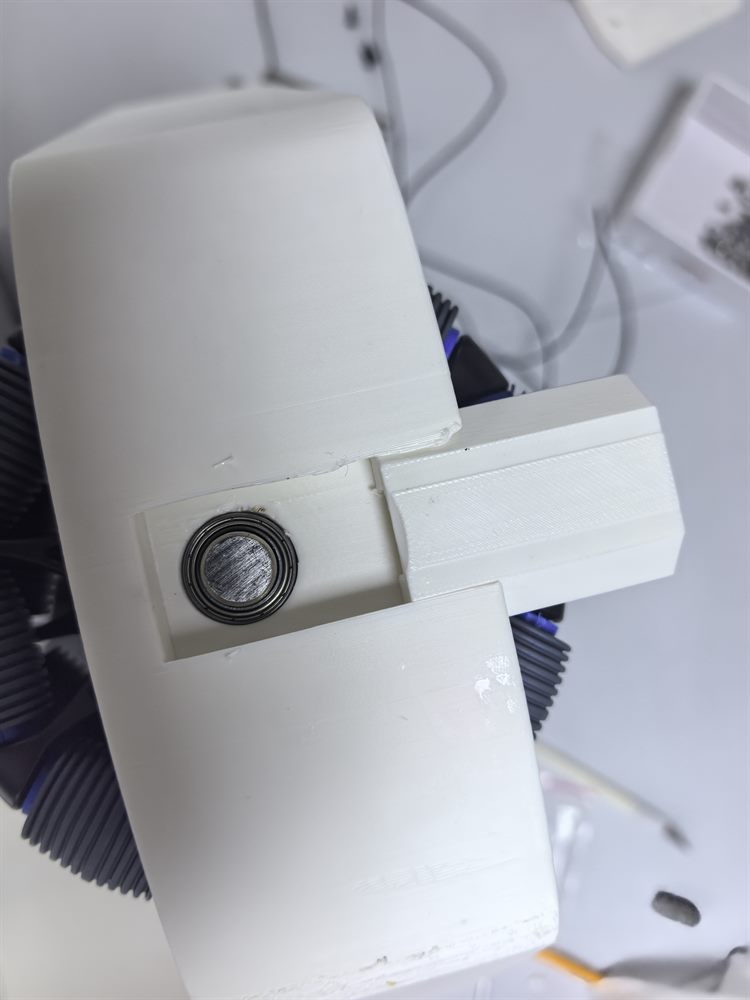
Wheel bearing cap after installation#
4. Assemble the lifting column#
Connect from bottom to top:
O_POST4_Connector_Base.stl
  → O_Main_Assembly_Post4.stl
  → OB_Main_Assembly_Post3.stl
  → OB_Main_Assembly_Post2.stl
  → OB_Main_Assembly_Post1.stl
Apply glue to the contact surface section by section and press it together. Wipe off excess glue before curing to keep the surface of the rack and guide rail clean.
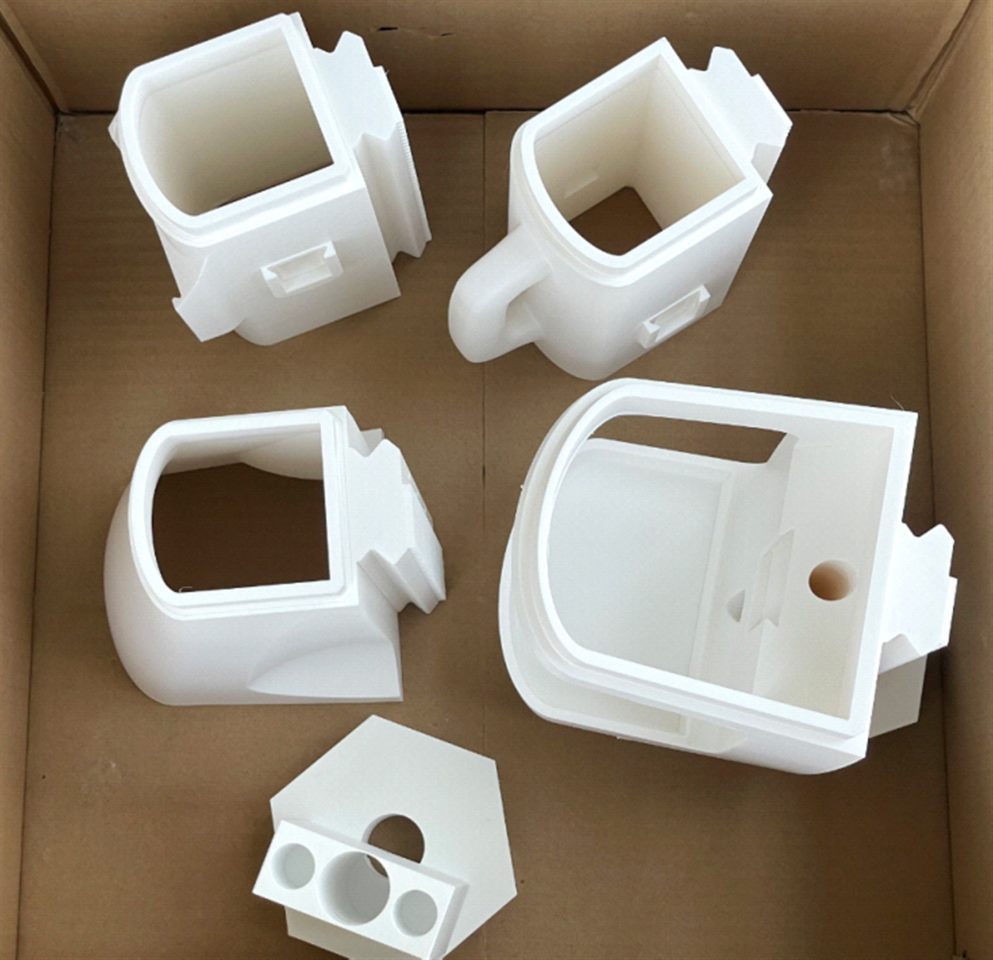
Lifting column segmented parts#
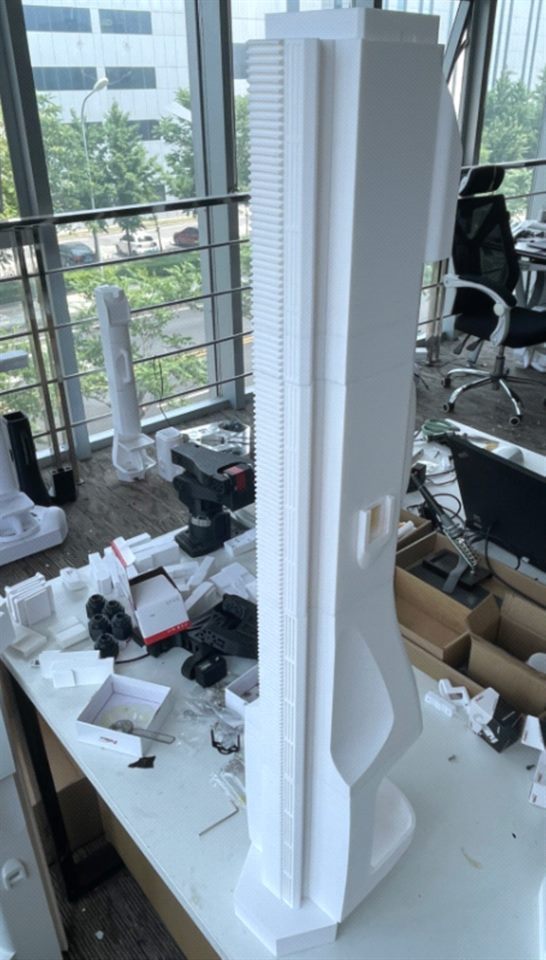
Assembled lifting column#
Attach the uprights to the chassis#
Let the front wheel servo of ID 9 face the operator and the column rack also face the operator. Press the hex base into the chassis seat hole, turn the chassis over, and tap evenly on the six sides until the flange completely fits the chassis.
Lead the wheel servo cable through the center hole and side cable grooves, and then turn the chassis back to the front. Check that the wiring is not pinched by the upright base or splice surfaces.
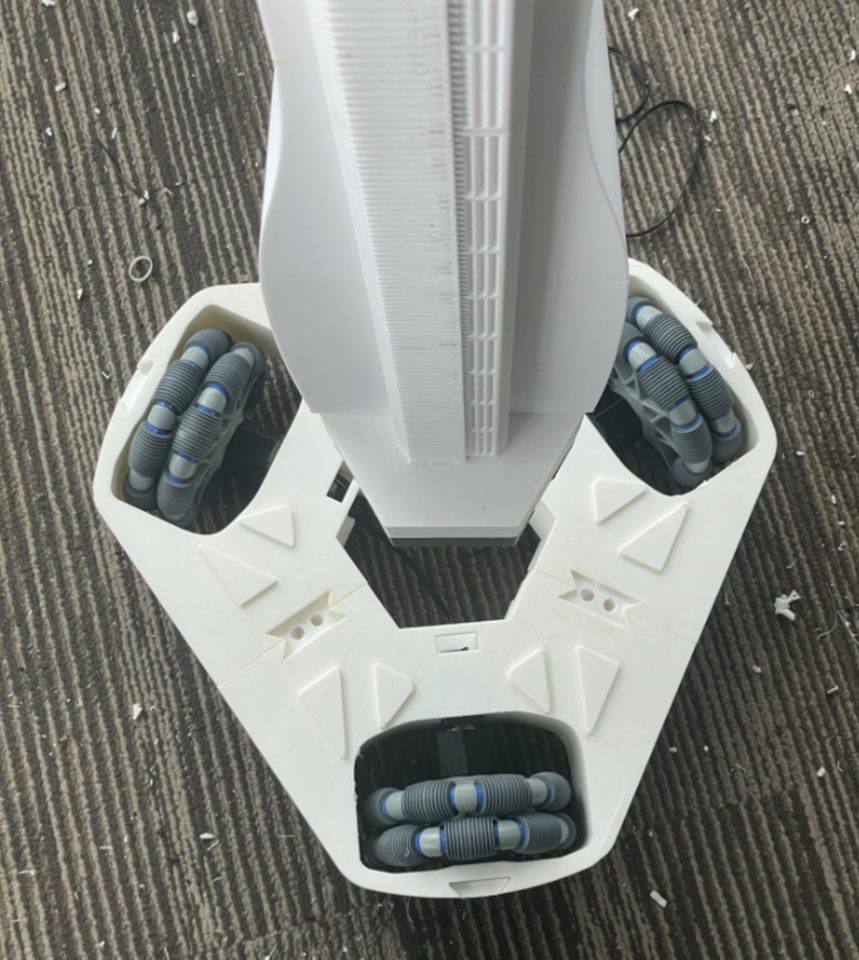
The directional relationship between the column rack and the front wheel#
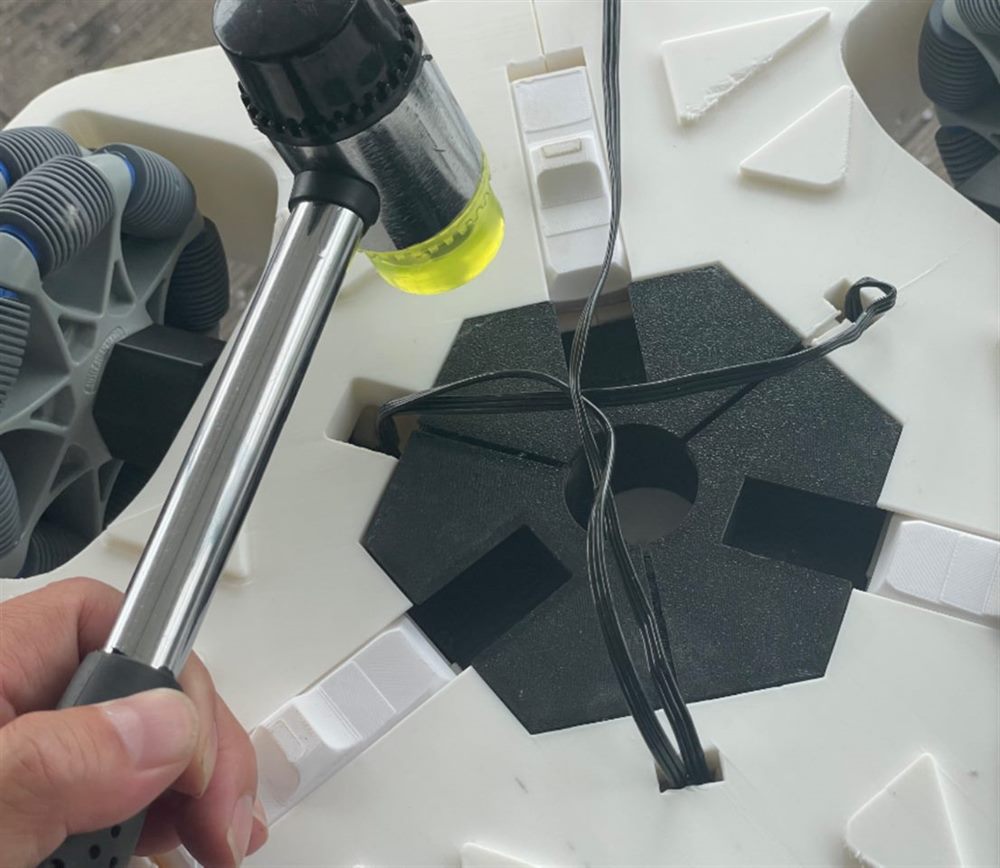
Column base fixed position#
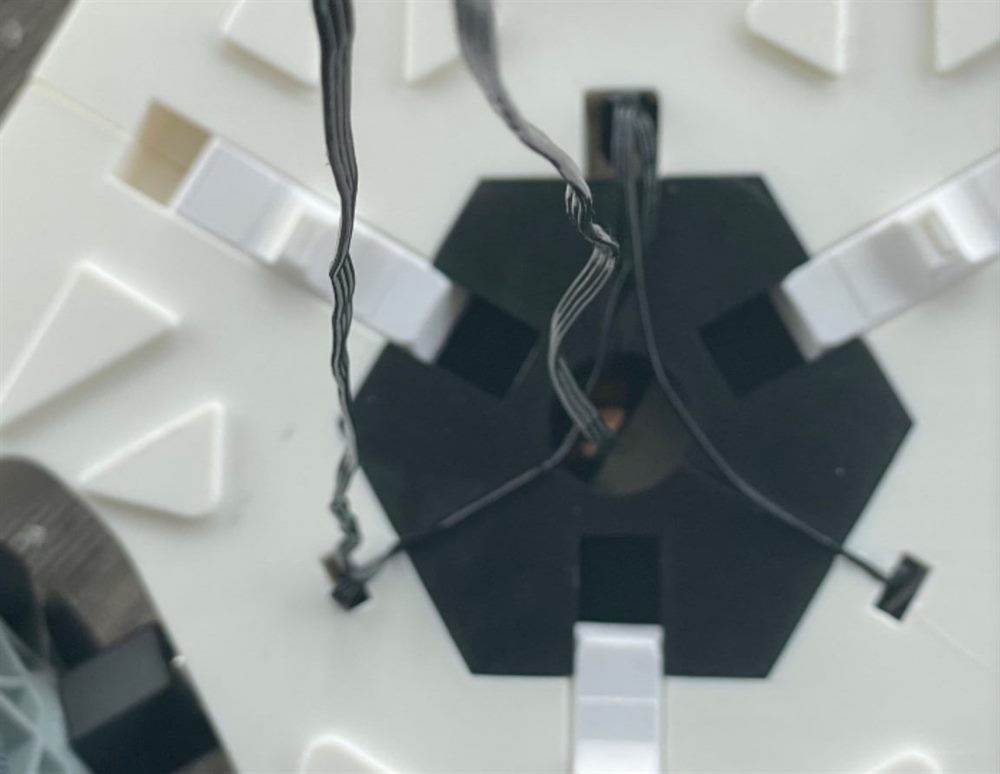
Cables pass through the center hole of the chassis#
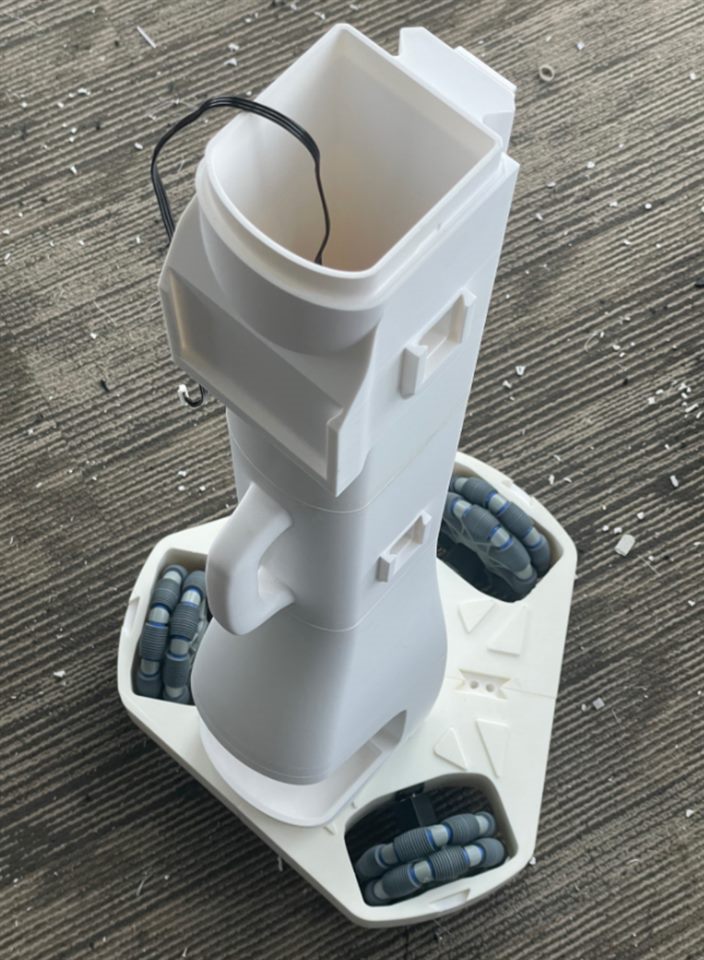
Cables pass through side trunking#
5. Assemble the shoulder lifting mechanism#
Press eight 4×13×5 mm bearings into the shoulder bearing seat. Each bearing should be seated in place and able to rotate freely.
Pre-install four M3×10 screws on the lifting gear and insert the 12×25 mm shaft from the right side. Turn the gear so that the tip of the screw is aligned with the hole of the servo output plate, and then tighten it from the side operation window.
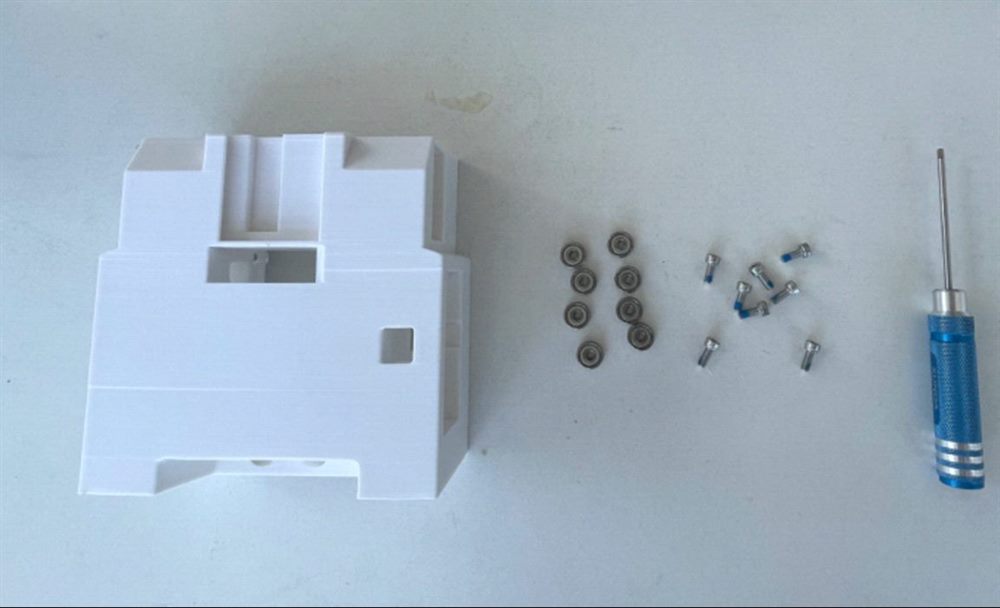
Shoulder housings and rail bearings#
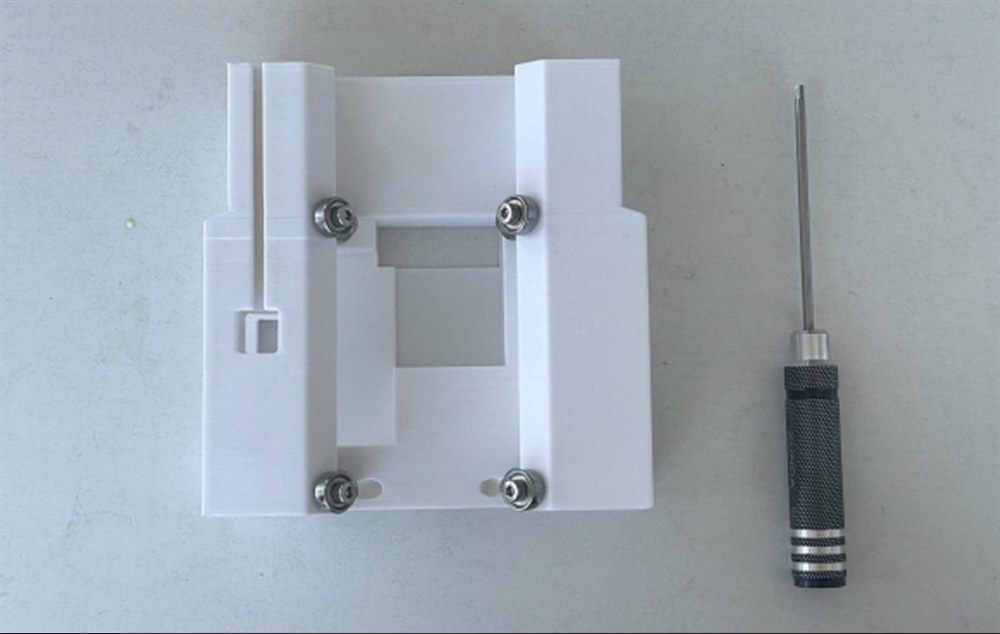
Guide rail bearing press-in position#
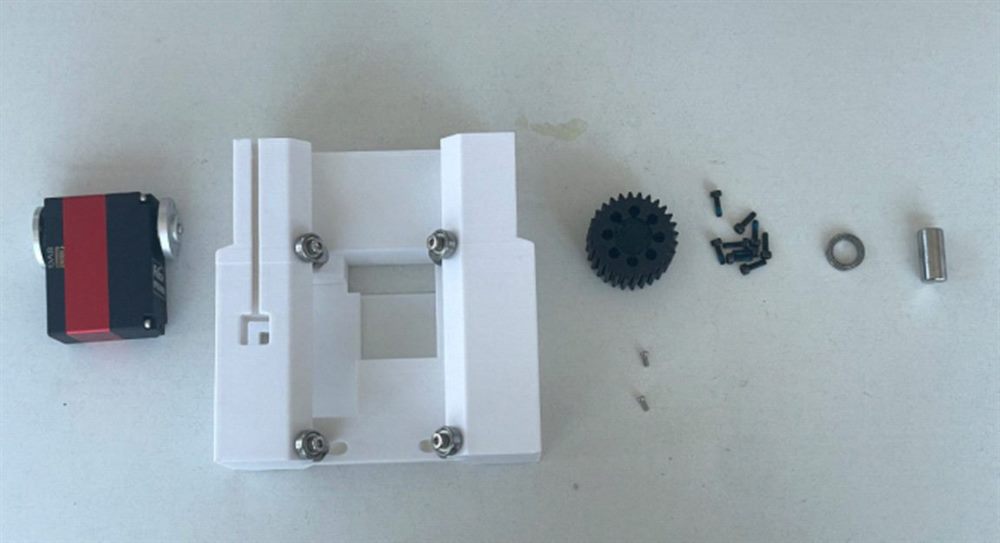
Lifting gears and fasteners#
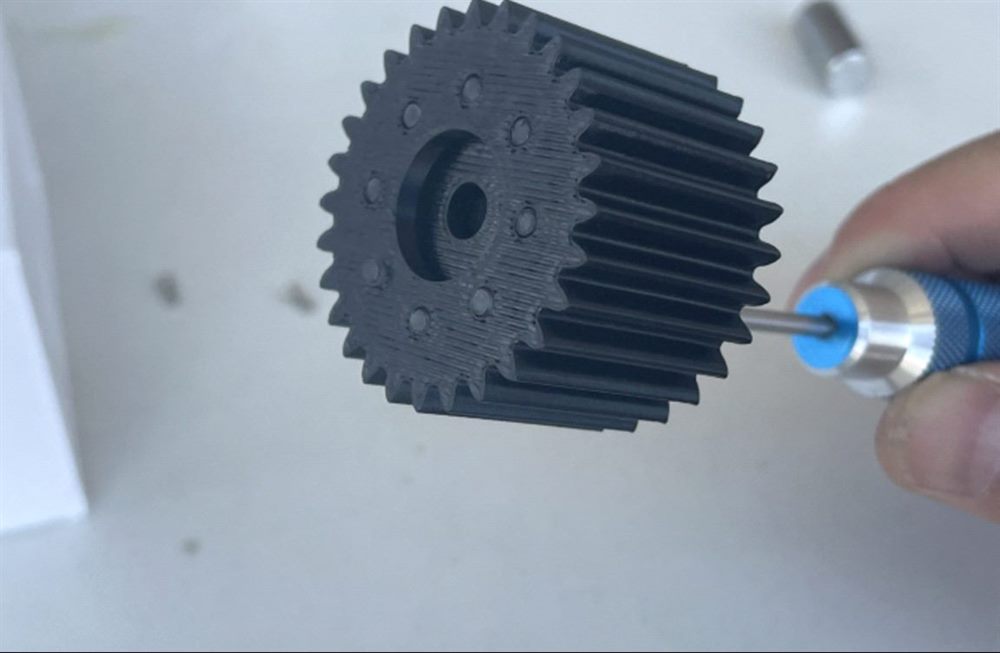
The lifting gear cooperates with the servo output plate#
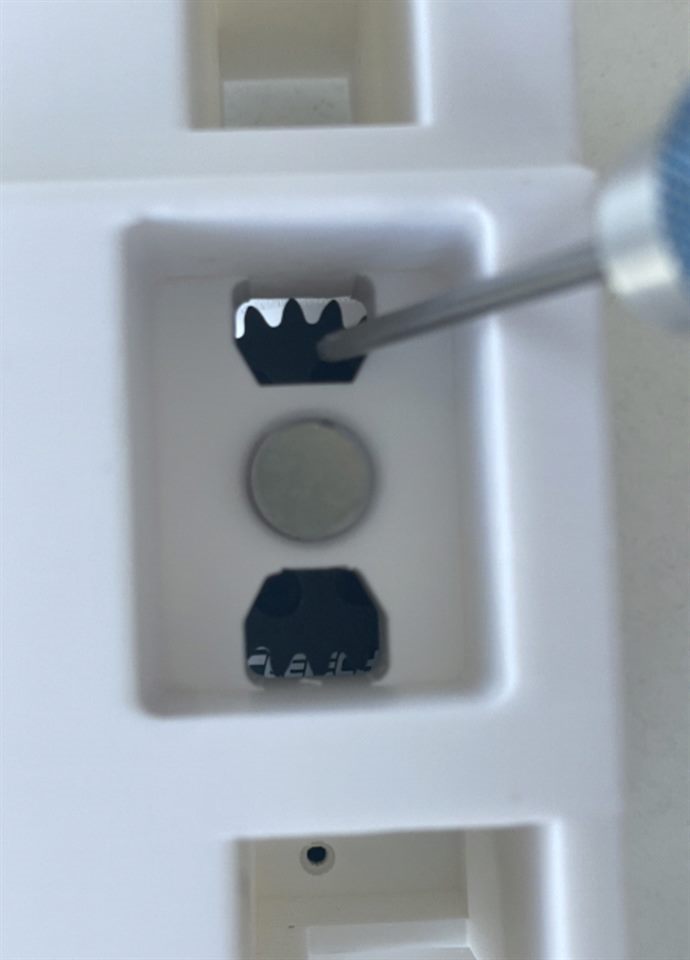
Lift shaft installation position#
Glue the shoulder T-frame and allow it to fully solidify before carrying the robotic arm. Slide the T frame into the column guide rail and confirm that the movement is smooth and there is no jamming; if it is jammed, first check the support residue, glue overflow, and the bearing position and structural fit.
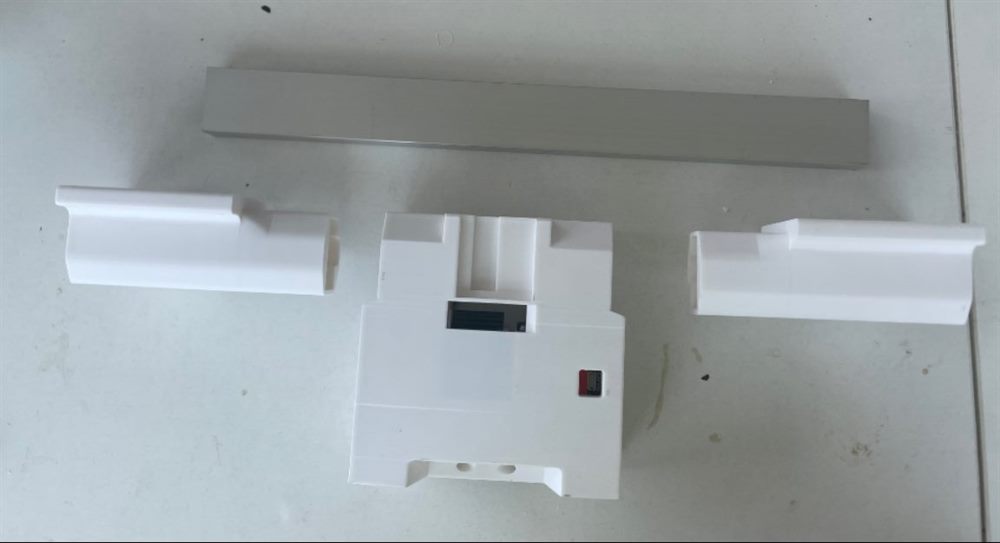
Shoulder T-frame construction#
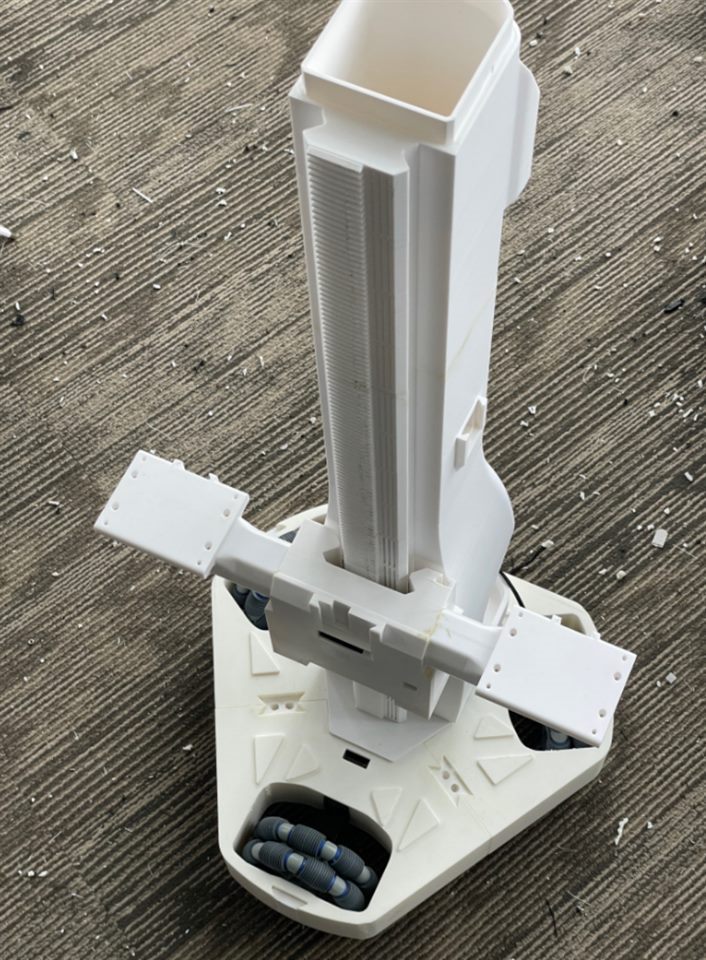
Shoulder lift blocks mounted to column rails#
6. Install the camera#
The second-generation hardware configuration includes five viewing angles: forward, backward, chest, left wrist, and right wrist. First install the two top and one chest parts on the fuselage; the wrist camera is installed along with the robotic arm.
Two cameras on top#
Remove the camera back cover, place the printing bracket/cover between the camera body and the back cover, and secure each with two M2×12 screws. Record which one is forward and which one is backward, which will be used for software mapping later.
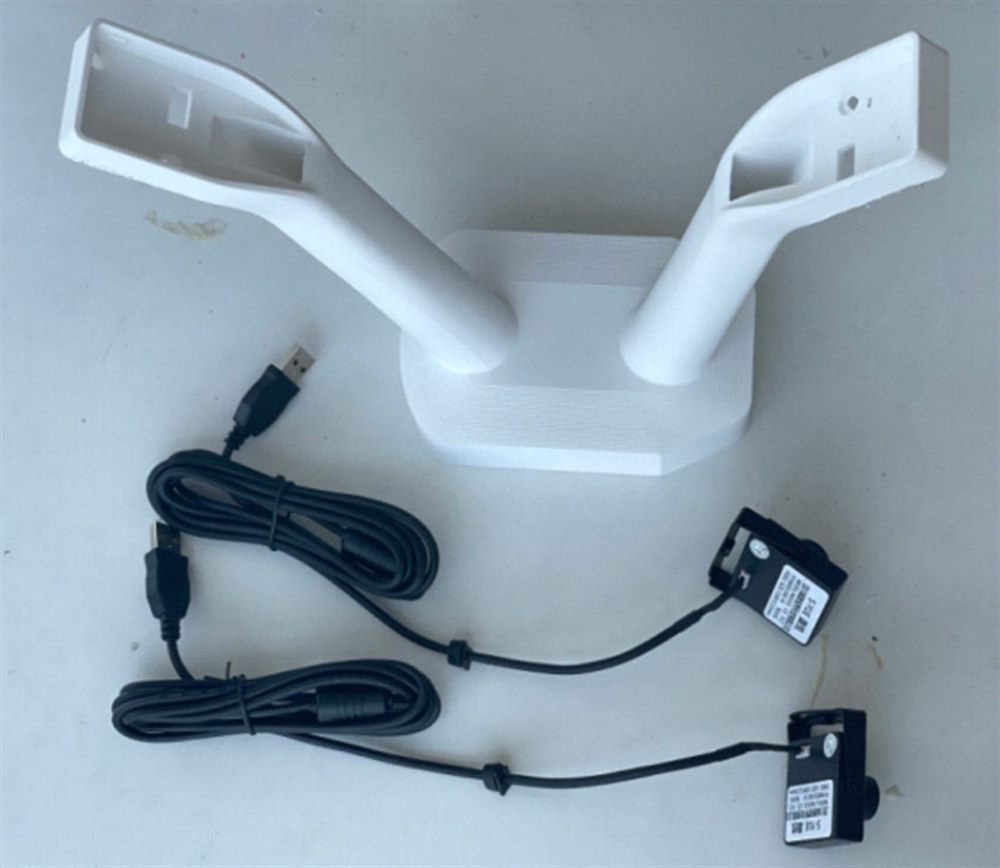
Top camera mount parts#
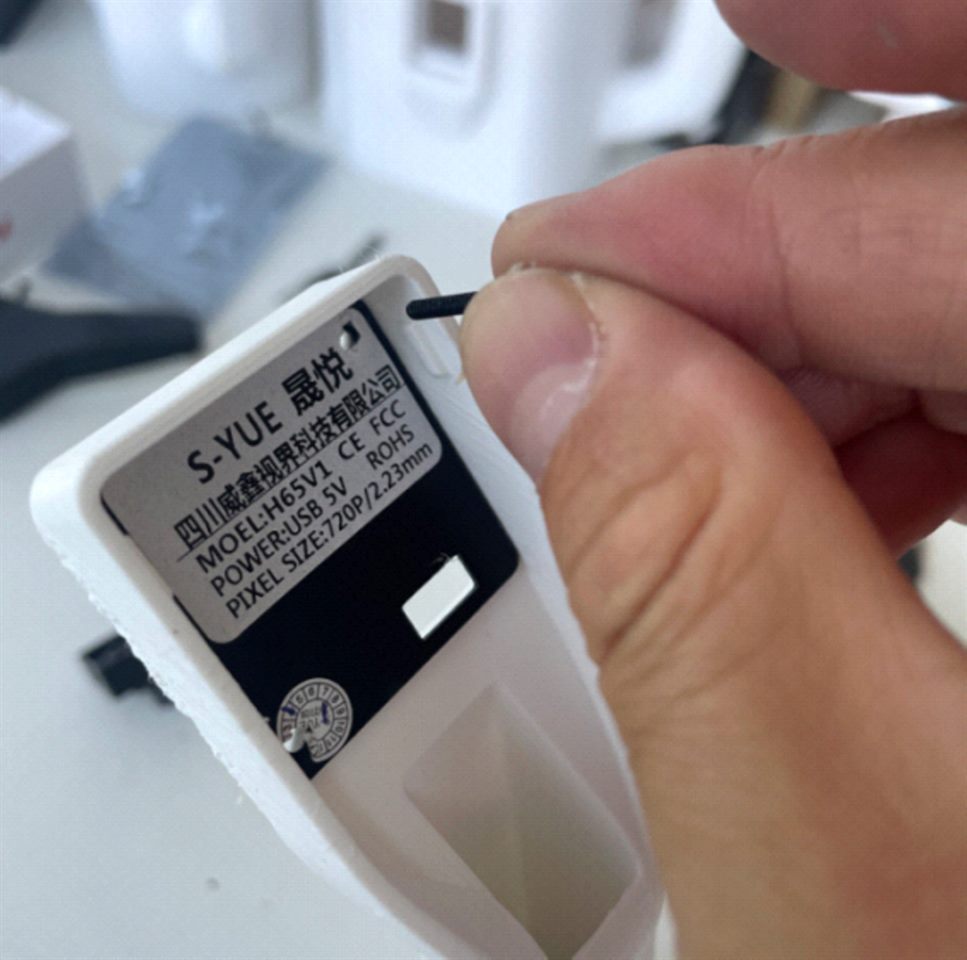
Top camera back cover installation method#
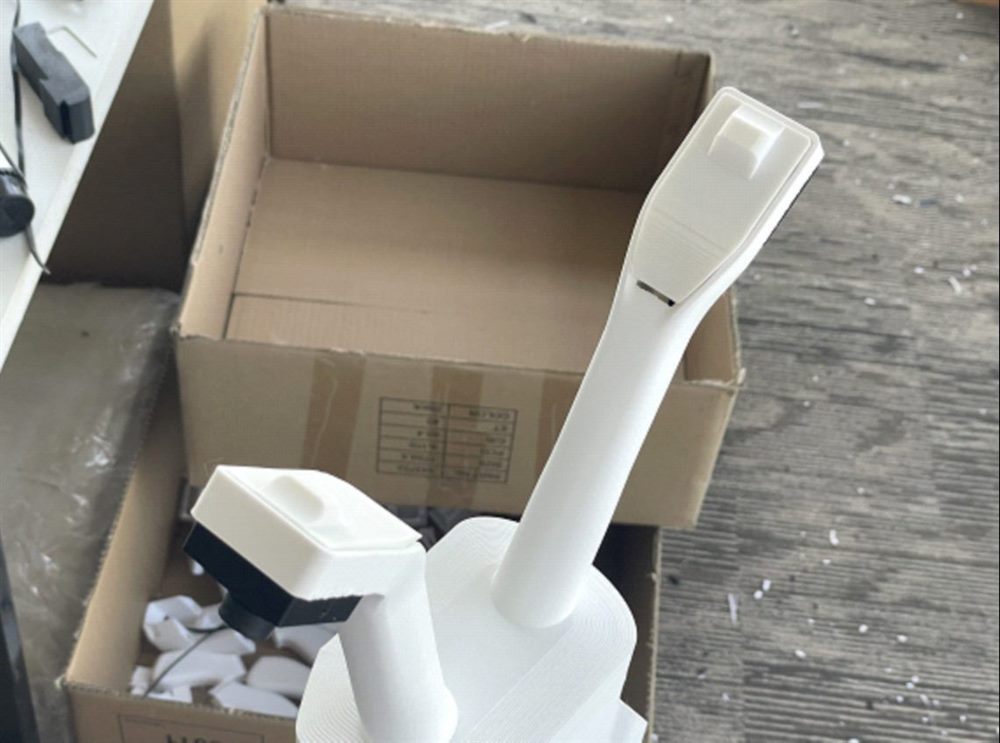
Installed top camera mount#
chest camera#
The chest camera uses the same back cover fixing method and is installed on the front bracket. Check that the lens is not obscured by structural parts or cables.
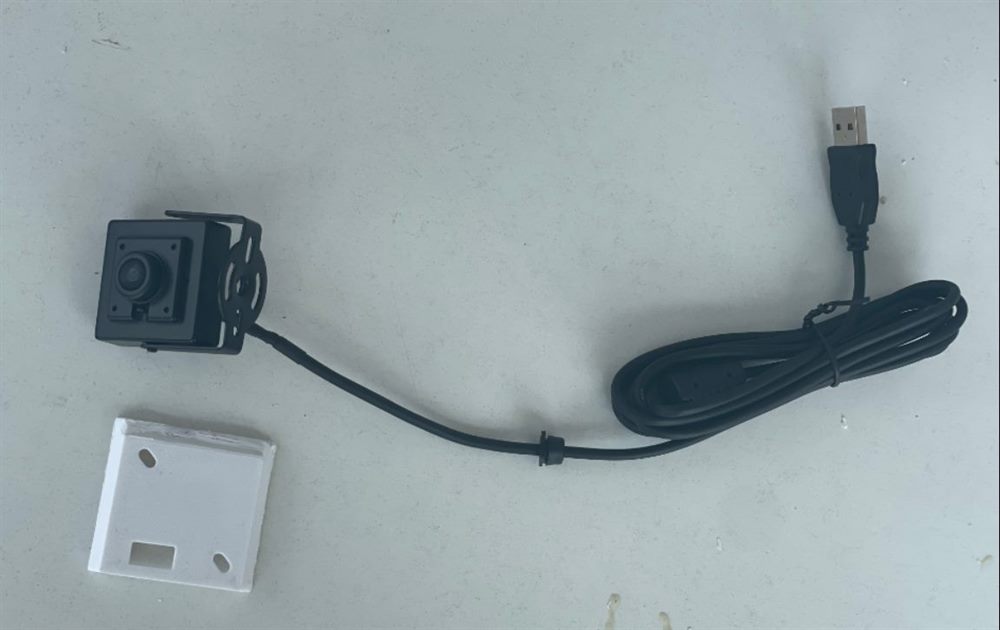
Chest camera with stand#
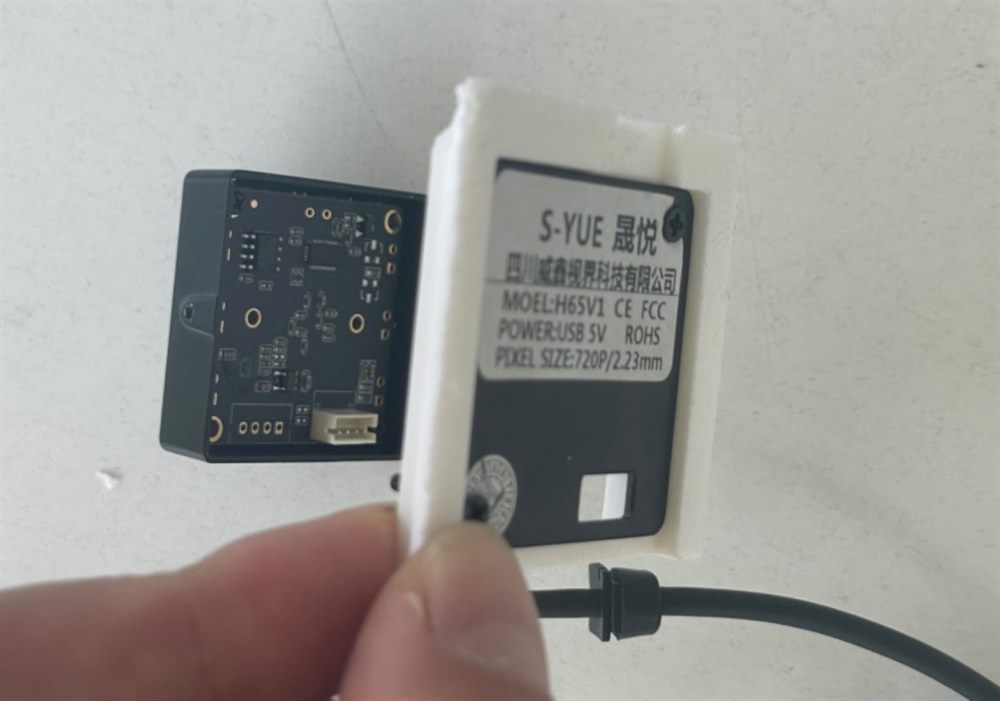
Chest camera back cover installation method#
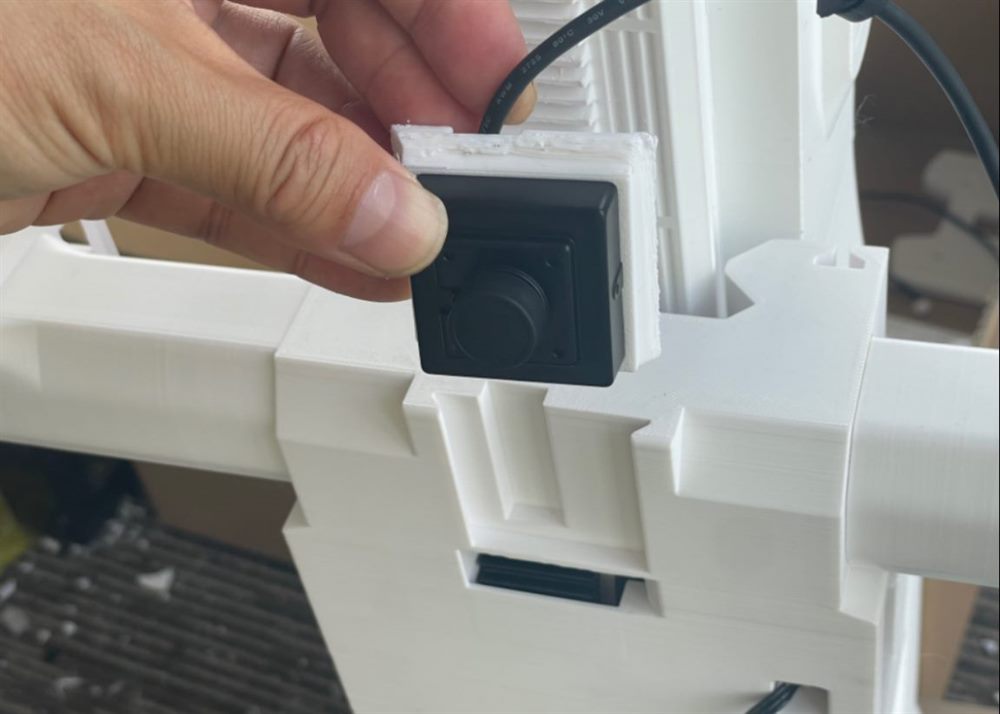
Chest camera installation location#
7. Install the follower arm and organize the wiring harness#
Fix the left and right follower arms to both sides of the shoulder T-frame respectively, using the corresponding long M3 hexagon socket screws and M3 nuts. Check the left and right positions first, and then tighten gradually.
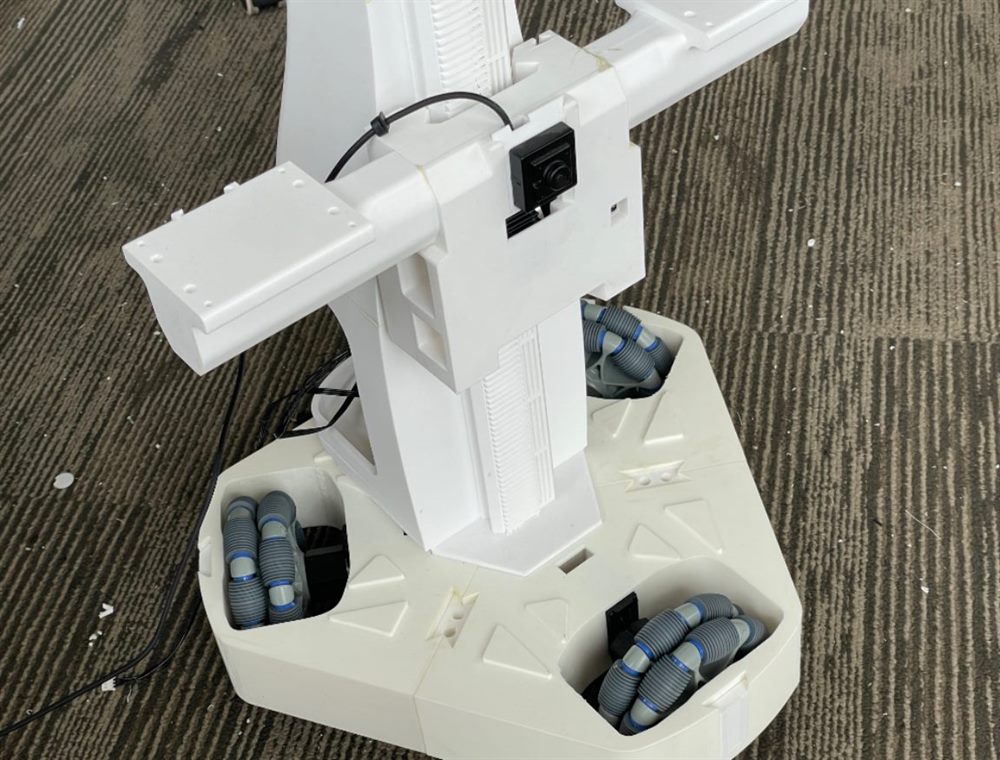
Shoulder T frame and robot arm installation area#
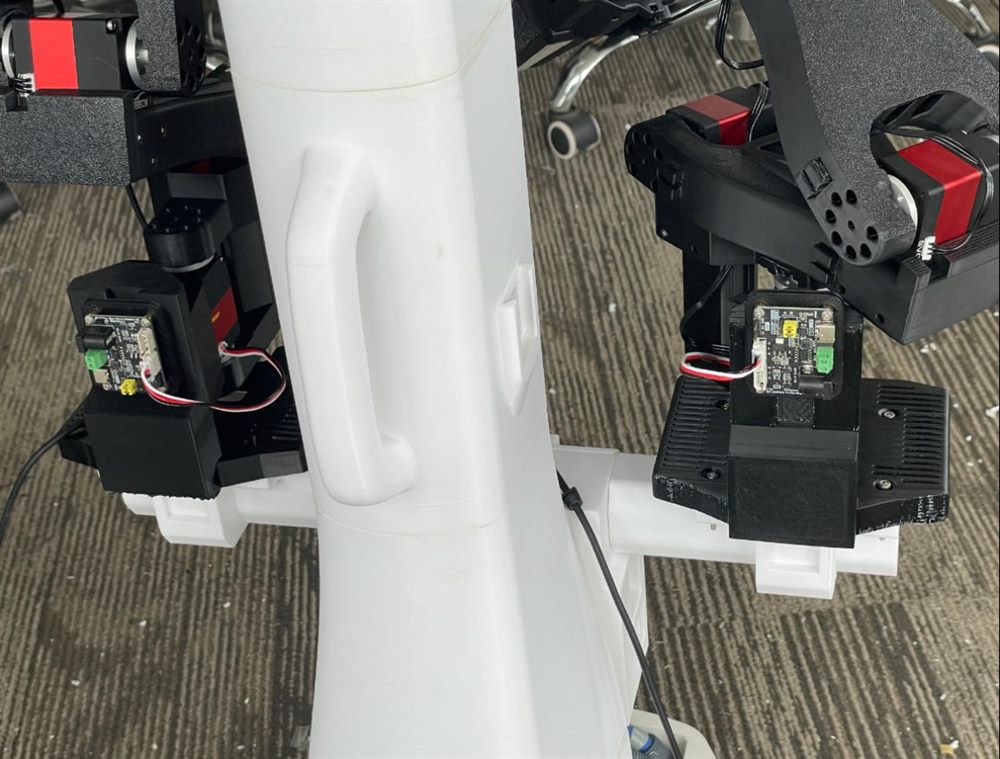
Robotic arm mounting fasteners#
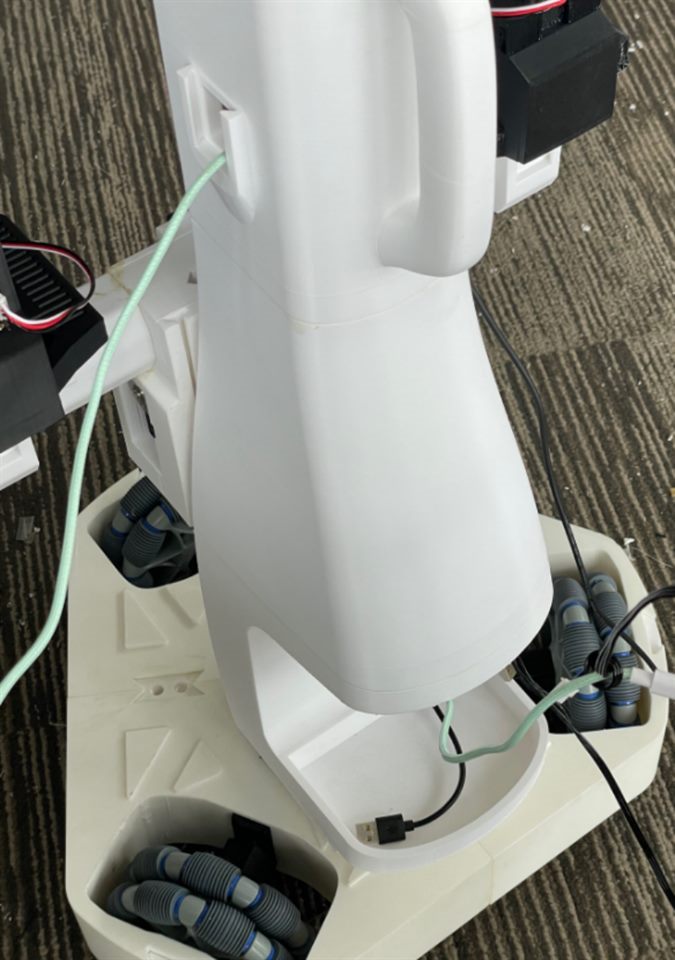
Column wiring hole#
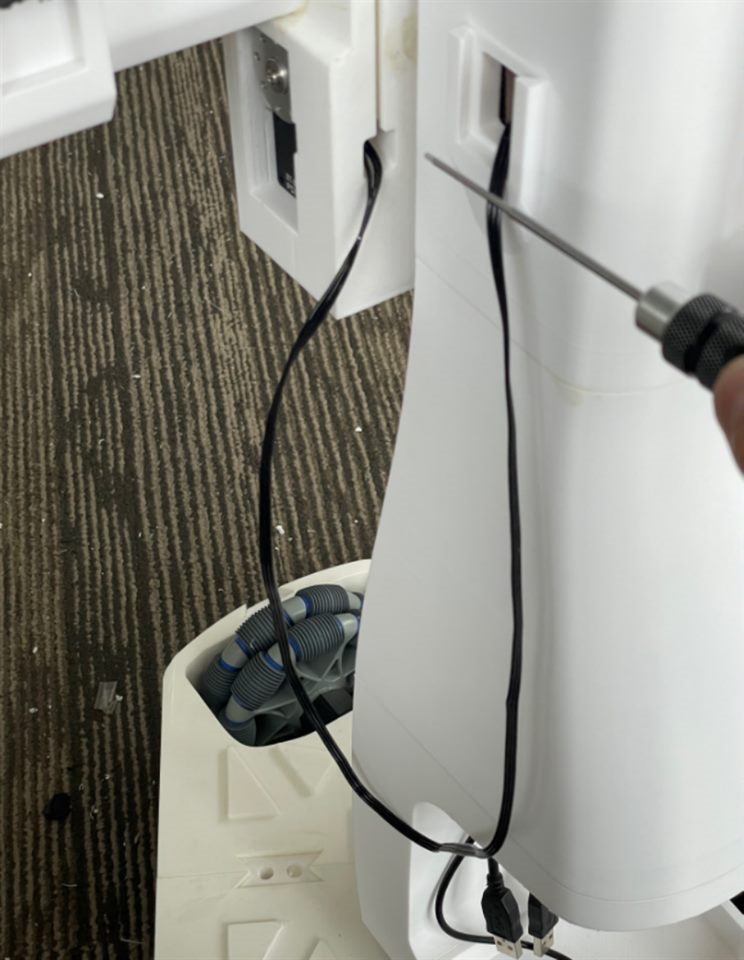
The robotic arm and camera lines pass through the column#
Connect the three-pin wire of the ID 11 elevator servo to the left arm servo drive board. Check the cable length allowance at the highest and lowest positions of the shoulder, and do not let the plug take the strain on the cable.
Wiring harness |
Contains lines |
|---|---|
left side |
Left arm power supply, left arm Type-C, left wrist camera USB, chest camera USB, elevator servo cable |
right side |
Right arm power supply, right arm Type-C, right wrist camera USB |
After threading the cable, put on the protective cable cover to leave space for connector inspection and replacement.
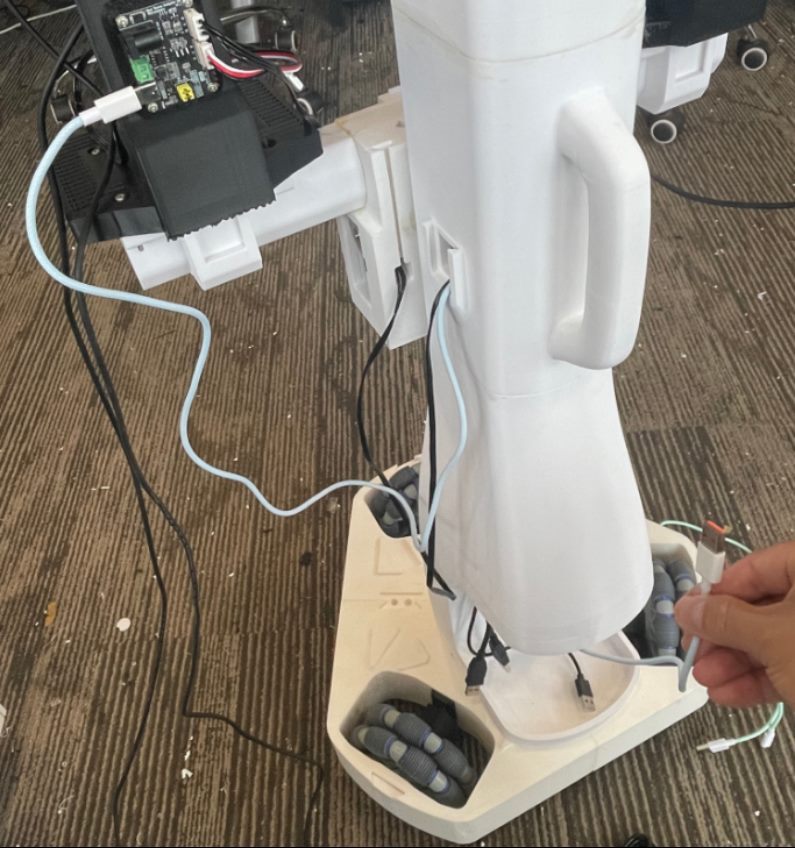
Left harness#
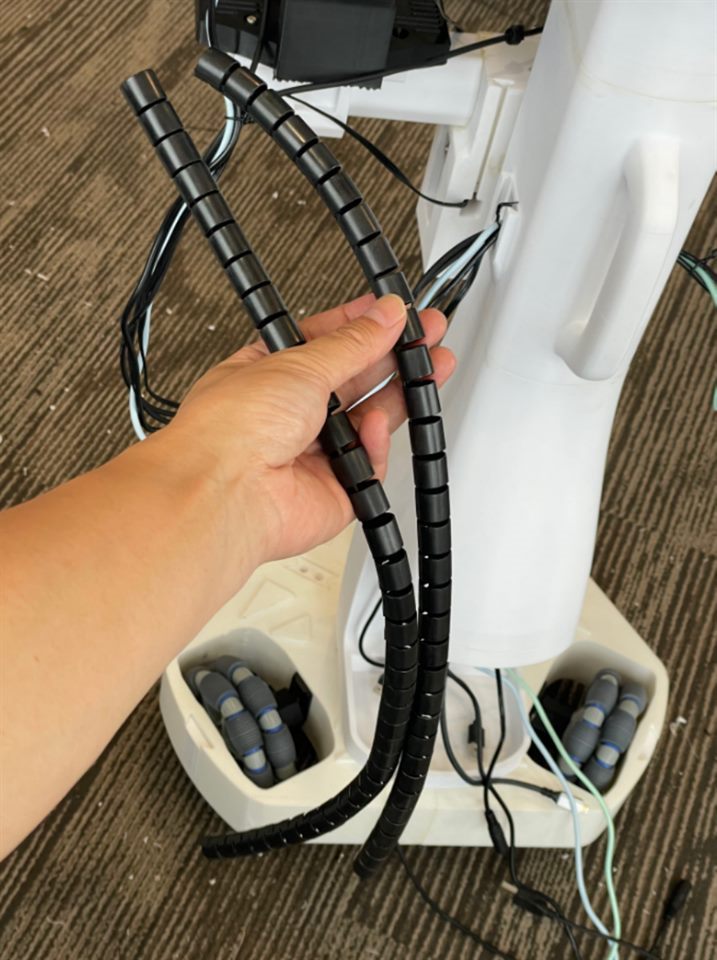
Right harness#
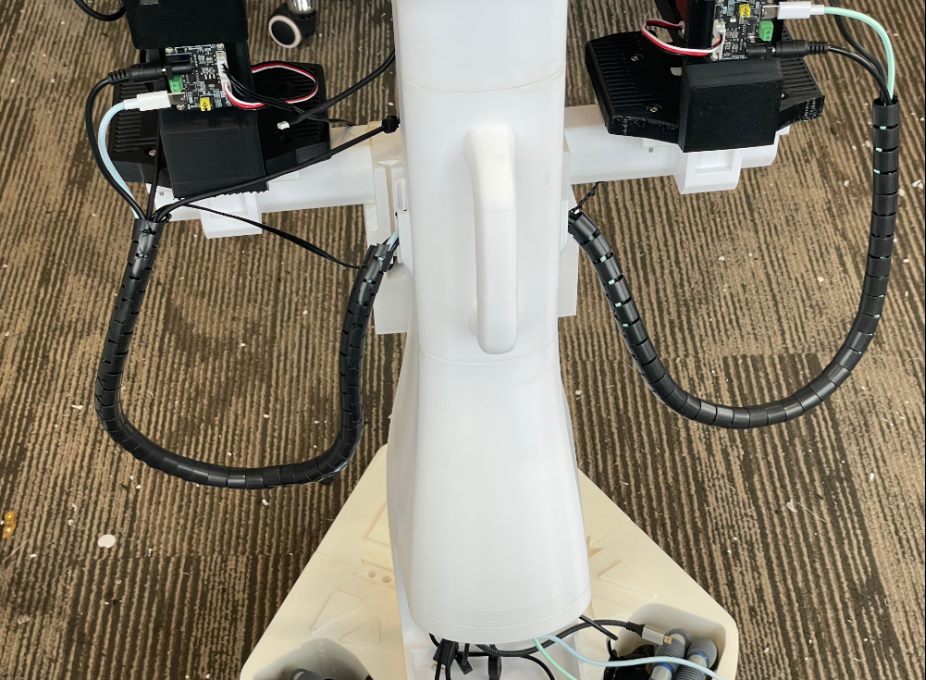
Wiring harness with protective cover installed#
8. Install display, computing and power supply modules#
The display is fixed to the printing bracket using four M3×6 screws, then slid into the dovetail groove on the rear of the fuselage to connect the short Micro HDMI cable and Type-C power supply cable. The display model and counterweight quality are not fully listed in the original BOM, please check with your own configuration.
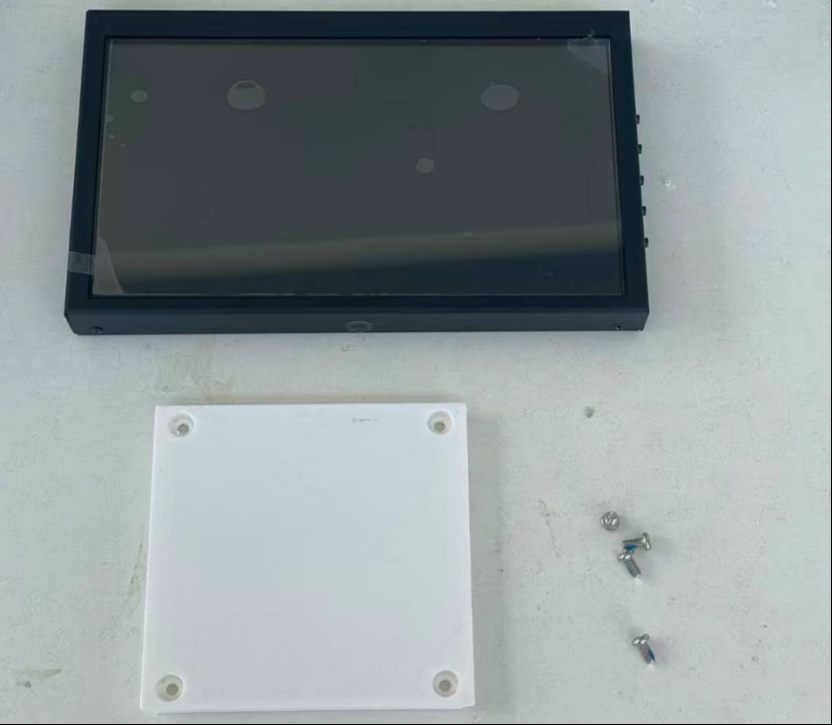
Display and printing bracket#
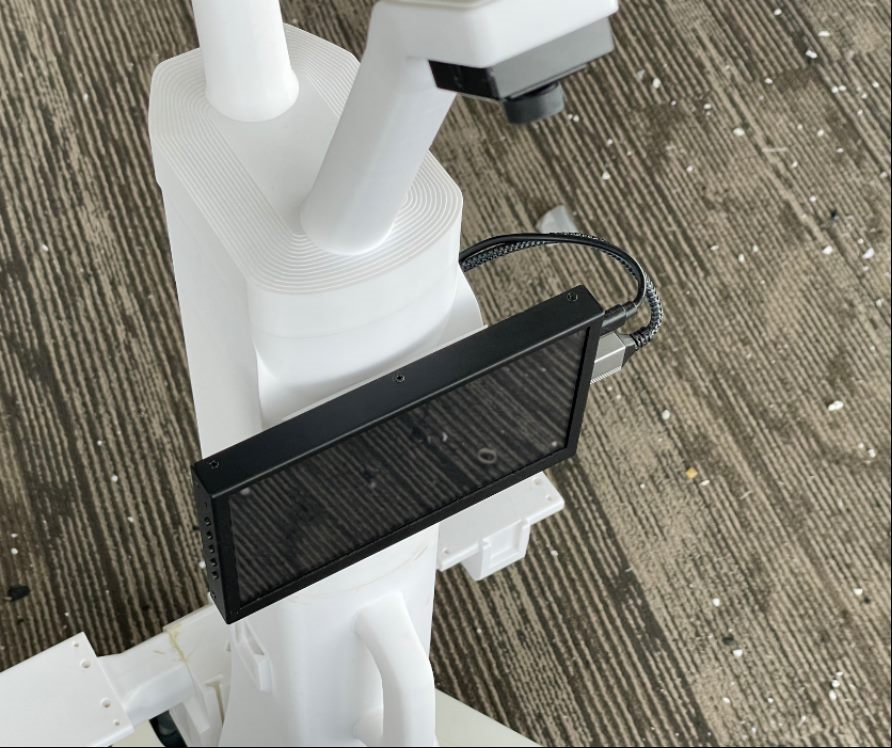
The display is mounted in the rear dovetail groove#
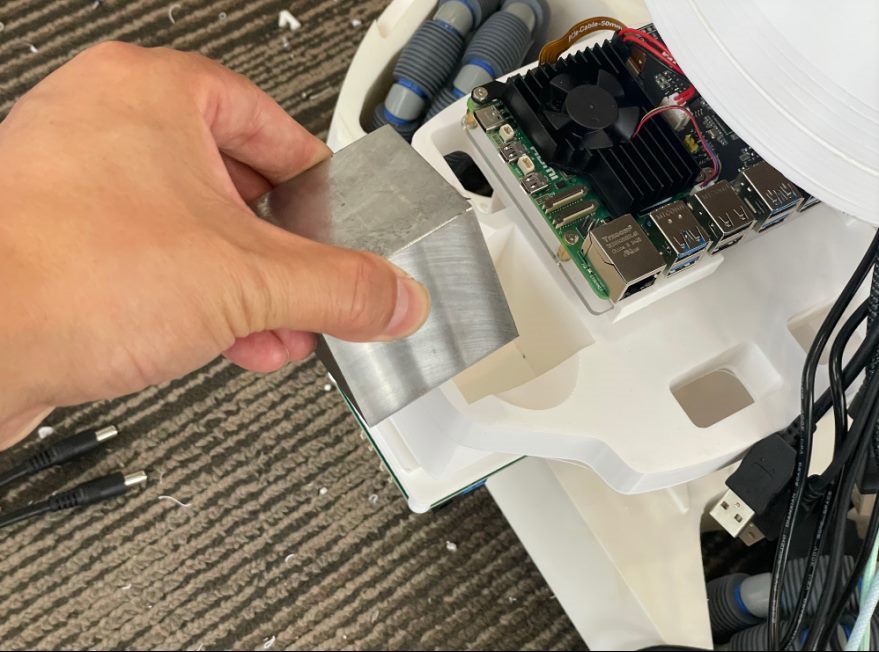
Raspberry Pi, buck module, battery and counterweight layout in the rear space#
Install the Raspberry Pi 5, buck module, battery and counterweight in the rear support. The original assembly diagram uses the following power supply shunt:
path |
Connection method |
|---|---|
double follower arm |
Battery 1 → One-to-two power cord → Left and right arm DC lines |
Computing end |
Battery 2 → Buck module → Raspberry Pi Type-C power port |
Before powering on, check the voltage, polarity and connection position according to the component identification, and then power on after completing the wiring. The leader arm is on the PC side and uses its own power supply configuration.
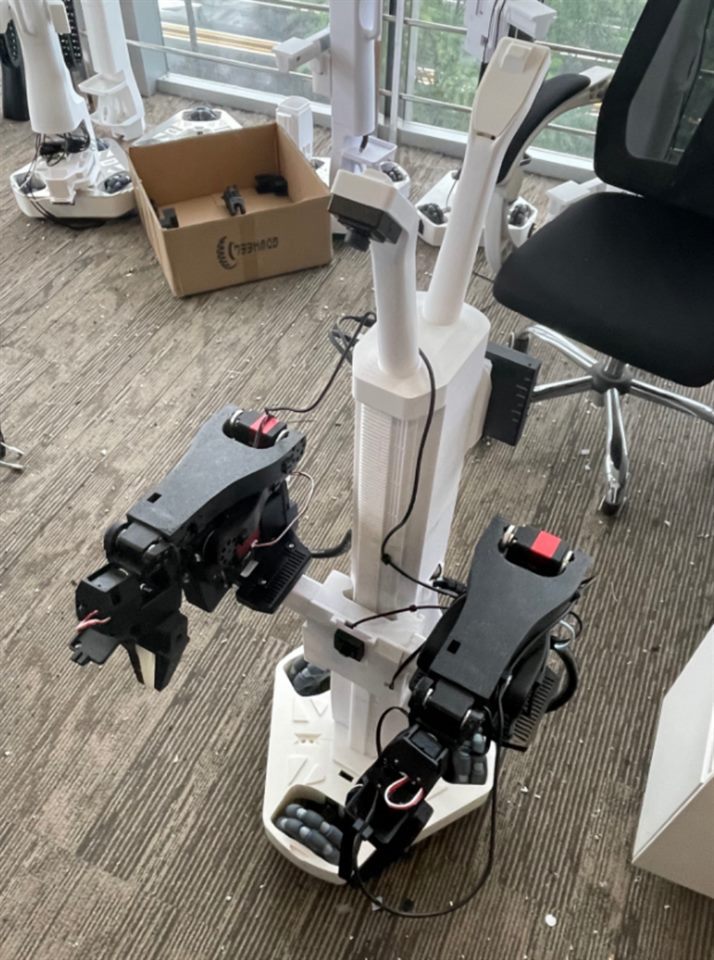
Second generation robot power supply connection diagram#
9. Module inspection#
The first robot inspection uses the Host and keyboard client that matches the second-generation model. On Pi:
python -m lerobot.robots.alohamini.alohamini_host \
  --robot_model alohamini2 \
  --no_follower
On PC:
python examples/alohamini/teleoperate_bi.py \
  --robot.remote_ip <Pi_IP> \
  --robot.robot_model alohamini2 \
  --no_leader
This step requires first completing the subsequent Software installation and Device configuration. First use short, one-way input to check the chassis, and then use U/J to check the lifting. For complete keys, see Teleoperation.
The original assembly guide also references examples/debug/wheels.py and axis.py. Currently, these independent scripts retain their own servo models and geometric constants. In particular, the lifting script defaults to STS3215, while the second generation uses STS3095; it must be checked and adapted before running directly. For details, see Debugging and troubleshooting.
The inspection results should include: no interference in the movement of the wheel set, no jamming in lifting and lowering, no pulling on the wiring harness, reliable fixation of the left and right arms, camera recognition, and stable power supply connection. If an exception is found, return to the corresponding assembly step before entering the next stage.
Next step: Configuration and calibration#
Complete Device configuration → Arm calibration → Teleoperation in sequence. After the hardware is installed, you still need the correct model, serial port, and calibration data, and you cannot jump directly to policy execution.