AlohaMini2 Pro Quick Start Guide (Minimalist)#
Applicable models: AlohaMini 2 Pro. Both Raspberry Pi and PC use alohamini2pro. The camera name is subject to the actual configuration. Collection, conversion, training and inference must use consistent data feature names. IP, device serial number and checkpoint path need to be replaced with local values. For AM-ACT parameter configuration, see training instructions.
1. Start the robot (Raspberry Pi)#
Power on the robot, click on the screen to find the Raspberry Pi IP address
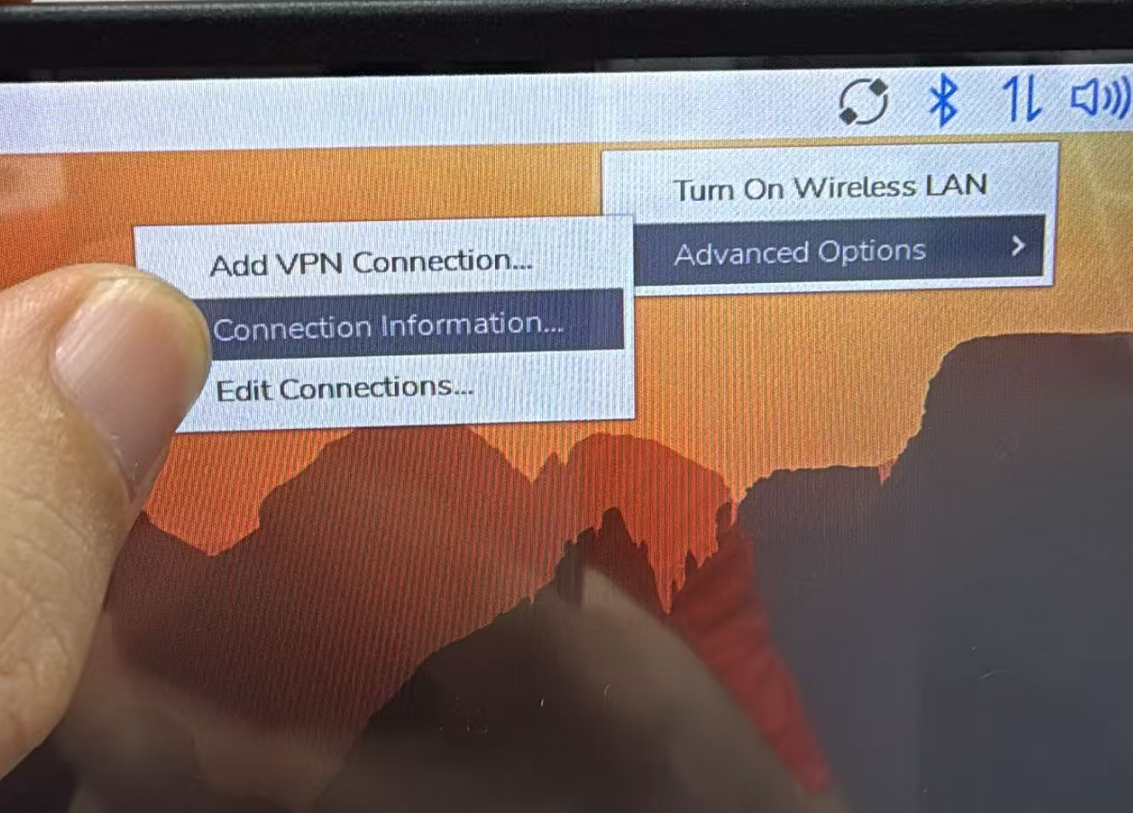
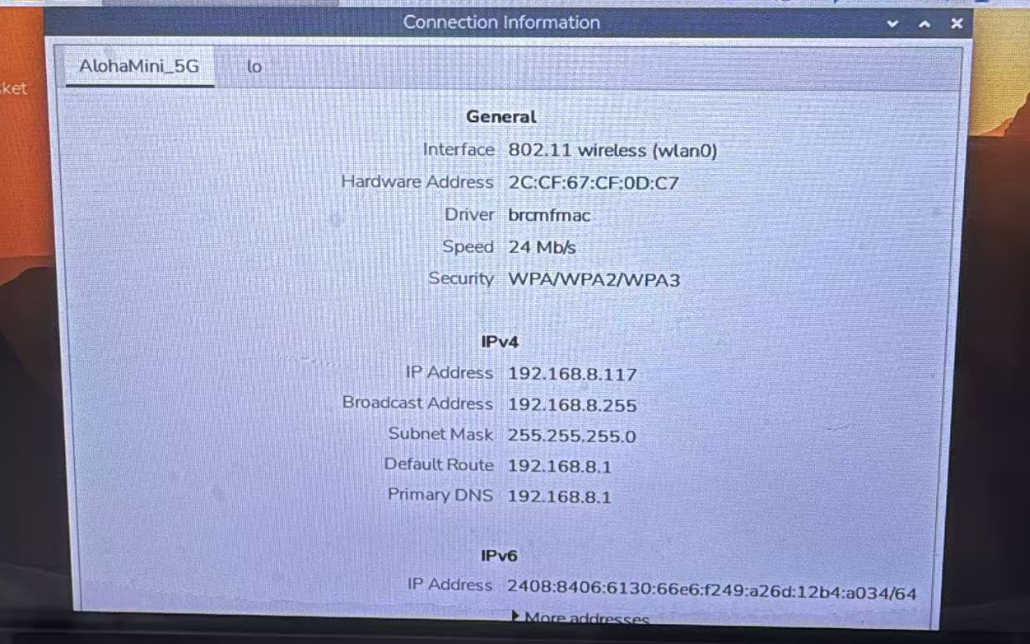
Open the Terminal of the PC and run the SSH login robot (ssh password: 123456):
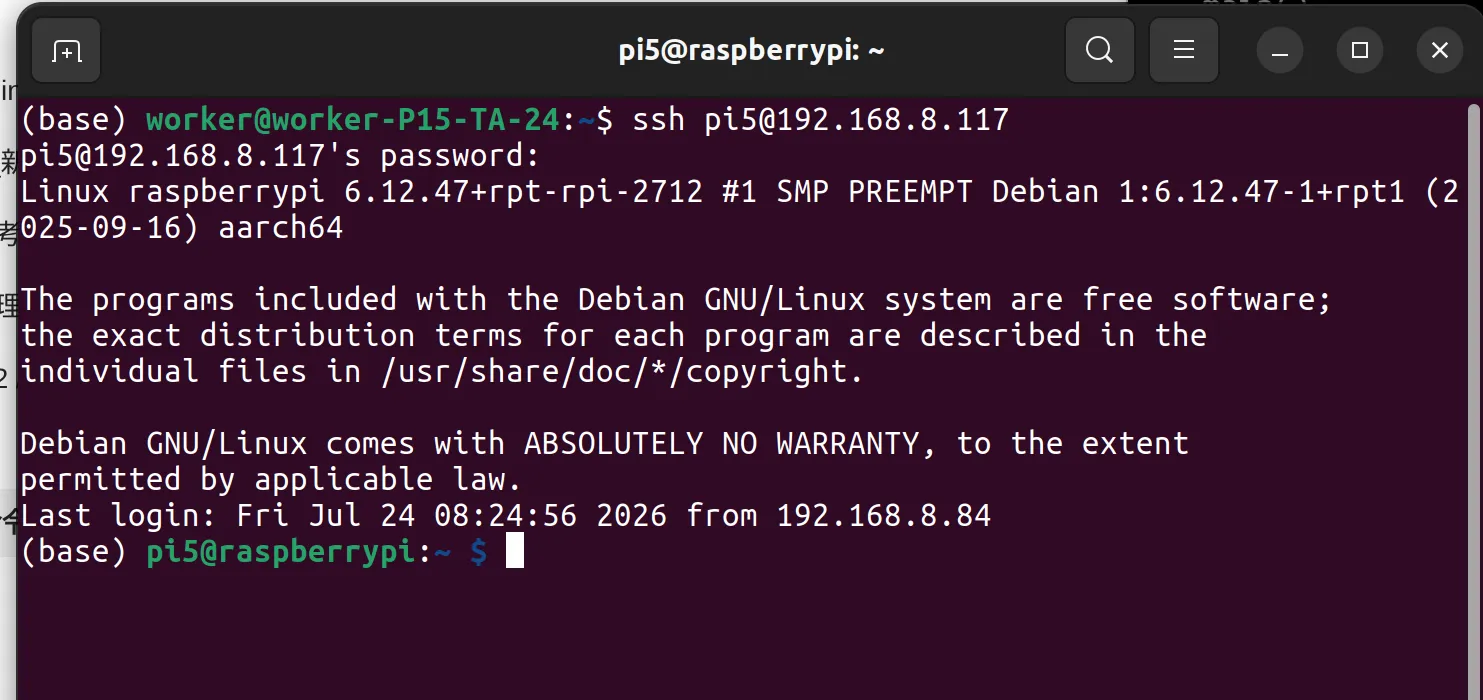
Log in to the robot via SSH:
ssh pi5@192.168.xx.xx # 替换为机器人树莓派的IP
# 密码123456
Enter the conda environment and start the main program:
conda activate lerobot_alohamini
cd lerobot_alohamini

# AlohaMini 2 Pro (AM‑ARM 6‑DoF, sts3250 upgrade)
python -m lerobot.robots.alohamini.alohamini_host \
  --robot_model alohamini2pro
After the program is started, since the device has been calibrated before leaving the factory, it will automatically skip the calibration process, directly enter the startup state, and start outputting the current information of each joint.
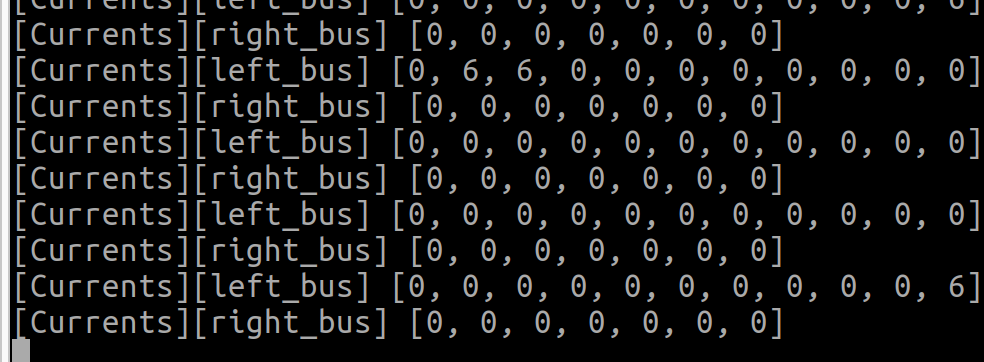
At this point, the robot body has been started.
2. Start teleoperation (PC side)#
It is recommended to prepare an Ubuntu22.04 or 24.04 system and complete the environment installation (conda + dependencies) according to the lerobot_alohamini repository.
Environment installation:#
Install Conda#
mkdir -p ~/miniconda3
wget https://repo.anaconda.com/miniconda/Miniconda3-latest-Linux-x86_64.sh -O ~/miniconda3/miniconda.sh
bash ~/miniconda3/miniconda.sh -b -u -p ~/miniconda3
rm ~/miniconda3/miniconda.sh
~/miniconda3/bin/conda init bash
source ~/.bashrc
Clone the repository and install dependencies#
git clone https://github.com/liyiteng/lerobot_alohamini.git
cd lerobot_alohamini
conda create -y -n lerobot_alohamini python=3.12
conda activate lerobot_alohamini
pip install -e ".[all]"
pip install pyzmq feetech-servo-sdk
conda install -y ffmpeg=7.1.1 -c conda-forge
Port authorization#
sudo usermod -a -G dialout $USER
# 完成后重启电脑
1. Remote arm port query#
a) Randomly select a teleoperation arm and mark it as the left arm with a marker
b) Connect the left arm to the Ubuntu computer and enter the command
ls /dev/ttyACM*
Expected output:

c) Find the serial number of the left arm driver board
udevadm info --attribute-walk --name=/dev/ttyACM0 | awk -F'"' '/ATTRS{serial}/{print $2; exit}'
Expected output:

Among them, 5B3D040583 is the left arm serial number.
d) Use a marker pen to mark the other teleoperation arm as the right arm
e) Connect the right arm to the Ubuntu computer and enter the command
ls /dev/ttyACM*
Expected output:

f) Find the serial number of the right arm driver board
udevadm info --attribute-walk --name=/dev/ttyACM1 | awk -F'"' '/ATTRS{serial}/{print $2; exit}'
Expected output:

Among them, 5B3D041923 is the right arm serial number.
g) Summary
Through the above steps, we got the serial number of the left arm driver version (5B3D040583) and the serial number of the right arm driver version (5B3D041923)
2. Port binding (write udev configuration file)#
a) Open the configuration file: 90-mydevice.rules
sudo nano /etc/udev/rules.d/90-mydevice.rules
b) Write content
SUBSYSTEM=="tty", ATTRS{serial}=="5B3D040583", SYMLINK+="am_arm_leader_left"
SUBSYSTEM=="tty", ATTRS{serial}=="5B3D041923", SYMLINK+="am_arm_leader_right"
c) Reload activation
sudo udevadm control --reload-rules
sudo udevadm trigger
d) Verify whether it is effective
ls -l /dev/am*
Expected output:

At this point, the port of the teleoperation arm is successfully bound to the PC.
3. Check whether the status of the two teleoperation arms is normal.#
# 进入conda环境
conda activate lerobot_alohamini
cd lerobot_alohamini

#执行获取舵机状态命令
python examples/debug/motors.py get_motors_states \
  --port /dev/am_arm_leader_left

  python examples/debug/motors.py get_motors_states \
  --port /dev/am_arm_leader_right
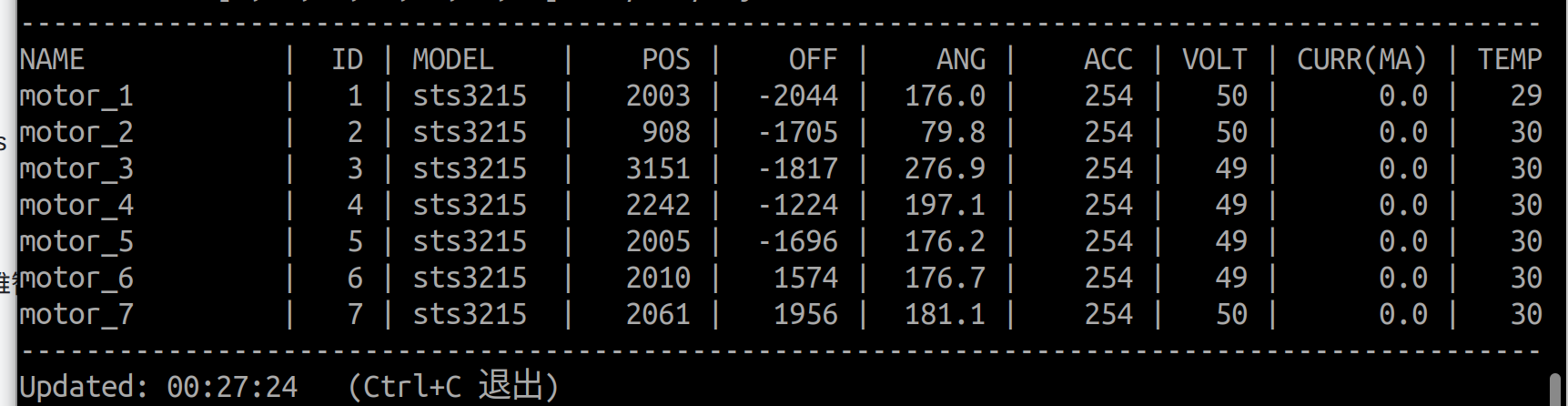
Expected output, and operating the leader arm, you can see changes in POS values
4. Turn on teleoperation#
a) When using the teleoperation arm for the first time, the robot arm needs to be calibrated.
Remote arm calibration command:
python examples/alohamini/calibrate_bi.py \
  --teleop.id am_leader_bi \
  --teleop.arm_profile am-leader-6dof
Complete the calibration process by yourself according to the prompts (reference video: https://b23.tv/Dd1xFYz).
b) After the calibration is completed, perform teleoperation
python examples/alohamini/teleoperate_bi.py \
  --robot.remote_ip 192.168.x.xx \
  --robot.robot_model alohamini2pro \
  --teleop.id am_leader_bi \
  --teleop.arm_profile am-leader-6dof
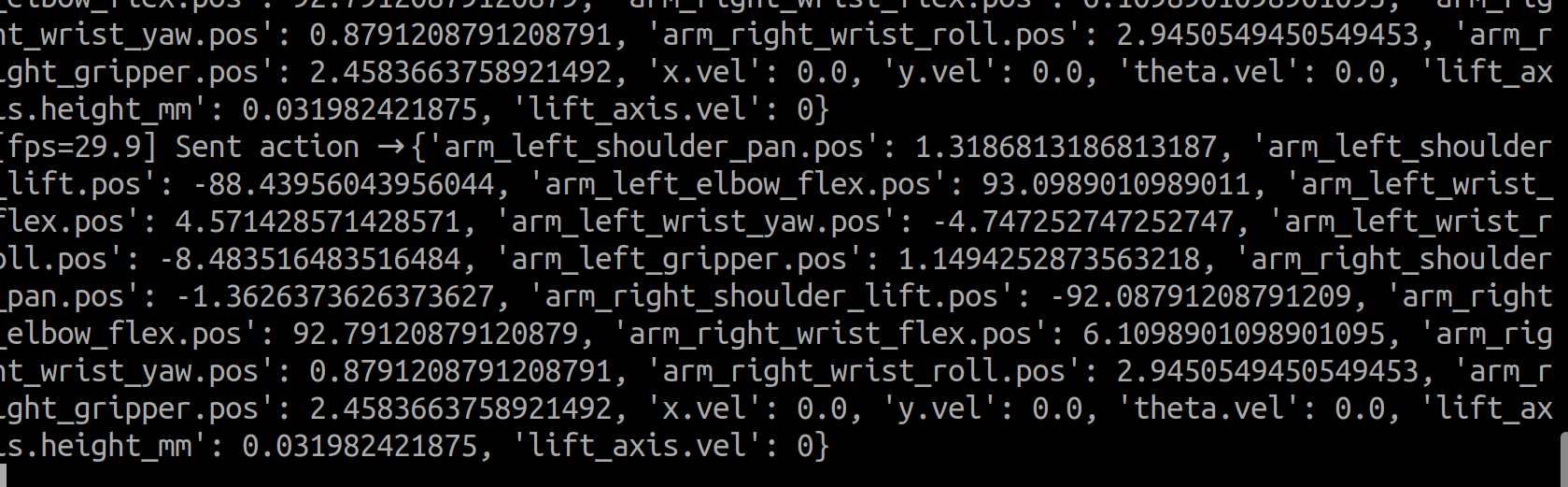
After automatically connecting to the remote robot, the terminal will continue to output real-time status information. Users can control the movement of the robot’s chassis and lifting mechanism through the keyboard, and can also remotely operate the robotic arm through the teleoperation arm.
Button |
Function |
|---|---|
|
Forward/Back |
|
Turn left / turn right |
|
Pan left / pan right |
Button |
Function |
|---|---|
|
rise/fall |
3. Configure the camera#
Modify configuration file:
src/lerobot/robots/alohamini/config_alohamini.py
The machine where it is located |
function |
|---|---|
Raspberry Pi (slave computer) |
Control actual camera acquisition |
PC (host computer) |
Control which camera data the client subscribes to |
⚠️ Both ends of must be consistent. If a camera is enabled on the Raspberry Pi but not on the PC, or vice versa, it may cause connection abnormalities or data mismatch. After each modification, please update the files on both machines synchronously and restart the processes on both ends.
Camera configuration instructions#
In the configuration file, all cameras are managed uniformly through the alohamini_cameras_config() function.
If you need to disable a camera, just comment out the corresponding configuration.
def alohamini_cameras_config() -> dict[str, CameraConfig]:
    return {
        "head_top": OpenCVCameraConfig(
            index_or_path="/dev/am_camera_head_top", fps=30, width=640, height=480, rotation=Cv2Rotation.NO_ROTATION
        ),
        # "head_back": OpenCVCameraConfig(
        #     index_or_path="/dev/am_camera_head_back", fps=30, width=640, height=480, rotation=Cv2Rotation.NO_ROTATION
        # ),
        # "head_front": OpenCVCameraConfig(
        #     index_or_path="/dev/am_camera_head_front", fps=30, width=640, height=480, rotation=Cv2Rotation.NO_ROTATION
        # ),
        # "wrist_left": OpenCVCameraConfig(
        #     index_or_path="/dev/am_camera_wrist_left", fps=30, width=640, height=480, rotation=Cv2Rotation.NO_ROTATION
        # ),
        # "wrist_right": OpenCVCameraConfig(
        #     index_or_path="/dev/am_camera_wrist_right", fps=30, width=640, height=480, rotation=Cv2Rotation.NO_ROTATION
        # ),
    }
4. Recording data set#
Recording data set#
Enter the following command in the terminal to record a new data set (note to change the appropriate parameters):
python examples/alohamini/record_bi.py \
  --dataset.repo_id user/am2_bi_test \
  --dataset.root "$HOME/user/am2_bi_test" \
  --dataset.num_episodes 1 \
  --dataset.fps 25 \
  --dataset.episode_time_s 60 \
  --dataset.reset_time_s 10 \
  --dataset.single_task "pickup1" \
  --robot.remote_ip 192.168.8.117 \
  --robot.robot_model alohamini2pro \
  --teleop.id am_leader_bi \
  --teleop.arm_profile am-leader-6dof \
  --dataset.push_to_hub=false \
  --display-data=true
Parameters:
–dataset.repo_id Data set logical name in the form of xxx/xxx
–dataset.root The actual location where the dataset is saved
–dataset.num_episodes The number of data episodes recorded this time
–dataset.fps The frame rate of the dataset recorded this time (25 is recommended)
–dataset.reset_time_s Rest time between each data round, used to restore state
–display-data=true whether to display the returned screen
Default directory:
~/.cache/huggingface/lerobot/
Specify another save directory:
--dataset.root ~/user/am2_bi_test
--dataset.root only changes the local save location, not dataset.repo_id. The target directory should not exist when creating a new dataset.
Resume data set#
Add --resume to the original command and keep the same repo_id and root:
python examples/alohamini/record_bi.py \
  --dataset.repo_id user/am2_bi_test \
  --dataset.root "$HOME/user/am2_bi_test" \
  --dataset.num_episodes 1 \
  --dataset.fps 25 \
  --dataset.episode_time_s 60 \
  --dataset.reset_time_s 10 \
  --dataset.single_task "pickup1" \
  --robot.remote_ip 192.168.8.117 \
  --robot.robot_model alohamini2pro \
  --teleop.id am_leader_bi \
  --teleop.arm_profile am-leader-6dof \
  --dataset.push_to_hub=false \
  --display-data=true \
  --resume
Once you create a new data set, you need to add the –resume parameter when recording again, otherwise an error will be reported: The file already exists.
5. Playback Data Set#
There are two kinds of “playback” here:
View images, status, and actions in Rerun without controlling the robot.
replayto the real machine and let the robot perform the actions recorded in the data set.
1. Rerun visualization data set#
HF_HUB_OFFLINE=1 \
lerobot-dataset-viz \
  --repo-id user/am2_bi_test \
  --root "$HOME/user/am2_bi_test" \
  --episode-index 0 \
  --display-compressed-images
2. replay to real machine#
HF_HUB_OFFLINE=1 \
python examples/alohamini/replay_bi.py \
  --dataset.repo_id user/am2_bi_test \
  --dataset.root "$HOME/user/am2_bi_test" \
  --dataset.episode 0 \
  --robot.remote_ip 192.168.8.117 \
  --robot.robot_model alohamini2pro
#
6. Training data set#
Example method 1. Locally train a common ACT model (easy to train, but has poor mobile support)#
Just execute the command directly from the terminal:
HF_HUB_OFFLINE=1 \
HF_DATASETS_OFFLINE=1 \
TORCH_HOME="$HOME/.cache/torch" \
lerobot-train \
  --dataset.repo_id=user/am2_bi_test \
  --dataset.root="$HOME/user/am2_bi_test" \
  --dataset.video_backend=pyav \
  --policy.type=act \
  --policy.device=cuda \
  --policy.push_to_hub=false \
  --save_checkpoint_to_hub=false \
  --output_dir=outputs/train/act_am2_bi_test \
  --job_name=act_am2_bi_test \
  --steps=100000 \
  --batch_size=6 \
  --wandb.enable=false
Example method 2. Local training of AM-ACT model (suitable for mobile tasks)#
Step 1: Generate pure visual data set on PC
python -m lerobot.scripts.create_alohamini_visual_only_dataset \
  --source "$HOME/user/am2_bi_test" \
  --target "$HOME/user/am2_bi_test_visual_only" \
  --keep-camera forward \
  --keep-camera wrist_right \
  --drop-state
Step 2: Run the training command
HF_HUB_OFFLINE=1 \
HF_DATASETS_OFFLINE=1 \
TORCH_HOME="$HOME/.cache/torch" \
lerobot-train \
  --dataset.repo_id=user/am2_bi_test_visual_only \
  --dataset.root="$HOME/user/am2_bi_test_visual_only" \
  --dataset.video_backend=pyav \
  --policy.type=am_act \
  --policy.device=cuda \
  --policy.fixed_action_dims='[0,1,2,3,4,5,6]' \
  --policy.discrete_action_dims='[14,15,16]' \
  --policy.discrete_action_values='[[-0.15,0,0.15],[-0.15,0,0.15],[-45,0,45]]' \
  --policy.discrete_action_class_weights='[[3,1,1.5],[3,1,2],[2,1,2]]' \
  --policy.discrete_action_loss_weight=1.0 \
  --policy.push_to_hub=false \
  --save_checkpoint_to_hub=false \
  --output_dir=outputs/train/am2_bi_test_visual_only \
  --job_name=am_act_am2_bi_test \
  --steps=100000 \
  --batch_size=6 \
  --wandb.enable=false
Note that the above default policy parameters are only applicable to 1. The right arm is clamped, and the left arm is always stationary. 2. The chassis needs to have forward and backward, rotation, and translation operations in the data set. If there is no translation action in the data set, an error will be reported during training (ValueError: Action dimension 15 has zero std and cannot be classified.).
#
7. Local inference#
Before inference, start the Raspberry Pi Host and clear the area around the robot.
# 在PC的终端中运行命令
conda activate lerobot_alohamini
cd lerobot_alohamini

python examples/alohamini/evaluate_bi.py \
  --eval.n_episodes 1 \
  --fps 25 \
  --dataset.single_task "pick up the block and place it in the box" \
  --policy.path outputs/train/act_pick_test_01/checkpoints/020000/pretrained_model \
  --dataset.repo_id local/eval_act_pick_test_01 \
  --dataset.push_to_hub=false \
  --robot.remote_ip 192.168.8.117 \
  --robot.id my_alohamini \
  --robot.robot_model alohamini2pro \
  --inference.type sync \
  --interpolation_multiplier 3
Key parameters:
--inference.type sync: Each policy control step callsselect_action()synchronously; policies such as ACT use this mode.--fps 25: policy action frequency. It is recommended to use 15~20 Hz for the first test, and then increase it after confirming that it is stable.--interpolation_multiplier 1: Turn off motion interpolation. When set to 3, an intermediate action is generated between every two policy actions.
The robot command frequency becomes fps × 3, but does not increase the model inference frequency.
--dataset.repo_id: The name of this evaluation data set;evaluate_bi.pywill record the observations and actual sent actions.--dataset.push_to_hub=false: Only saved on this machine, not uploaded to Hugging Face Hub.--robot.robot_model: must be completely consistent with the Raspberry Pi Host model, otherwise the status and action dimensions may be misaligned.
First time inference suggestions:
--eval.n_episodes 1--eval.episode_time_s 15--inference.type sync--interpolation_multiplier 1Put your hand near the power switch
Stop immediately when abnormal movement direction, amplitude or speed is found