AlohaMini Developer Manual_v1.3#
This manual introduces SO-ARM and AM-ARM. The AlohaMini 2 / 2 Pro has arm servos numbered 1–7, chassis 8–10, and lift 11. Please confirm the hardware model first, and then select the corresponding device configuration and Debugging method.
Development history#
LeRobot is an end-to-end robot training framework born in early 2024. Its emergence is closely related to the popularity of the Mobile ALOHA project at that time. This project allows more people to see the huge potential of imitation learning in the field of robotics. At the same time, the traditional ROS framework development experience is complex and the system is bloated, making it difficult to meet the needs for rapid experimentation and iteration.
In this context, LeRobot came into being. It integrates key capabilities such as robotic arm drive, teleoperation, data collection, model training and inference, significantly lowering the threshold for end-to-end learning.
However, about half a year after LeRobot was released, the cost of hardware capable of running relevant algorithms is still high - a set of robotic arms usually costs tens of thousands of yuan. To solve this problem, the open source community began to explore low-cost alternatives:
time |
milestone |
|---|---|
Second half of 2024 |
SO-ARM100 was born, lowering the hardware threshold to about US$100 |
First half of 2025 |
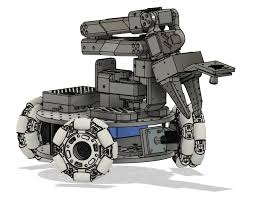
Based on SO-ARM100, a mobile chassis is added, and LeKiwi |
Second half of 2025 |
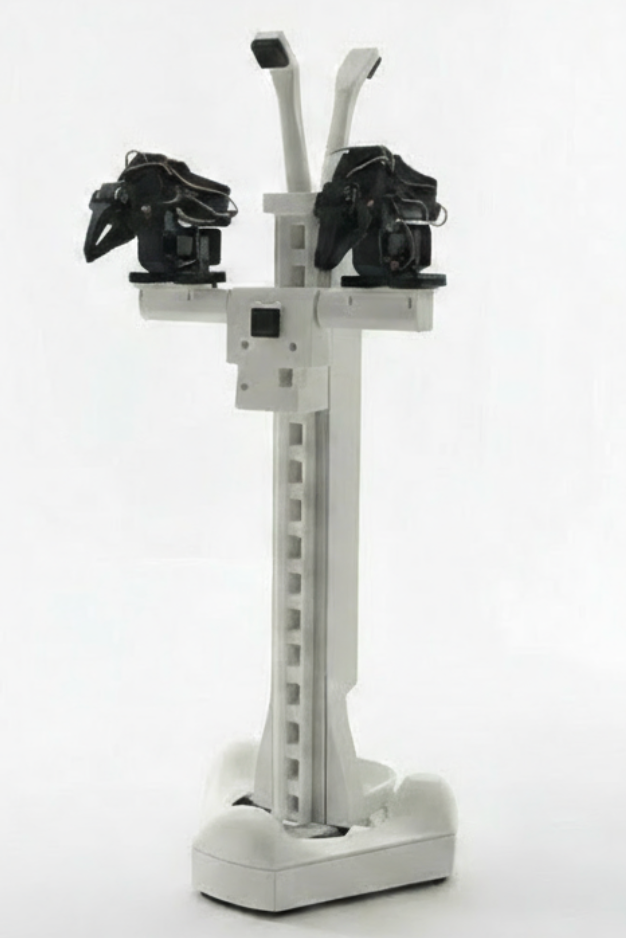
AlohaMini is officially released, complementing key modules such as lifting axis, double-arm collaboration, and multi-camera sensing to form a complete low-cost embodied intelligence platform |
First half of 2026 |
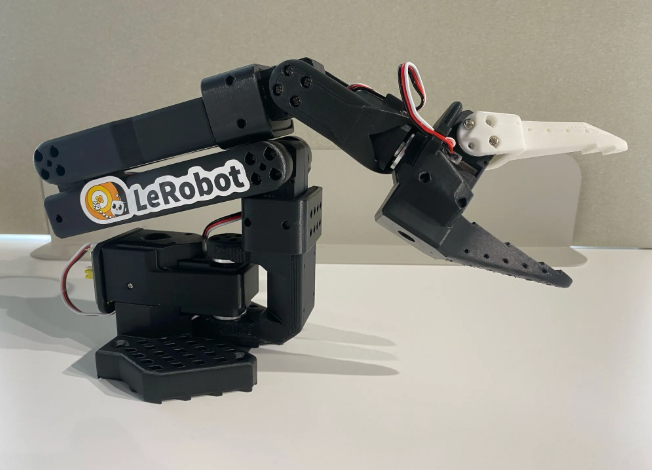
AlohaMini2 Officially released! Compared with the previous generation, the robotic arm has been upgraded to a 6+1 DoF architecture, and the single-arm load has been increased to 1 kg, providing stronger operating capabilities and a larger work space. With the comprehensive upgrade of the robotic arm, lifting mechanism and mobile chassis, AlohaMini 2 has initially possessed the core capabilities of an open source housekeeping robot, providing a more powerful open platform for embodied intelligence research, home service scenario exploration and end-to-end robot learning. |
Why does the robot look like this?#
Many people have questions when they see AlohaMini for the first time: Why doesn’t the robotic arm hang down like a human? What are the two “antenna” cameras on the top for? Why do you need another camera on your chest?
There are two clear engineering goals behind these designs: data reuse and algorithm adaptation .
1. Reuse existing data sets#
Most of the current imitation learning data sets are collected in the “desktop robot arm” scenario - the camera perspective, operating space, and interaction methods all default to the robot arm being fixed on the desktop and working forward.
AlohaMini adopts a similar spatial layout (the robot arm is in the front instead of hanging down), which is essentially to maximize compatibility with existing data sets.There is no need to build a new data system from scratch, significantly reducing training costs.。
2. Adapt to the input specifications of mainstream algorithms#
The current mainstream visual input of embodied intelligence algorithms has gradually formed a consensus: Multi-view RGB input (global perspective + local operation perspective) .
Take two representative models as examples:
model |
required viewing angle |
|---|---|
ACT |
Front view, chest, left wrist, right wrist |
Pi0.5 High-Level |
Front view, rear view, left wrist, right wrist |
Pi0.5 Low-Level |
Front view, left wrist, right wrist |
Therefore, AlohaMini adopts 5 camera design:
Forward (global perspective)
backward (environment supplement)
Chest (medium distance view)
Left wrist/right wrist (operational details)
Each camera can be flexibly enabled or disabled through software to adapt to the input requirements of different algorithms.
Summary: The appearance of AlohaMini is not to be “human-like”, but to maximize the reuse of existing data and align the input of mainstream algorithms. This is an engineering form optimized for data and algorithms, not a bionic form.
Hardware preparation#
You can obtain AlohaMini hardware in two ways:
Method 1: Self-assembly Procurement of parts and assembly in-house based on the open source BOM (bill of materials) provided by the AlohaMini warehouse. The cost is lower and it is suitable for developers with certain hands-on ability.
Method 2: Purchase official kit or robot Go to the official website www.alohamini.cn to purchase Kits or a fully assembled machine, which saves time and effort and is suitable for users who want to get started quickly.
Understand the servo components of AlohaMini#
Before hands-on operation, take two minutes to understand the internal structure of the robot. The subsequent debugging steps will be easier to understand.
AlohaMini is composed of chassis, lifting shaft and arms. The series connection and wiring method of each part of the servo is as follows:
Chassis: 3 servos connected in series (No. 8, 9, 10) → connected in series to the lifting axis
Lifting axis: 1 servo (No. 11) → connected to the left arm drive board
Left arm: 6 servos connected in series (numbered 1–6) → connected to the left arm drive board
Right arm: 6 servos connected in series (numbered 1–6) → connected to the right arm drive board
Therefore, there are 2 serial cables connected to the left arm driver board and only 1 to the right arm driver board.
Overview of servo numbers:
parts |
Servo ID |
|---|---|
Robotic arm joint (taking SO-ARM as an example) |
1 – 6 |
chassis wheels |
8, 9, 10 |
Lifting shaft |
11 |
After understanding this table, if you need to control a certain joint accurately, you only need to confirm which arm it belongs to and what its number is.
The joints of the SO-ARM robotic arm are 1-6
The joints of the AM-ARM robotic arm are 1-7
AlohaMini robot component overview#
Mechanical structure#
Double arms (SO-ARM/AM-ARM)
Lift shaft (Lift)
Mobile chassis (omnidirectional wheels)
sensor system#
camera |
location |
|---|---|
|
forward view |
|
rear view |
|
chest |
|
left wrist |
|
right wrist |
control system#
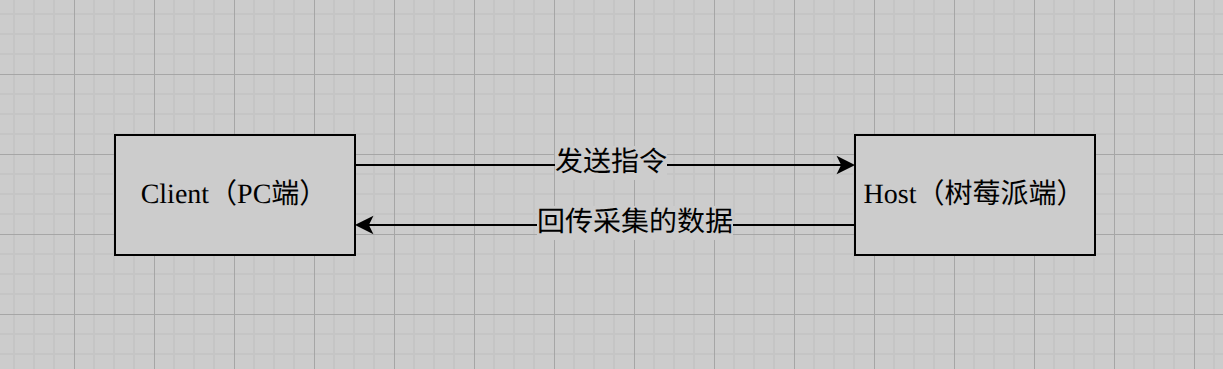
slave computer: Raspberry Pi (runs with the robot)
upper computer: your computer (responsible for training and inference)
communication architecture#
Power supply system#
power supply |
Purpose |
|---|---|
5V lithium battery |
Powered by Leader Arms |
12V lithium battery (×1) |
Powered by Follower Arms |
12V lithium battery (×1) + voltage step-down board |
Raspberry Pi power supply (12V to 5V) |
Code structure description#
The code directly related to AlohaMini in the warehouse is concentrated in two directories. When you encounter a problem and need to change the code, first confirm which end is changed:
Directory |
running on |
Responsibilities |
|---|---|---|
|
Raspberry Pi (slave computer) |
Robot body drive, camera acquisition, servo control |
|
PC (host computer) |
Teleoperation, data collection, model inference |
|
All platforms |
Both warehouses need to be cloned and installed on their respective machines. To modify the files on the Raspberry Pi, you need to log in with SSH, and to modify the files on the PC, you need to operate directly locally.
robot body src/lerobot/robots/alohamini/
File |
function |
|---|---|
|
Camera, port, parameter configuration |
|
Robot underlying driving logic |
|
Server entry running on Raspberry Pi |
teleoperation terminal examples/alohamini/
File |
function |
|---|---|
|
Wireless teleoperation of both arms |
|
Collect demo data set |
|
Replay dataset validation |
|
Evaluation dataset |
The modifications to the two directories are independent of each other - changing the camera configuration is in the ontology directory, and changing the teleoperation logic is in the examples directory. The only exception is
config_alohamini.py, which has one copy each on the main body and the PC. After modification, both sides need to be synchronized (see the “Enable or turn off the camera” chapter for details).
Key entry instructions#
Every time you use the robot, there are basically two fixed steps: first start the Host on the Raspberry Pi, and then start the teleoperation on the PC.
This is just an overview to give you an impression of the overall process. If this is your first time, please continue to follow the step-by-step operations in the subsequent chapters. After completing the environment configuration and calibration, come back and run these two instructions.
The first step: Raspberry Pi side-start the robot service (execute after SSH login)
conda activate lerobot_alohamini
cd lerobot_alohamini
python -m lerobot.robots.alohamini.alohamini_host \
  --robot_model alohamini2pro        # 根据实际机器人型号填写
--robot_model optional value description:
value |
Corresponding robot arm type |
|---|---|
|
SO-ARM 5DoF, full sts3215 servo |
|
AM-ARM 6DoF, sts3215/sts3095 servo |
|
AM-ARM 6DoF, sts3250/sts3095 servo (upgraded version) |
The second step: PC side - start teleoperation
conda activate lerobot_alohamini
cd lerobot_alohamini
# 将 IP 替换为本机地址;本段示例适用于 2 Pro
python examples/alohamini/teleoperate_bi.py \
  --robot.remote_ip 192.168.50.88 \
  --robot.robot_model alohamini2pro \
  --teleop.id am_leader_bi \
  --teleop.arm_profile am-leader-6dof
The two commands need to be executed separately in two independent terminal windows ****. After the Raspberry Pi side is started successfully, run the PC side.
Computing power and system environment#
Recommended hardware configuration#
Project |
request |
|---|---|
operating system |
Ubuntu 22.04 |
graphics card |
NVIDIA RTX 4070 and above |
Why Ubuntu instead of Windows?#
The robot software ecosystem (including LeRobot, serial communication, CUDA driver, etc.) that AlohaMini relies on is best supported under Linux, but will encounter a large number of compatibility issues under Windows. Ubuntu 22.04 is currently the most mainstream choice in the community, and it is easiest to find answers to problems.
If your computer is currently running Windows, you can choose to install Ubuntu on a dual system, or use a dedicated Ubuntu machine to run training and inference.
What is Conda? Why is it needed?#
Conda is a Python environment management tool. Different projects may rely on different versions of Python libraries. If they are all installed in the same system environment, they can easily conflict with each other. Conda can create an independent “isolated environment” for each project without interfering with each other.
The environment used by AlohaMini is named lerobot_alohamini , and all subsequent commands need to be activated in this environment before they can be run.
Software source considerations#
⚠️ Please keep Ubuntu default software sources and and do not switch to domestic mirror sources (such as Tsinghua source, University of Science and Technology of China, etc.), otherwise it may cause some dependent versions to be mismatched, causing errors that are difficult to troubleshoot.
Installation steps#
Step 1: Install Miniconda
Go to https://docs.conda.io/en/latest/miniconda.html to download the Linux version installation package, and then execute in the terminal:
bash Miniconda3-latest-Linux-x86_64.sh
Press Enter all the way to confirm as prompted. After the installation is complete, reopen the terminal and enter conda --version. If you can see the version number, the installation is successful.
Step 2: Clone the warehouse and complete the environment configuration
Refer to the official documentation to complete steps 1–4: 👉 liyiteng/lerobot_alohamini
The core process is as follows:
# 克隆仓库
git clone https://github.com/liyiteng/lerobot_alohamini.git
cd lerobot_alohamini

# 创建并激活 Conda 环境
conda create -n lerobot_alohamini python=3.12
conda activate lerobot_alohamini

# 安装依赖
pip install -e ".[all]"
pip install pyzmq feetech-servo-sdk
conda install -y ffmpeg=7.1.1 -c conda-forge
The installation process may take 10–20 minutes, during which a large number of dependent packages will be downloaded, so please maintain a network connection.
Step 3: Verify installation
conda activate lerobot_alohamini
python -c "import lerobot; print('安装成功')"
Output “Installation successful” to proceed to the next step.
Basic operations on the terminal#
All subsequent operations are completed in Terminal (Terminal). How to open the terminal in Ubuntu: press Ctrl + Alt + T or search for “Terminal” in the application list.
Several basic commands that you must know:
command |
function |
Example |
|---|---|---|
|
Enter a directory |
|
|
View files in the current directory |
|
|
View the full path of the current directory |
|
|
Activate the Conda environment |
|
⚠️ Important: All subsequent
pythoncommands must firstcdenter the warehouse root directory (i.e.lerobot_alohamini/), and ensure that the Conda environment is activated ((lerobot_alohamini)will be displayed before the terminal prompt) before executing.
Let the robotic arm move for the first time#
Step 1: Prepare one arm#
Prepare an independent robotic arm. If the robot arm has been installed on the robot, it can be powered on directly and connected to the PC via Type-C, or it can be removed from the T-shaped bracket with an M3 hex screwdriver and powered on (it is recommended to take the right arm).
Step 2: Confirm that the port is empty#
Open the terminal, first enter the warehouse directory and activate the environment:
cd lerobot_alohamini
conda activate lerobot_alohamini
Then enter:
ls /dev/ttyACM*
At this time it should prompt “No port found”. If a port is occupied, please unplug the corresponding device and try again.
Step 3: Connect the robotic arm#
The black DC interface on the servo drive board: connect to 12V lithium battery
Type-C interface: Connect to PC
Step 4: Confirm port identification#
Enter again:
ls /dev/ttyACM*
A port should be displayed, such as /dev/ttyACM0 .
Step 5: Read the servo status#
Enter the Conda environment and execute the debugging command:
conda activate lerobot_alohamini
python examples/debug/motors.py get_motors_states \
  --port /dev/ttyACM0
You will see the real-time status of all servos. When moving each joint, the POS value will change accordingly - this is the servo magnetic encoder working and reading the current position in real time.
POS value range: 0–4095, the minimum rotation accuracy is 360 ÷ 4096 ≈ 0.088°
Step 6: Control the rotation of a single servo#
Swing the robotic arm to the “rest position” and record the POS value of servo No. 1 (assumed to be 2039).
What is a rest position? The rest position is the standard initial posture of the robotic arm. At this time, each joint stretches naturally, is not stressed, and does not touch any objects. Please refer to the picture below for the specific form.
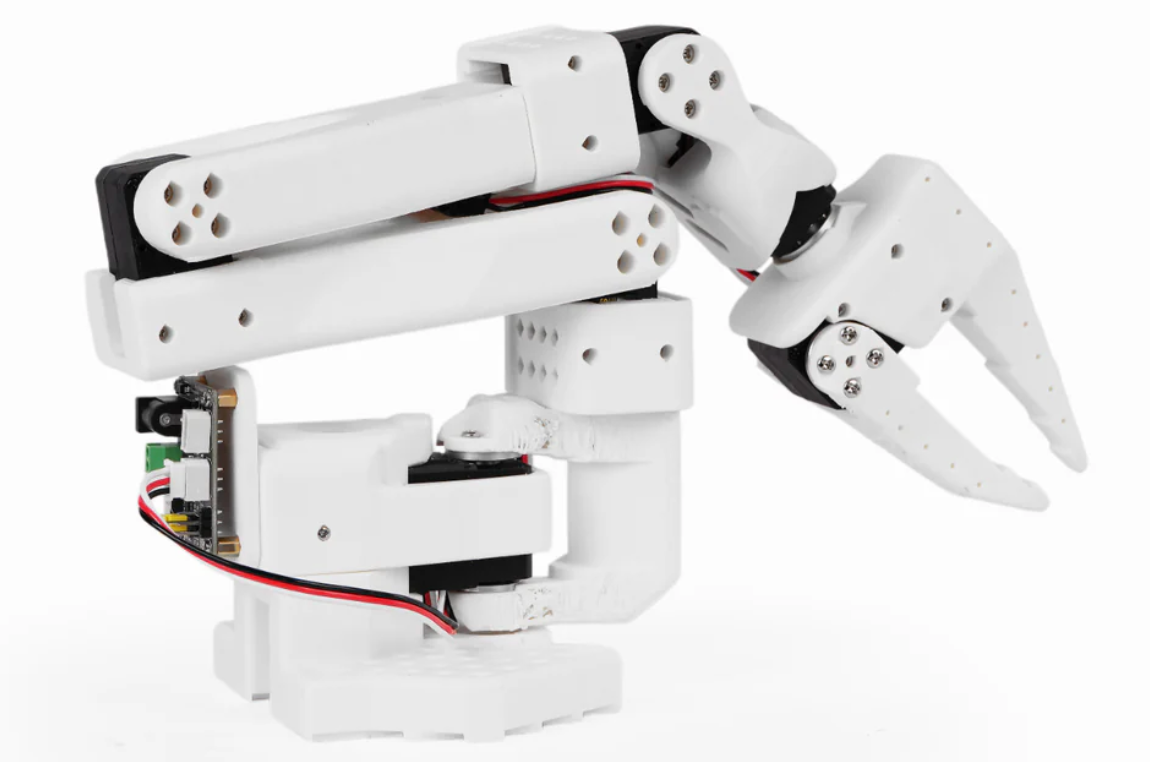
Micro rotation (+1, about 0.088°):
python examples/debug/motors.py move_motor_to_position \
  --id 1 \
  --position 2040 \
  --port /dev/ttyACM0
Maximum rotation (+500, about 44°):
python examples/debug/motors.py move_motor_to_position \
  --id 1 \
  --position 2540 \
  --port /dev/ttyACM0
⚠️ Safety reminder: Make sure that the rotation path of the servo is not blocked during operation. Once a stall occurs, the current will surge and burn out the servo within seconds. If any abnormality is found, please unplug the power supply immediately.
For more Debug functions, please refer to the documentation:

First calibration and teleoperation#
Concept Note#
Robotic arms are divided into two types:
Leader Arm: Manually controlled by humans
Follower Arm: Receive and reproduce the joint angle of the leader arm in real time
Through teleoperation, demonstration data sets can be collected to train the robot.
Why is calibration needed?#
After the two robot arms leave the factory or are installed for the first time, the initial POS value of each joint is random. For example, when the A arm is in the rest position, the No. 1 servo POS is 2000, and the B arm may be 3000. If direct teleoperation is performed without calibration, the POS of the leader arm will be directly transmitted to the follower arm, causing the follower arm to suddenly rotate significantly.
Solution: Calibrate the two robotic arms once to establish a unified zero reference.
Calibration process#
Step 1: Disconnect all USB devices and confirm that the port is empty
ls /dev/ttyACM*
Step 2: Calibrate Leader Arm
Use a 5V lithium battery to power the Leader Arm, connect the Type-C to the PC, confirm that the port is /dev/ttyACM0, and then execute:
lerobot-calibrate \
  --teleop.type=so101_leader \
  --teleop.port=/dev/ttyACM0 \
  --teleop.id=leader_arm_0218 \
  --teleop.arm_profile=am-leader-6dof
What is
--teleop.id? This is a custom name you give this arm to save and identify the calibration data. The name can be filled in at will (such asmy_leader_arm), but once it is determined, the subsequent teleoperation and data acquisition commands need to be consistent, otherwise the corresponding calibration file will not be found.
arm_profilePlease select according to the type of robot arm:
SO-ARM Series →
so-arm-5dofAM-ARM200 / AM-ARM200 Pro Series →
am-leader-6dofFor the complete mapping table, see: liyiteng/lerobot_alohamini
For the calibration process, please refer to the video: https://b23.tv/Dd1xFYz
1. Set the middle point (Middle Point)
The first step of calibration is to adjust each joint of the robotic arm to the middle position. At this time, the program will force the encoder values (POS) of all servos to be written to 2048.
The reason for this: the servo magnetic encoder has a range of 0–4096, and the center position corresponds to 2048, which means that after rotating 90° to the left or right, the POS falls around 1000 and 3000 respectively, with sufficient margin on both sides. If 2048 is not forced to be written, the median may be any value (such as 3500). After turning 90° to the right, POS will reach 4500, which is beyond the encoder range and causes an exception.
2. Rotate to minimum and maximum
Turn each joint to both ends of the stroke in turn, and record min and max. The left and right rotation amplitude must be symmetrical - for example, after turning 90° to the left, it also needs to turn 90° to the right. If the amplitudes on both sides are inconsistent, the robot arm will deviate during operation.
3. Verify calibration results
After the calibration is completed, the program automatically records the min/max values of each joint. The expected range is as follows:
joint |
min |
max |
|---|---|---|
Gripper |
~2000 |
~3000 |
remaining joints |
~1000 |
~3000 |
If the actual value deviates greatly (such as 1500–3500), it indicates that there is a problem with the calibration process and needs to be performed again.
Step 3: Calibrate Follower Arm
Keep the Leader Arm connected, then use a 12V lithium battery to power the Follower Arm, connect the Type-C to the PC, confirm that the port is /dev/ttyACM1, and then execute:
lerobot-calibrate \
  --robot.type=so101_follower \
  --robot.port=/dev/ttyACM1 \
  --robot.id=follower_arm_0218 \
  --robot.arm_profile=am-follower-6dof-hd
--robot.idSimilarly, it is the custom name of the follower arm, which also needs to be consistent in subsequent commands.
arm_profilePlease select according to the type of robot arm:
SO-ARM Series →
so-arm-5dofAM-ARM200 Series →
am-follower-6dofAM-ARM200-Pro Series →
am-follower-6dof-hdFor the complete mapping table, see: liyiteng/lerobot_alohamini
Step 4: Start teleoperation
lerobot-teleoperate \
  --teleop.type=so101_leader \
  --teleop.port=/dev/ttyACM0 \
  --teleop.id=leader_arm_0218 \
  --teleop.arm_profile=am-leader-6dof \
  --robot.type=so101_follower \
  --robot.port=/dev/ttyACM1 \
  --robot.id=follower_arm_0218 \
  --robot.arm_profile=am-follower-6dof-hd
At this time, the actions of the Leader Arm will be mirrored to the Follower Arm in real time.
Chassis and lifting debugging#
Wiring instructions#
If you carefully observe the servo drive boards of the left and right robotic arms of the robot, you will find:
Left arm driver board: connected to 2 serial cables (one connected to the robotic arm and one connected to the lifting axis)
Right arm driver board: Only 1 serial port cable is connected (only connected to the robotic arm)
Chassis debugging#
Use a 12V power supply to power the left arm, connect the Type-C to the PC, and after confirming the port, first read the status of all motors and verify whether the servos of the chassis and lifting axis are recognized normally:
conda activate lerobot_alohamini
python examples/debug/motors.py get_motors_states \
  --port /dev/ttyACM0
You should see the status of the servos numbered 8, 9, 10 (chassis wheels) and 11 (elevator shaft) in the output. When the corresponding joint is manually moved, the POS value will change accordingly.
⚠️ If a certain number is missing, it means that the servo has not been recognized. Please check whether the corresponding serial port cable is plugged in tightly and whether the servo is powered normally, and then continue after troubleshooting.
After confirming that all servos are online, execute the chassis control program:
python examples/debug/wheels.py \
   --port /dev/ttyACM0
Keyboard control instructions:
Button |
Function |
|---|---|
|
Forward/Back |
|
Turn left / turn right |
|
Pan left / pan right |
Lift debugging#
python examples/debug/axis.py \
   --port /dev/ttyACM0
Keyboard control instructions:#
Button |
Function |
|---|---|
|
rise/fall |
Frequently Asked Questions: Keys not responding#
Please check the display protocol currently used by Ubuntu:
If it is Wayland → switch to X11 (Xorg) and rerun the program to return to normal
Starting the AlohaMini machine for the first time#
Install the left and right arms on the lifting shaft, turn on the power, connect the Raspberry Pi to WiFi, and record the IP address (for example 192.168.8.3).
How to check the IP address of Raspberry Pi? You can log in to the router backend (usually open the browser
192.168.1.1or192.168.8.1) and find the corresponding IP of the Raspberry Pi in the list of connected devices; or connect a temporary monitor to the Raspberry Pi and enterip addrin the terminal to view.
What is SSH?#
SSH is a remote login tool that allows you to control another machine (in this case, a Raspberry Pi) from your own computer as if you were typing directly on that machine. AlohaMini’s robot service runs on the Raspberry Pi and requires SSH into the Raspberry Pi to start it.
Ubuntu and macOS come with SSH, which can be used directly in the terminal. Windows users can use the PowerShell that comes with the system, or install MobaXterm .
SSH remote login to Raspberry Pi:
# 格式:ssh 用户名@IP地址
ssh pi5@192.168.8.3
When connecting for the first time, you will be asked whether to trust the host. Enter yes and press Enter. After successful login, the terminal prompt will change to the user name on the Raspberry Pi, and subsequent commands will be executed on the Raspberry Pi.
After logging in, install the Conda environment and lerobot_alohamini warehouse (refer to the official documentation), then activate the environment and start the robot service:
python -m lerobot.robots.alohamini.alohamini_host --robot_model alohamini2pro
If you run for the first time, the program will prompt you to press the C key to calibrate the robotic arm. The process is the same as the previous single-arm calibration. The difference is that you need to continuously calibrate the left and right arms.
After the calibration is completed, the current value of each joint will continue to be output on the screen.
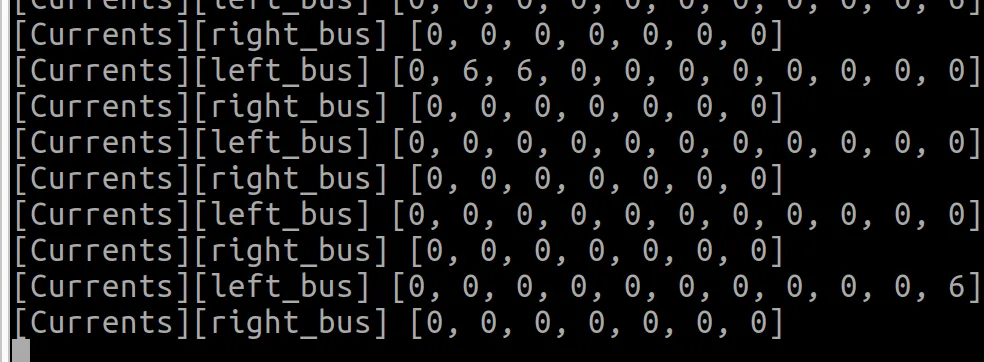
Indicates that the robot has been started successfully.
After successful calibration, there is usually no need to repeat the calibration. Every time you start the program in the future, just press the Enter key to load the saved calibration data. If you need to recalibrate, please run this program again and press the C key when prompted to enter the calibration process.
The first wireless teleoperation of arms#
Activate the Conda environment on PC side, configure the port number in teleoperate_bi.py, and then execute:
python examples/alohamini/teleoperate_bi.py \
  --robot.remote_ip 192.168.8.3 \
  --robot.robot_model alohamini2pro \
  --teleop.id am_leader_bi \
  --teleop.arm_profile am-leader-6dof
arm_profilePlease select according to the type of robot arm:
SO-ARM Series →
so-arm-5dofAM-ARM200/200 Pro Series →
am-leader-6dofFor the complete mapping table, see: liyiteng/lerobot_alohamini
The program will prompt for Leader Arms calibration. After the calibration is completed, it will enter the teleoperation mode - the movements of the arms will be synchronized to the robot in real time.
Turn camera on or off#
AlohaMini comes with 5 cameras, but not all algorithms need to be enabled. You can modify the configuration file to enable or disable the corresponding camera as needed, thereby reducing unnecessary bandwidth usage and inference overhead.
Configuration file location#
This configuration file exists at both ends of **** with the same path:
src/lerobot/robots/alohamini/config_alohamini.py
The machine where it is located |
function |
|---|---|
Raspberry Pi (slave computer) |
Control actual camera acquisition |
PC (host computer) |
Control which camera data the client subscribes to |
⚠️ Both ends must be consistent. If a camera is enabled on the Raspberry Pi but not on the PC, or vice versa, it may cause connection abnormalities or data mismatch. After each modification, please update the files on both machines simultaneously.
Camera configuration instructions#
In the configuration file, cameras are managed uniformly through the alohamini_cameras_config() function. The current complete configuration is as follows:
def alohamini_cameras_config() -> dict[str, CameraConfig]:
    return {
        "forward": OpenCVCameraConfig(
            index_or_path="/dev/am_camera_forward", fps=30, width=640, height=480, rotation=Cv2Rotation.NO_ROTATION
        ),
        # "backward": OpenCVCameraConfig(
        #     index_or_path="/dev/am_camera_backward", fps=30, width=640, height=480, rotation=Cv2Rotation.NO_ROTATION
        # ),
        # "chest": OpenCVCameraConfig(
        #     index_or_path="/dev/am_camera_chest", fps=30, width=640, height=480, rotation=Cv2Rotation.NO_ROTATION
        # ),
        # "wrist_left": OpenCVCameraConfig(
        #     index_or_path="/dev/am_camera_wrist_left", fps=30, width=640, height=480, rotation=Cv2Rotation.NO_ROTATION
        # ),
        "wrist_right": OpenCVCameraConfig(
            index_or_path="/dev/am_camera_wrist_right", fps=30, width=640, height=480, rotation=Cv2Rotation.NO_ROTATION
        ),
    }
It can be seen that forward and wrist_right are currently enabled in the code, and the remaining three cameras are in annotation status (off).
How to operate#
Enable a camera: Delete the # comment character in the corresponding line.
Take enabling the left wrist camera as an example:
# 修改前(关闭)
# "wrist_left": OpenCVCameraConfig(
#     index_or_path="/dev/am_camera_wrist_left", fps=30, width=640, height=480, rotation=Cv2Rotation.NO_ROTATION
# ),

# 修改后(启用)
"wrist_left": OpenCVCameraConfig(
    index_or_path="/dev/am_camera_wrist_left", fps=30, width=640, height=480, rotation=Cv2Rotation.NO_ROTATION
),
Turn off a camera: Add # before the corresponding line, and the operation direction is the opposite.
Camera combinations recommended by each algorithm#
algorithm |
Recommended cameras to enable |
|---|---|
ACT |
|
Pi0.5 High-Level |
|
Pi0.5 Low-Level |
|
⚠️ The service needs to be restarted after modification. Rerun
alohamini_hoston the Raspberry Pi and rerun the teleoperation or inference script on the PC for the configuration to take effect.
Next step#
After completing the teleoperation, you have completed the complete process from hardware debugging to wireless control. You can continue to explore next:
Function |
Description |
|---|---|
Collect data set |
Record the robot’s demonstration actions through teleoperation |
Replay dataset |
Verify that the recorded data is correct |
Training model |
Use ACT or Diffusion Policy to train on the collected data |
Evaluation model |
Let the robot perform tasks autonomously and observe the success rate |
For detailed command line usage, please refer to GitHub README: 👉 liyiteng/lerobot_alohamini
Having a problem?#
When you encounter an error or get stuck and don’t know what to do, you can seek help through the following channels:
1. Look at the last few lines of the error message first
The errors output by the terminal are usually in the last few lines. Copy the keywords and ask questions in the AI or community, and you can often find answers quickly.
2. Submit GitHub Issue
If it is judged to be a problem with the code or documentation, you are welcome to raise an issue in the warehouse, attaching the error screenshot and operation steps: 👉 liyiteng/lerobot_alohamini#issues
Quick FAQ:
phenomenon |
Investigation direction |
|---|---|
|
Check whether the USB cable is plugged in and whether the driver board is powered |
The servo doesn’t move |
Confirm that the power supply to the driver board is correct (Leader 5V / Follower 12V), and confirm that the driver board is connected to the PC. |
The servo is not working properly |
Use the get_motors_states function to clarify the current status of the servo, and then gradually find the problem point |
Chassis keyboard unresponsive |
Switch the display protocol to X11 (see Chassis Debugging Chapter) |
SSH cannot connect to Raspberry Pi |
Confirm that the PC and Raspberry Pi are on the same WiFi network and the IP address is correct |
The follower arm suddenly rotates greatly during teleoperation. |
Power off the master and follower arms and re-execute the calibration process on both arms. |
Raspberry Pi frequently disconnects |
Caused by compatibility issues between the Raspberry Pi and the router, the solution: modify the router channel: ● 2.4GHz: 1 / 6 / 11 (2.4G is not recommended, the delay is too large) ● 5GHz: 36 / 40 / 44 / 48 (priority) |
Why is the robot arm port ACM0 for a while and ACM1 for a while? |
The Ubuntu system is named according to the USB port plug-in and pull-out sequence. The first device inserted is ACM0, the second device is ACM1, and so on. |