EarthRover Mini Plus#
← 教程资料库 · 其他硬件与遥操作
本节介绍 LeRobot 的通用功能。请按目标机器人、数据集和运行环境配置示例;用于 AlohaMini 2 / 2 Pro 前,需要确认硬件与接口兼容性。
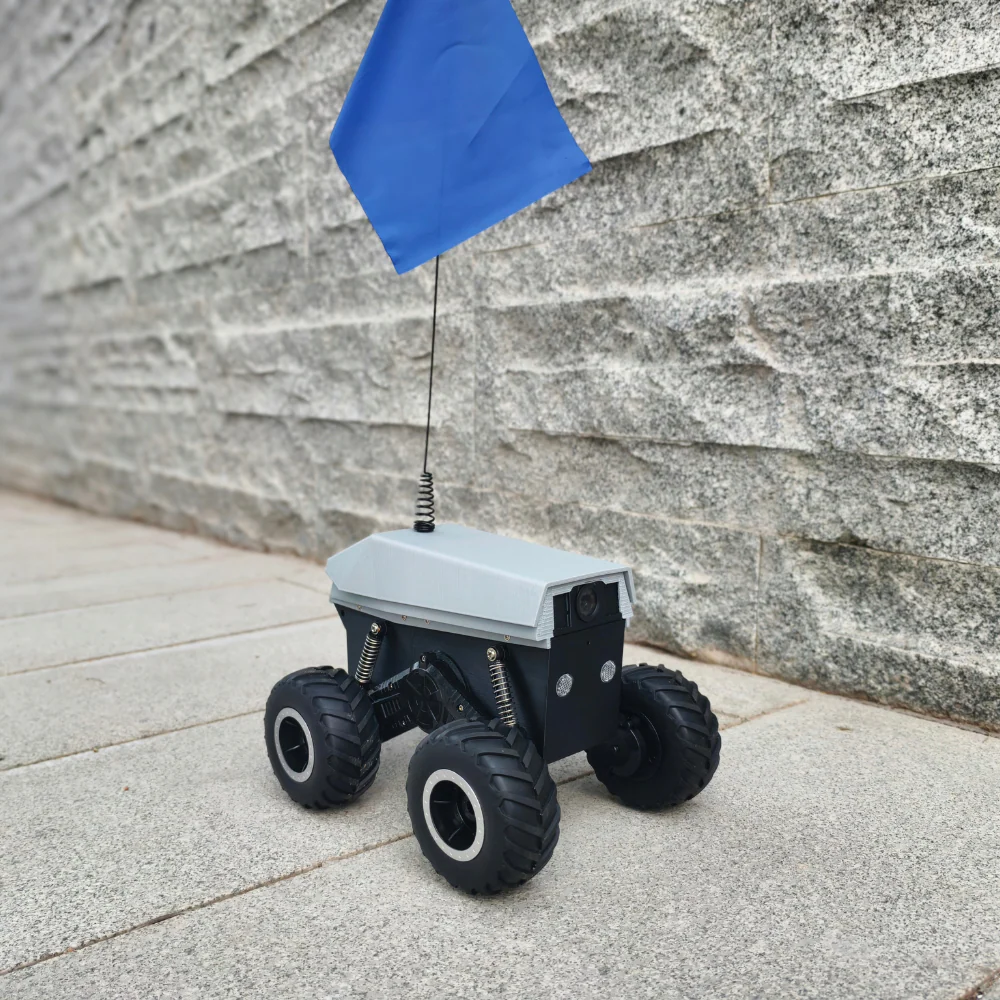
The EarthRover Mini Plus is a fully open source mobile robot that connects through the cloud using the Frodobots SDK. This lets you control the robot and record datasets for training AI models.
What You Need#
Hardware#
EarthRover Mini robot
Computer with Python 3.12 or newer
Internet connection
Setting Up the Frodobots SDK#
The robot needs the Frodobots SDK running on your computer. Here's how:
Download and install the SDK:
git clone https://github.com/frodobots-org/earth-rovers-sdk.git
cd earth-rovers-sdk
pip install -r requirements.txt
Save Credentials:
Write your .env variables with the SDK API key and bot name provided by the Frodobots team.
SDK_API_TOKEN=your_sdk_api_token_here
BOT_SLUG=your_bot_slug_here
CHROME_EXECUTABLE_PATH=/path/to/chrome_or_chromium
# Default value is MAP_ZOOM_LEVEL=18 https://wiki.openstreetmap.org/wiki/Zoom_levels
MAP_ZOOM_LEVEL=18
MISSION_SLUG=your_mission_slug_here
# Image quality between 0.1 and 1.0 (default: 0.8)
# Recommended: 0.8 for better performance
IMAGE_QUALITY=0.8
# Image format: jpeg, png or webp (default: png)
# Recommended: jpeg for better performance and lower bandwidth usage
IMAGE_FORMAT=jpeg
Start the SDK:
hypercorn main:app --reload
Open your web browser and go to
http://localhost:8000, then click "Join"
The SDK gives you:
Live video from front and rear cameras
[!IMPORTANT] The SDK must be running before you can use the robot.
Install LeRobot#
Follow our Installation Guide to install LeRobot.
In addition to the base installation, install the EarthRover Mini with hardware dependencies:
pip install -e ".[hardware]"
How It Works#
The robot uses the internet to communicate:
Movement commands: Sent through the SDK
Camera video: Received from the SDK
Robot info: Battery, location, speed from the SDK
You don't need to plug anything in - it all works through the SDK.
Calibration#
No calibration needed! The robot is ready to use as soon as the SDK is running.
Controlling the Robot#
You control the robot using your keyboard - just like playing a video game with WASD keys.
Keyboard Controls#
Key |
Action |
|---|---|
W |
Move forward |
S |
Move backward |
A |
Turn left (with forward motion) |
D |
Turn right (with forward motion) |
Q |
Rotate left in place |
E |
Rotate right in place |
X |
Stop all movement |
+/= |
Increase speed |
- |
Decrease speed |
ESC |
Disconnect |
Speed Settings#
You can adjust how fast the robot moves:
Forward/backward speed: Default is full speed (1.0)
Turning speed: Default is full speed (1.0)
Speed changes: Use +/- keys to adjust by 0.1 each time
Try It Out#
Test driving the robot before recording data:
from lerobot.robots.earthrover_mini_plus import EarthRoverMiniPlus, EarthRoverMiniPlusConfig
from lerobot.teleoperators.keyboard import KeyboardRoverTeleop, KeyboardRoverTeleopConfig

# Initialize robot
robot_config = EarthRoverMiniPlusConfig()
robot = EarthRoverMiniPlus(robot_config)

# Initialize teleoperator
teleop_config = KeyboardRoverTeleopConfig(
    linear_speed=1.0,
    angular_speed=1.0,
    speed_increment=0.1
)
teleop = KeyboardRoverTeleop(teleop_config)

# Connect
robot.connect()
teleop.connect()

# Teleoperate (use keyboard controls)
try:
    while True:
        action = teleop.get_action()
        robot.send_action(action)
except KeyboardInterrupt:
    pass
finally:
    robot.disconnect()
    teleop.disconnect()
[!TIP] If you're using a Mac, you might need to give Terminal permission to access your keyboard for teleoperation. Go to System Preferences > Security & Privacy > Input Monitoring and check the box for Terminal.
Recording Data#
Once you can drive the robot well, you can start recording data to train AI models. The system records:
What you do: How you move the robot (forward, backward, turning)
What the robot sees:
Videos from both cameras
Robot speed and direction
Battery level and location
GPS position and signal
Other sensor data
When it happened: Timestamps for everything
Setting Up Hugging Face#
We use Hugging Face to store your data online. First, log in with your token from Hugging Face settings:
hf auth login --token ${HUGGINGFACE_TOKEN} --add-to-git-credential
Store your Hugging Face username:
HF_USER=$(hf auth whoami | awk -F': *' 'NR==1 {print $2}')
echo $HF_USER
Start Recording#
Use the standard recording command:
lerobot-record \
    --robot.type=earthrover_mini_plus \
    --teleop.type=keyboard_rover \
    --dataset.repo_id=your_username/dataset_name \
    --dataset.num_episodes=2 \
    --dataset.fps=10 \
    --dataset.single_task="Navigate around obstacles" \
    --dataset.streaming_encoding=true \
    --dataset.encoder_threads=2 \
    # --dataset.rgb_encoder.vcodec=auto \
    --display_data=true
Replace your_username/dataset_name with your Hugging Face username and a name for your dataset.
What Gets Saved#
Your dataset includes:
Your Actions (2 features):
linear_velocity: How much you moved forward/backwardangular_velocity: How much you turned left/right
Robot Observations (24 features):
Front camera video
Rear camera video
Current speed
Battery level
Orientation
GPS (latitude, longitude, signal strength)
Network signal strength
Vibration level
Lamp state (on/off)
Accelerometer (x, y, z)
Gyroscope (x, y, z)
Magnetometer (x, y, z)
Wheel RPMs (4 wheels)
Where Your Data Goes#
On your computer: ~/.cache/huggingface/lerobot/{repo-id}
After recording, your data automatically uploads to your Hugging Face page:
echo https://huggingface.co/datasets/${HF_USER}/earthrover-navigation
Your dataset will be tagged with LeRobot for community discovery.