AlohaMini — Full Workflow#
← 教程资料库 · AlohaMini 硬件与操作
适用型号请结合本页硬件配置确认。
Prerequisites: complete install.md first.
Hardware profiles: see profiles.md.
Dual-arm setup — PC (client) + Raspberry Pi (host) on the same LAN.
1. System Architecture#
┌──────────────────────────────┐        LAN        ┌──────────────────────────────────┐
│         PC (Client)          │ ◄───────────────► │      Raspberry Pi (Host)         │
│                              │                   │                                  │
│  • Leader arms (USB)         │                   │  • Follower arms (USB)           │
│  • calibrate_bi.py           │                   │  • Base wheels + lift (USB)      │
│  • teleoperate_bi.py         │                   │  • Cameras (USB)                 │
│  • record_bi.py              │                   │  • alohamini_host.py             │
│  • Training / Evaluation     │                   │                                  │
└──────────────────────────────┘                   └──────────────────────────────────┘
Both machines must be on the same LAN with the full environment installed.
2. Port Configuration#
Plug in one device at a time, then run:
lerobot-find-port
# or check directly:
ls /dev/ttyACM*
Follower arms — edit src/lerobot/robots/alohamini/config_alohamini.py on the Pi:
@dataclass
class AlohaMiniConfig(RobotConfig):
    left_port:  str = "/dev/ttyACM0"   # replace with your left-bus port
    right_port: str = "/dev/ttyACM1"   # replace with your right-bus port
Leader arms — the PC scripts use the stable device aliases below:
left_arm_config  = SOLeaderConfig(port="/dev/am_arm_leader_left", ...)
right_arm_config = SOLeaderConfig(port="/dev/am_arm_leader_right", ...)
Set up the corresponding udev aliases as described in commands.md. If you use different paths, keep them consistent in calibrate_bi.py, teleoperate_bi.py, and record_bi.py.
Port numbers can change after reconnecting or rebooting. If you purchased a complete AlohaMini, the Pi's follower ports are already fixed via udev rules — no action needed.
3. Camera Configuration#
lerobot-find-cameras
Fill the detected index into src/lerobot/robots/alohamini/config_alohamini.py.
Each camera requires its own USB port — do not share a USB hub between multiple cameras.
4. Calibration#
Step 1 — Calibrate follower arms (Pi side)#
SSH into the Pi and run the calibration script for your model: position each joint at its mechanical midpoint → Enter → rotate 90° left → Enter → rotate 90° right → Enter.
# AlohaMini 1 (SO-ARM 5-DoF)
python -m lerobot.robots.alohamini.alohamini_calibrate --robot_model alohamini1

# AlohaMini 2 (AM-ARM 6-DoF)
python -m lerobot.robots.alohamini.alohamini_calibrate --robot_model alohamini2

# AlohaMini 2 Pro (AM-ARM 6-DoF, STS3250)
python -m lerobot.robots.alohamini.alohamini_calibrate --robot_model alohamini2pro
Starting the host also checks calibration and will prompt this flow automatically if calibration is missing.
SO-ARM 5-DoF reference middle position:
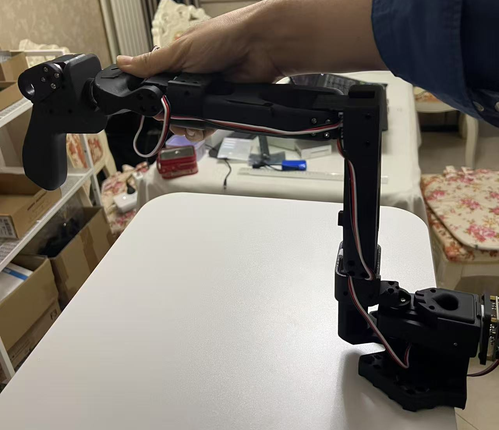
Step 2 — Calibrate leader arms (PC side)#
This step connects only to the two leader arms, so the Pi host does not need to be running.
SO-ARM leader (5-DoF):
python examples/alohamini/calibrate_bi.py \
  --teleop.id so101_leader_bi \
  --teleop.arm_profile so-arm-5dof
AM-ARM leader (6-DoF):
python examples/alohamini/calibrate_bi.py \
  --teleop.id am_leader_bi \
  --teleop.arm_profile am-leader-6dof
Use the same --teleop.id and --teleop.arm_profile for later teleoperation and recording commands so they load the calibration files created here. If a calibration file already exists, press Enter to reuse it or enter c to recalibrate.
Running this standalone step is recommended but optional. If it is skipped and no valid calibration is found, teleoperate_bi.py keeps the existing behavior: it prompts the user and enters the calibration flow automatically.
Power-cycle both leader and follower arms after calibration for changes to take effect.
5. Teleoperation#
Start the Pi host first, then the PC client. A valid leader calibration is loaded automatically; if it is missing, the client prompts for calibration before teleoperation starts:
# Pi — run the host for your robot:
python -m lerobot.robots.alohamini.alohamini_host --robot_model alohamini1
python -m lerobot.robots.alohamini.alohamini_host --robot_model alohamini2
python -m lerobot.robots.alohamini.alohamini_host --robot_model alohamini2pro

# PC — run the client for your leader arm:
python examples/alohamini/teleoperate_bi.py \
  --robot.remote_ip <Pi_IP> \
  --robot.robot_model alohamini1 \
  --teleop.id so101_leader_bi \
  --teleop.arm_profile so-arm-5dof

python examples/alohamini/teleoperate_bi.py \
  --robot.remote_ip <Pi_IP> \
  --robot.robot_model alohamini2 \
  --teleop.id am_leader_bi \
  --teleop.arm_profile am-leader-6dof
The Host runs command handling, feedback, watchdog, and safety checks at 50 Hz.
Follower servos apply the shared position-mode velocity and acceleration profile,
so normal teleoperation retains direct target semantics without unbounded motion.
Native teleoperation also defaults to 50 Hz command control while requesting camera
frames independently at 30 Hz. To expose the non-blocking ROS camera stream on TCP
port 5557, add --camera-stream to the selected Host command.
ROS state requests on port 5556 omit camera acquisition, while legacy LeRobot
clients keep receiving the same state-plus-image multipart response.
Motor-current protection uses the actuator ratings below:
Model |
Rated |
Stall |
Collision hold |
Sustained stop |
Near-stall stop |
|---|---|---|---|---|---|
STS3215 |
0.9 A |
2.7 A |
1.35 A |
1.8 A |
2.16 A |
STS3095 |
2.2 A |
9.8 A |
3.3 A |
4.4 A |
7.84 A |
STS3250 |
1.4 A |
4.2 A |
2.1 A |
2.8 A |
3.36 A |
Collision hold requires the current threshold, at least 2° of command error, and less than 0.2° of progress toward the target over 150 ms. Position differences are converted to degrees using the motor calibration, including when commands use normalized coordinates. Reverse the target past the held position to release a hold. The Host supervises active targets every control cycle, including cycles without new commands, and writes a safety correction only when the held target changes. Sustained overload stops the robot after 650 ms; near-stall current stops it after 80 ms. Durations use elapsed time; detection occurs on the next feedback sample. The gripper's separate 0.5 A threshold controls contact force.
The Host grants control to the first command client and rejects other writers. After that client stops sending for the watchdog interval (1 second by default), the Host stops motion before releasing control. Stop the current controller and wait for release before starting another. State-only observers do not acquire control. Updated clients identify commands and bind them to the Host session and control epoch. Upgrade the Host and command clients together. Identified commands without the current epoch are rejected. PC commands require complete feedback from a request sent within the last 250 ms; a missing response stops new commands. Legacy unidentified commands remain supported as one shared legacy controller; do not run multiple legacy command clients together. Legacy commands cannot provide session/epoch replay protection.
Synchronous evaluation refreshes expired feedback after inference, discarding responses prefetched before the calculation. The 250 ms feedback limit is not an inference deadline. Fresh feedback must still confirm the same safe control session; a watchdog event, joint protection, Host restart or ownership change pauses evaluation and discards queued actions until explicit recovery. No heartbeat commands are sent during inference to bypass the Host watchdog.
Camera warnings follow the Host's enabled-camera list and appear once per missing-image episode. State-only responses do not trigger missing-image warnings. Older Hosts without camera metadata use the client configuration. Cached and placeholder images do not gain fresh capture timestamps. Observation metadata includes sampled motor currents in mA.
Temporary ZMQ send-queue backpressure defers observation requests to a later cycle; it does not block control or register unsent requests. Other transport errors remain visible, and unavailable feedback still prevents new commands.
6. Dataset Recording#
Make sure the Pi host is already running (§5) before recording.
--teleop.arm_profilehere refers to your leader arm hardware, not the follower robot.
--robot.robot_modelmust match the model running on the Pi host.
Replace<Pi_IP>with your Raspberry Pi's IP address.record_bi.pyprints the local dataset path and uploads to Hugging Face Hub by default. Add--dataset.push_to_hub=falseto keep the dataset local only. Add--dataset.root /path/to/datasetwhen you want to store or resume from a specific local directory.record_bi.pyretains the original single-rate behavior: control and dataset sampling both run at--dataset.fps. To opt into 50 Hz control with complete, fresh-camera samples at the dataset rate, run the same command withrecord_bi_multirate.py. The multirate recorder may run slightly past the countdown to reach the exact frame count and rejects stalled or misaligned camera data instead of silently writing repeated frames.
AlohaMini 1 — SO-ARM leader (5-DoF)#
Create new dataset:
python examples/alohamini/record_bi.py \
  --dataset.repo_id $HF_USER/so100_bi_test \
  --dataset.num_episodes 1 \
  --dataset.fps 30 \
  --dataset.episode_time_s 45 \
  --dataset.reset_time_s 8 \
  --dataset.single_task "pickup1" \
  --robot.remote_ip <Pi_IP> \
  --robot.robot_model alohamini1 \
  --teleop.id so101_leader_bi \
  --teleop.arm_profile so-arm-5dof
Resume existing dataset (add --resume):
python examples/alohamini/record_bi.py \
  --dataset.repo_id $HF_USER/so100_bi_test \
  --dataset.num_episodes 1 \
  --dataset.fps 30 \
  --dataset.episode_time_s 45 \
  --dataset.reset_time_s 8 \
  --dataset.single_task "pickup1" \
  --robot.remote_ip <Pi_IP> \
  --robot.robot_model alohamini1 \
  --teleop.id so101_leader_bi \
  --teleop.arm_profile so-arm-5dof \
  --resume
AlohaMini 2 / 2 Pro — AM-ARM leader (6-DoF)#
Create new dataset:
python examples/alohamini/record_bi.py \
  --dataset.repo_id $HF_USER/am2_bi_test \
  --dataset.num_episodes 1 \
  --dataset.fps 30 \
  --dataset.episode_time_s 45 \
  --dataset.reset_time_s 8 \
  --dataset.single_task "pickup1" \
  --robot.remote_ip <Pi_IP> \
  --robot.robot_model alohamini2 \
  --teleop.id am_leader_bi \
  --teleop.arm_profile am-leader-6dof
Resume existing dataset (add --resume):
python examples/alohamini/record_bi.py \
  --dataset.repo_id $HF_USER/am2_bi_test \
  --dataset.num_episodes 1 \
  --dataset.fps 30 \
  --dataset.episode_time_s 45 \
  --dataset.reset_time_s 8 \
  --dataset.single_task "pickup1" \
  --robot.remote_ip <Pi_IP> \
  --robot.robot_model alohamini2 \
  --teleop.id am_leader_bi \
  --teleop.arm_profile am-leader-6dof \
  --resume
7. Dataset Replay#
python examples/alohamini/replay_bi.py \
  --dataset.repo_id $HF_USER/am2_bi_test \
  --dataset.episode 0 \
  --robot.remote_ip <Pi_IP> \
  --robot.robot_model alohamini2
If the dataset is not under $HF_LEROBOT_HOME/$HF_USER/am2_bi_test, add --dataset.root /path/to/am2_bi_test.
8. Dataset Visualization#
lerobot-dataset-viz \
  --repo-id $HF_USER/am2_bi_test \
  --episode-index 0 \
  --display-compressed-images
9. Training#
Local training#
lerobot-train \
  --dataset.repo_id=$HF_USER/am2_bi_test \
  --policy.type=act \
  --output_dir=outputs/train/act_your_dataset1 \
  --job_name=act_your_dataset \
  --policy.device=cuda \
  --wandb.enable=false \
  --policy.repo_id=$HF_USER/act_policy \
  --dataset.video_backend=pyav
No local GPU?#
Use any cloud GPU provider (e.g. AutoDL, Lambda Labs, Vast.ai). Set up the environment the same way as local, run the same training command, then copy the checkpoint back to your machine for evaluation.
10. Evaluation#
Make sure the Pi host is already running (§5), then run inference from the PC.
--robot.robot_modelmust match the model running on the Pi host:
alohamini1(SO-ARM 5-DoF, 16-dim state) ·alohamini2/alohamini2pro(AM-ARM 6-DoF, 18-dim state)
evaluate_bi.py (custom script, N episodes)#
ACT uses synchronous inference. The interpolation multiplier below runs the robot control loop at
fps × multiplier (20 × 3 = 60 Hz after the first action) and linearly interpolates between policy actions.
python examples/alohamini/evaluate_bi.py \
  --eval.n_episodes 3 \
  --fps 20 \
  --eval.episode_time_s 45 \
  --dataset.single_task "Pick and place task" \
  --policy.path outputs/train/act_your_dataset1/checkpoints/020000/pretrained_model \
  --dataset.repo_id $HF_USER/eval_act_policy \
  --dataset.push_to_hub=false \
  --robot.remote_ip <Pi_IP> \
  --robot.id my_alohamini \
  --robot.robot_model alohamini2 \
  --inference.type sync \
  --interpolation_multiplier 3
SmolVLA supports Real-Time Chunking (RTC), which runs policy inference asynchronously and refreshes part of the action chunk while the robot executes queued actions:
python examples/alohamini/evaluate_bi.py \
  --eval.n_episodes 3 \
  --fps 20 \
  --eval.episode_time_s 45 \
  --dataset.single_task "Pick and place task" \
  --policy.path outputs/train/smolvla_your_dataset1/checkpoints/020000/pretrained_model \
  --dataset.repo_id $HF_USER/eval_smolvla_policy \
  --dataset.push_to_hub=false \
  --robot.remote_ip <Pi_IP> \
  --robot.id my_alohamini \
  --robot.robot_model alohamini2 \
  --inference.type rtc \
  --inference.rtc.execution_horizon 10 \
  --inference.rtc.max_guidance_weight 10.0 \
  --inference.rtc.queue_threshold 30 \
  --interpolation_multiplier 1
Both examples load a local checkpoint and save the evaluation dataset locally without uploading it. Make sure the
--policy.pathdirectory exists and contains the complete pretrained model. SetHF_USERbefore running (or replace$HF_USERwith your username), and use a new--dataset.repo_idfor every evaluation because its local output directory must not already exist. ACT does not support RTC; keep--inference.type syncfor ACT. Replace<Pi_IP>with the Pi's IP, and change--robot.robot_modelif the Pi host is runningalohamini1oralohamini2pro.
11. Debug#
See Debug Command Summary for the full list of debugging utilities.